Installation
Prerequisites
Before any solution or module can be installed, the following steps need to be executed so you can perform installations automatically and all general configuration is present.
Import Solution Installer
The Ometa.Solutions.Installer.zip contains the installer object and code that is necessary to install solutions and modules automatically.
When you unzip it, you will find the following files:

Copy the Ometa.Solutions.Installer.dll to the DLL_4 folder of the Ometa framework
Usually this is located at C:\Program Files (x86)\Ometa BVBA\Ometa Software Suite\TopDir\BC\Bin\Interfaces\BCS_DLL 4
Import the SolutionInstaller_FrameworkConfig.zip via the GUI
You can do this using the header menu > Deployment > Import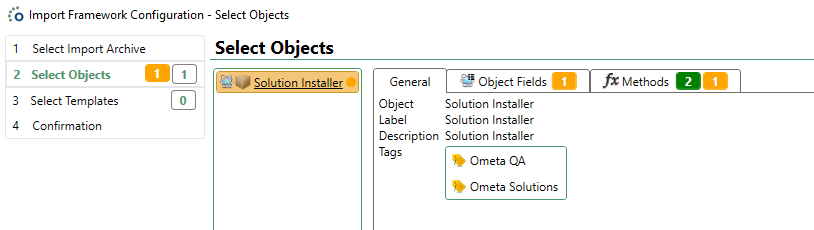
As a result, a new object named Solution Installer will be available in the GUI.

Install Solution Management
The Ometa.Solutions.SolutionManagement.Installer.vX.zip contains the Solution Management Dashboard, all masterdata objects and custom building blocks that are shared over solutions and modules.
You can perform the steps in the Install A Solution Or Module section to install this package, using Solution Management as the solution name during installation.
Take into account that every installation of Solution Management will (re)set all Solution Management Dashboard pages to the default configuration.
If you had already installed solutions or modules that deploy their own pages to the Solution Management Dashboard, you will have to re-install them too so you do not get the message This solution is not installed on your environment.
Check Redirect Uri's
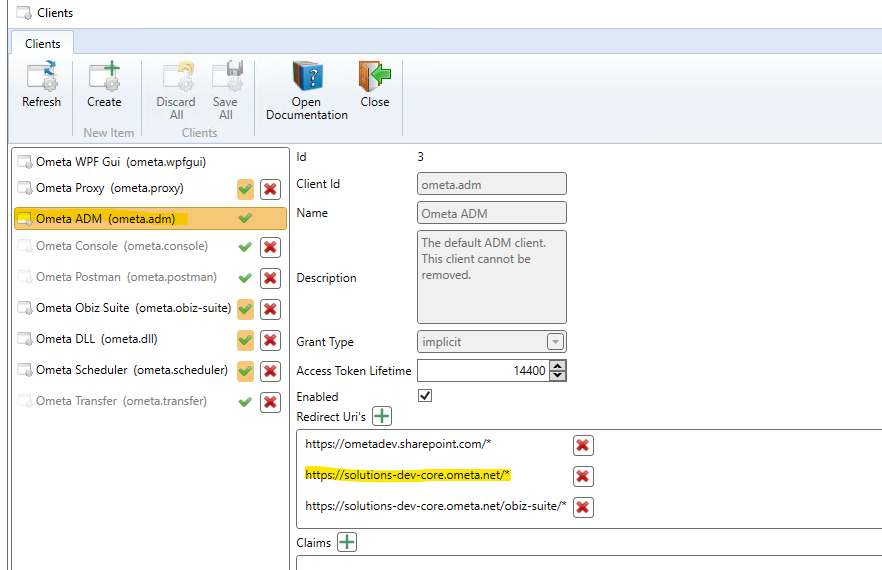
Also make sure you add https://yourometacoreurl/* as Redirect Uri for the Ometa ADM client in Security > Clients settings in the GUI.
Ensure Dashboard Memberships
To access the Solution Management Dashboard case, you will need a membership for the Lifecycle Solution Management Dashboard with the role Administrator.
You can add this when opening the Nexus and navigating to the Case Management Dashboard > Permissions.
Install A Solution Or Module
To install a solution or module, you can follow the steps below.
Unzip the installer package, e.g. Ometa.Solutions.SolutionsManagement.Installer.v1.0.zip
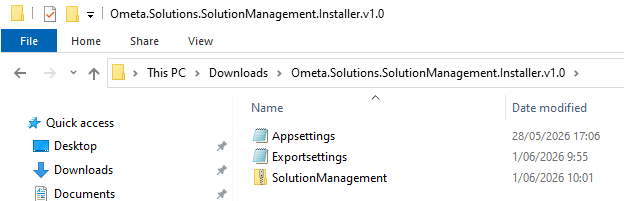
Copy the contents of the zip file to the Solutions folder of the Ometa framework
Usually this is located at C:\Program Files (x86)\Ometa BVBA\Ometa Software Suite\TopDir\Solutions
If it does not exist yet please create itAlso create a subfolder for the solution you are installing with the same name as found in the installer zip file (no spaces), e.g. SolutionManagement when the installer zip name is Ometa.Solutions.SolutionManagement.Installer.vX.zip
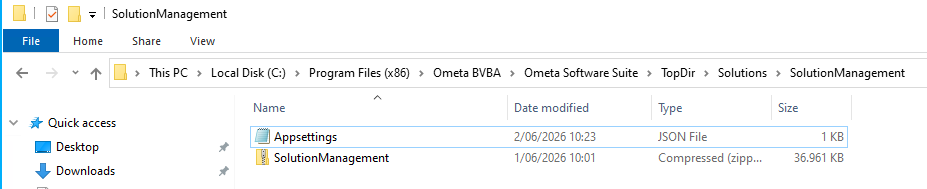
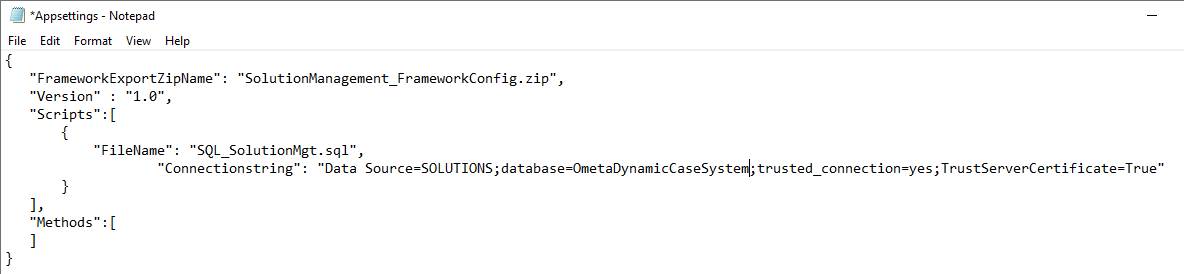
Update the appsettings.json with your information
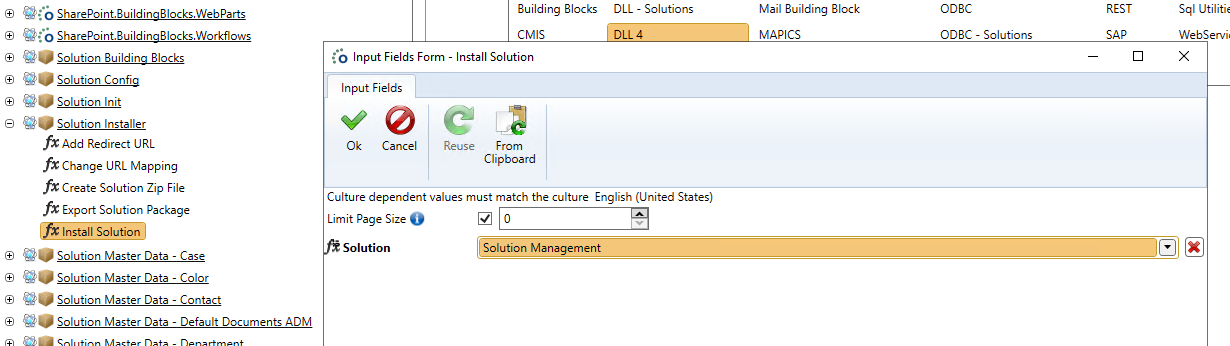
Run the method Install Solution in the GUI and choose your solution name
The installation process will:
- Copy solution-specific files to the correct location within the Ometa framework installation folder
- Add solution-specific database structure to the Ometa Framework database
- Import solution-specific framework content into the Ometa framework
- Generate solution-specific dashboards (when implemented)
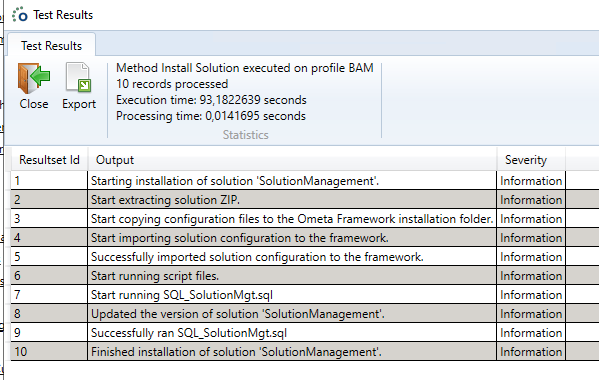
The results of the installer method will show you every step it has performed and if it was succesfull or not.
If errors occured along the way, you will also find the error details to help you troubleshoot.
The tranfer API, which is used during the automatic install, does not remove any configuration.
If there is deprecated framework configuration between versions, it is needed to run an import on the framework manually to ensure the latest version.
If a solution or module already existed on your environment before installation, we ask you to do the manual framework configuration import after you ran the installer method.
The _FrameworkConfig.zip can be found in the temp subfolder of the Solutions folder, e.g. C:\Program Files (x86)\Ometa BVBA\Ometa Software Suite\TopDir\Solutions\DocumentApproval\temp\DocumentApproval_FrameworkConfig.zip.
Check Your Profiles
Check if the values in the profiles are correct and fully updated.
The most used profiles in solutions or modules are:
Database
- DCS ODBC
If the field Regular Expression To Replace In Error is not filled you may enter the value:
text ERROR \[42000\] \[Microsoft\]\[ODBC SQL Server Driver\]\[SQL Server\]
- Documents ADM REST
- Documents ADM SharePoint
- REST - Graph - On Behalf Of
- REST - Graph Beta - On Behalf Of
- Mail Building Block or Graph API - Mail Building Block
- SharePoint Building Blocks
- SharePoint Building Blocks - On Behalf Of