Adding Document Approval to a Lifecycle
The following configuration needs to be done in case management to setup the document approval flow for your lifecycle.
Create the Document Approval Pages State Action on Your Lifecycle
Document approval uses several SharePoint pages to start the approval, view the approval log, etc. The grouped action we created earlier needs to be added to the state of a lifecycle. This is the lifecycle which will use the document approval on its site.
When working with a lot of sites using the document approval it's best to create a global (approval) lifecycle and ensure the document approval pages there.
Open the Case Management tab of the Business Connector.
Select your lifecycle.
Go to Flow Designer.
Right-click on the state responsible for the creation of the site and click Open Details.
Add the Document Approval Pages grouped action to this state. Make sure the action is set to refresh.
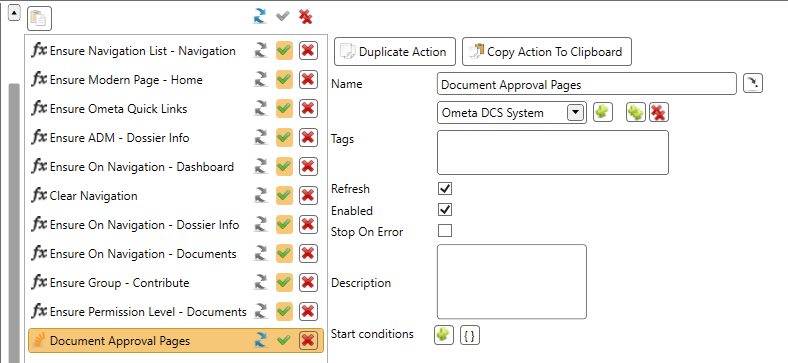
Refresh the case(s) of this lifecycle.
Configure the Document Libraries
To work with approval the document libraries need a couple of fields. Those fields can be ensured on a library with a generic building block. The following fields will be added:
- Document Type (internal name: Document_x0020_Type): choice field to specify the type of the document, can be set to multi value.
- Document Tag (internal name: Document_x0020_Tag): a text field to set the tag of the document.
- Year (internal name: Year): the year of the document.
- Approval Status (internal name: ApprovalStatus): the status of the document approval for the document, this field has custom styling with a button to start the approval and a link to the approval log page. An approval button in the ribbon can be optionally added.
- Approval Log (internal name: ApprovalLog): a multi line text field with the log entries of the approval, only visible in the display form of an item.
- Approval Date (internal name: ApprovalDate): a date time field which shows when the document was approved or rejected, only visible in the display form of an item.
The default views of the library will have the Document Type, Document Tag, Year and Approval Status fields added.
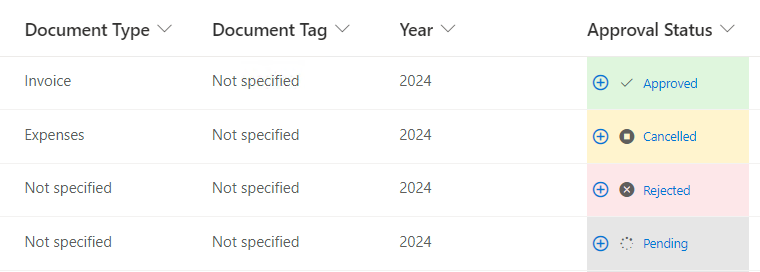
Take the following steps to configure those fields on the document libraries:
- Open the Case Management tab of the Business Connector.
- Click on Methods in the ribbon.
- Make sure a DCS method is added for the method Ensure Generic Library of object DocumentApproval.Site.
- Close the methods window.
- Add this action to every document library where document approval will be used. For more information about this method, refer to the the descriptions in the object.
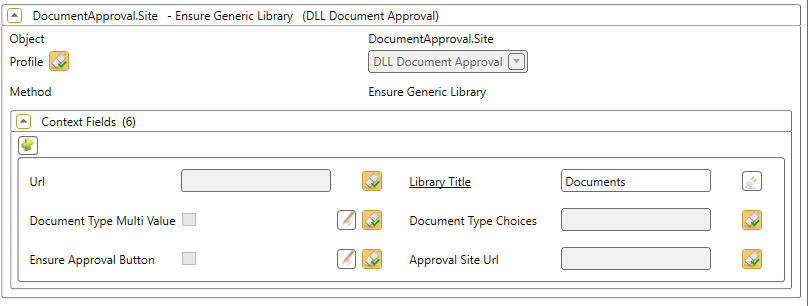
- Refresh the case(s) with the updated library actions.
When using a global (approval) site for the approval pages, make sure the Approval Site Url is set with this site's URL. The parameter RetrieveCaseWithUrl will be passed as true indicating the source case will be retrieved using the URL of the site of the document library.