Installation
Import Installer and Solution Management
Follow the instructions of the general Installation page to set up the base configuration needed for solutions.
Install The Solution
You can follow the instructions of Install A Solution Or Module to install the solution.
The solution name to choose when running the Install Solution method will be Alert Management.
Validate appsettings-file
File Appsettings.json contains all configuration variables that are used during the installation of the solution.
Variables that require validation are shown in following table.
| Variable | Description | Value |
|---|---|---|
| FrameworkExportZipName | The name of the ZIP file which is imported into the Ometa Framework | AlertManagementFramework.zip |
| Scripts | Contains an overview of SQL or PowerShell script names that are executed during installation. | |
| Connectionstring | The connectionstring to the SQL instance in which the solution database exists, having the solution database as default . | |
| CoreUrl | The value of the Core Service Url, used in the custom files that make up the solution. | The Core Service Url of the Ometa installation. |
As this is a JSON-file, special characters must be escaped. A backslash ('\') is escaped as '\'.
Post-Installation Actions
Add Security
Alert Management is set up as a dashboard outside of SharePoint, which allows all company users to access it. To provide security to a certain group of users, an Ometa Case needs to be created.
First, change the URL Mapping of the 'Alert Management' Dashboard lifecycle, to the location of the solution.
You can find it via Core Service Url\AlertManagement.
Make sure you're using the full path to the Alert Management folder in the Core Service URL. This can be different to other cases where the relative path is determined by the case.

Use method 'Create Dashboard Case' within object 'EventManagement.Dashboard' to create a case for this solution.
This method contains an optional Plant field, which can be used to create multiple dashboards, each operating independantly from each other. Do not forget to change the Site Relative Url to your needs, in the Case Management tab.
Via the Case Management Dashboard, users can now be added to one of the following rules, to be able to use the solution:
| Role | Description |
|---|---|
| Alert Management - Administrator | Grants the user full access to the entire solution, including the 'Master Data' section |
| Alert Management - User | Grants the user access to sections 'Alerts, 'Templates' and 'History'. |
Ometa Framework Administrators always bypass security, and will therefore always be able to use the entire solution.
Add Redirect Uri
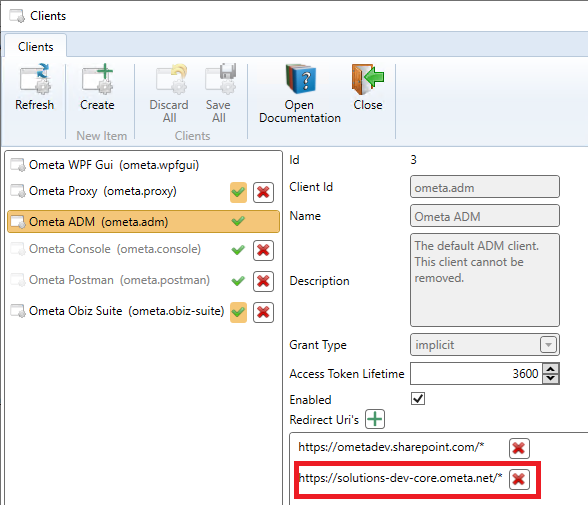
Finally, add the Core Service Url (example: https://your-core-service.example.com/*) as a Redirect Uri to the Ometa ADM client (Application Button > Security > Clients), so that the user can logon to the solution.