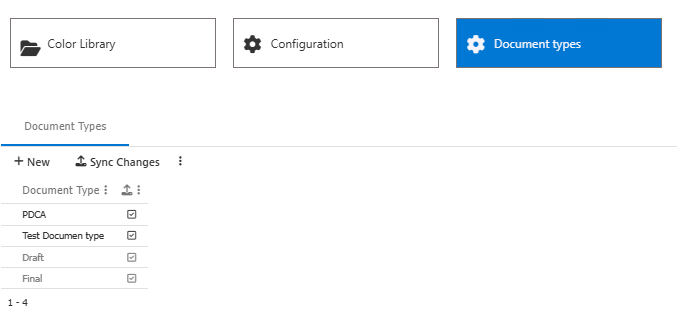
Masterdata
In order to define colors, statuses, priorities & more, there's a Masterdata section present in the PDCA solution.
Only framework administrators or users with the role Owner or IT can manage master data.
Masterdata is dived in three sections:
Color Library
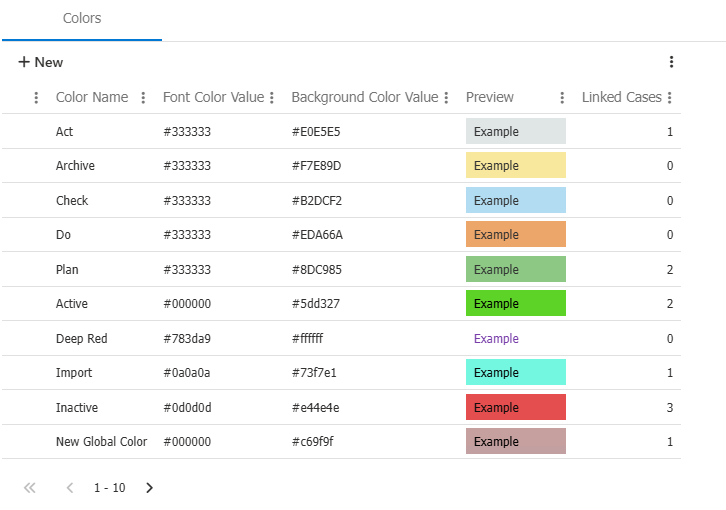
Colors defined in the color library can be used in a lot of places in the PDCA solution (see Color Configuration). It is advisable to name your colors in a meaningful way, not using the same name twice.
Deleting a color will remove that color styling everywhere in the solution! Please make sure that you don't delete a color that is still being used.
Color Library Overview
- Fields
- Example
| Field | Required | Description |
|---|---|---|
| Color name | ✔️ | Name of the color |
| Font Color Value | ✔️ | The text color for items using this color |
| Background Color Value | ✔️ | The background color for items using this color |
| Preview | A preview of what your color will look like when used | |
| Linked Cases | Indicates for how many cases this color is used somewhere |
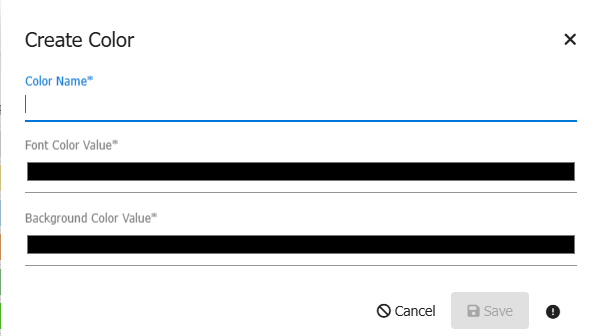
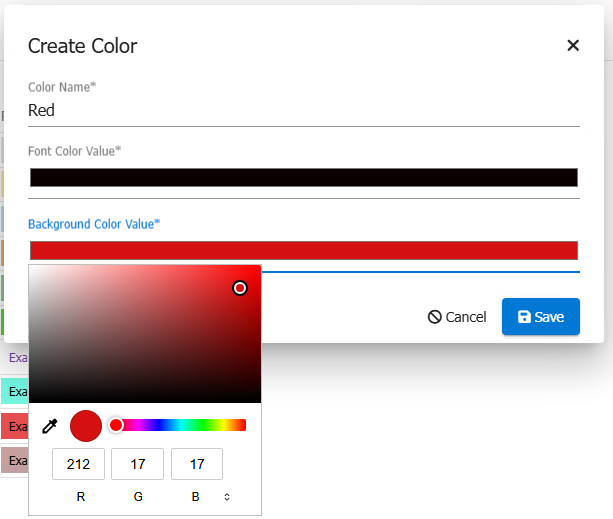
Color Creation
- Fields
- Example
- Color Picker
| Field | Required | Description |
|---|---|---|
| Color name | ✔️ | Name of the color |
| Font Color Value | ✔️ | The text color for items using this color |
| Background Color Value | ✔️ | The background color for items using this color |
Color Configuration
Color Configuration Overview
The colors you created in the color library can be applied to certain functionalities in the PDCA solution. This is done through the Color Configuration. With this tool you can manage colors and naming of:
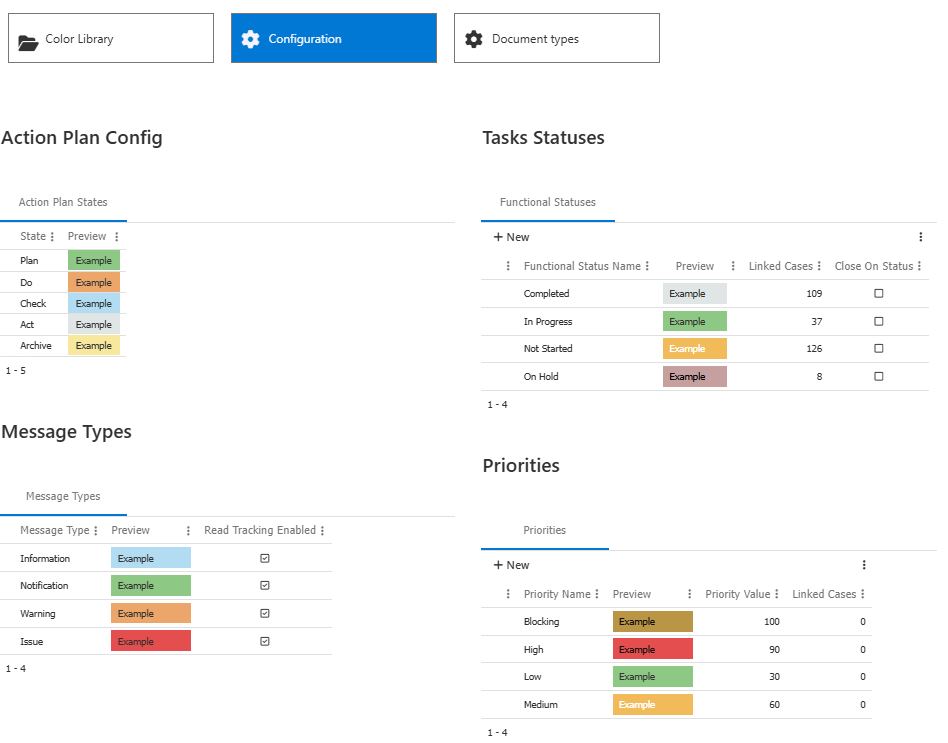
NOTE: You can also create new colors through the 'New' and 'Edit' forms in this tool, without switching back to the color library. However, we recommend creating your colors from the color library as a best practice.
Action Plan States
Specifically for Action Plan States, only the color can be edited. This means a state cannot be renamed or deleted, nor can a new state be created. We have five states available in our solution:
- Do
- Plan
- Check
- Act
- Archived
- Fields
- Example
| Field | Description |
|---|---|
| Color Name | Name of the state (the color is previewed on the name field) |
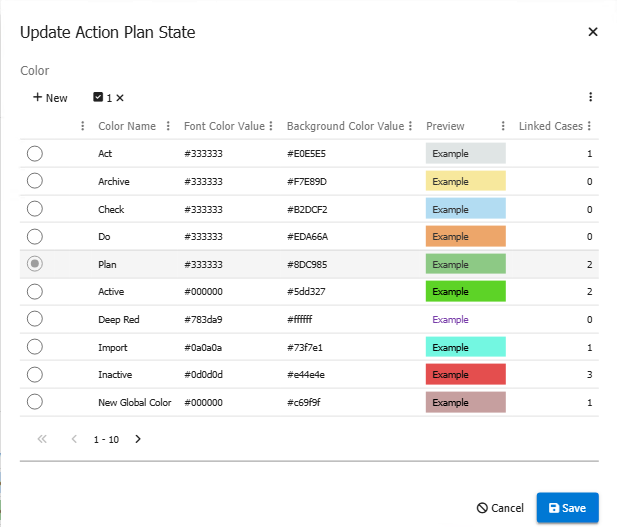
We provide specific colors for Plan, Do, Check, Act, and Archived by default, but these can be renamed or replaced according to personal preference.
Task Status
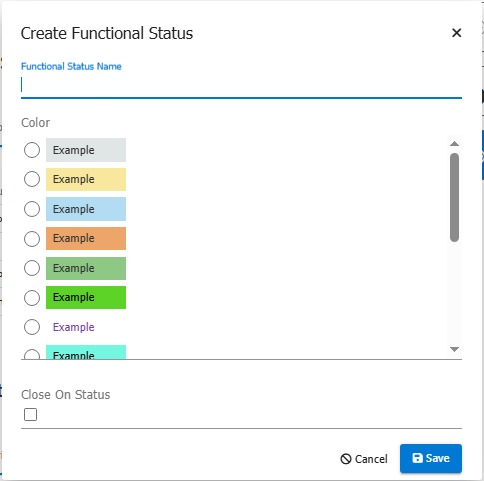
We use the Task Status to determmine the current state of a task:
- Not Started
- In progress
- Completed
- On Hold
- Fields
- Example
| Field | Required | Description |
|---|---|---|
| Functional Status Name | ✔️ | Name of the status |
| Preview | A preview of what your color will look like when used | |
| Linked Cases | Indicates how many cases are already using this color | |
| Close on Status | Indicates if a task should be closed when in this state |
Message Types
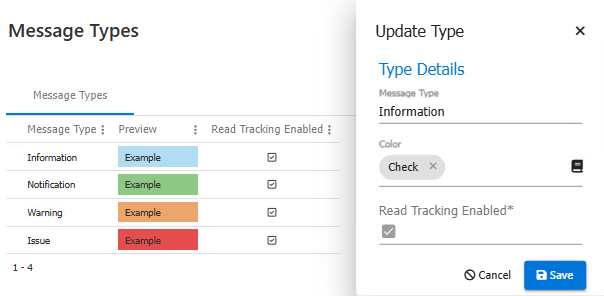
Messages types can only be editted. No new types can be created, nor can you deleted an existing type. There are four Message Types available:
- Fields
- Example
| Field | Required | Description |
|---|---|---|
| Message Type | ✔️ | Name of the Message Type |
| Preview | A preview of what your color will look like when used | |
| Read Tracking Enabled | When this checkbox is checked, the system will track read/unread messages of this type. |
Priorities
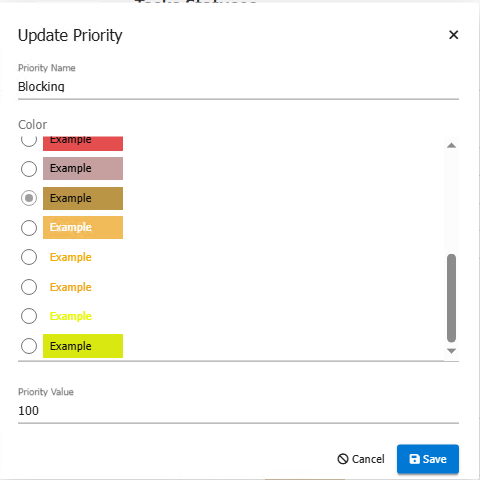
Priorities give a clearer view of the importance of an item. This helps you to determine the urgency. There are some predefined priorities ready to use. However, if needed, a priority can be created, edited, or deleted.
- Fields
- Example
| Field | Required | Description |
|---|---|---|
| Priority Name | ✔️ | Name of the Priority |
| Preview | A preview of what your color will look like when used | |
| Priority Value | This value will help sorting in views. A higher value will put an item with this priority higher up. | |
| Linked Cases | Indicates how many cases are already using this color |
Document Types
Document Types give structure to your document library. The PDCA solutions gives you the freedom to create your own document type labels like e.g. contract, quote, meeting review, .... These document types can then be linked with your Evidence library and used for sorting / grouping
Document Types
- Fields
- Example
| Field | Required | Description |
|---|---|---|
| Document Type | ✔️ | Document Type Name |
| Deployed | Indicates if this type is currently being used |