PDCA Dashboard
PDCA Home
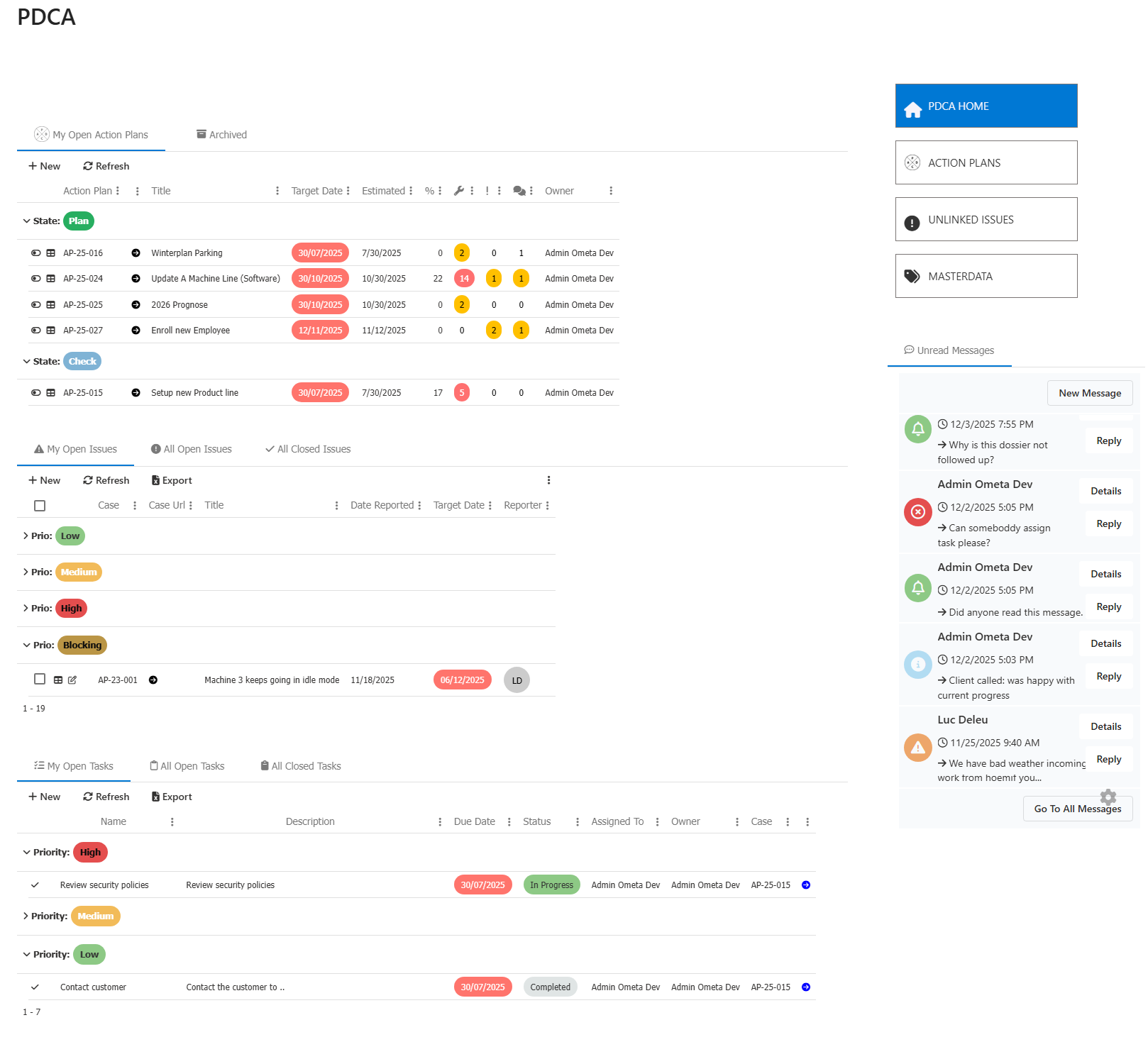
On the home page for the PDCA dashboard there are four overviews available:
- My Open Action Plans
- My Open Issues
- My Open Tasks
- Unread Messages
- The first overview "My open action plans" shows all the action plans linked to the currently logged in user.
- Next, we have "My Issues" which displays all issues created by the current user across all action plans.
- Below that we have "My Open Task" that displays all open tasks created by the current user for all the action plans.
- On the right, we have "Unread Messages" created by the current user across all action plans.
You can also navigate to other pages:
- Action Plans - This page will give you an overview of all action plans with their respective Issues, Task, Messages & Charts
- Unlinked issues - This page will give you an overview of all issues that are not linked to any case yet
Action Plans
This page can be accessed from the "ACTION PLANS" tab in the menu. Here you will find the All Open Action Plan with their respective Issues, Task, Messages & Charts.
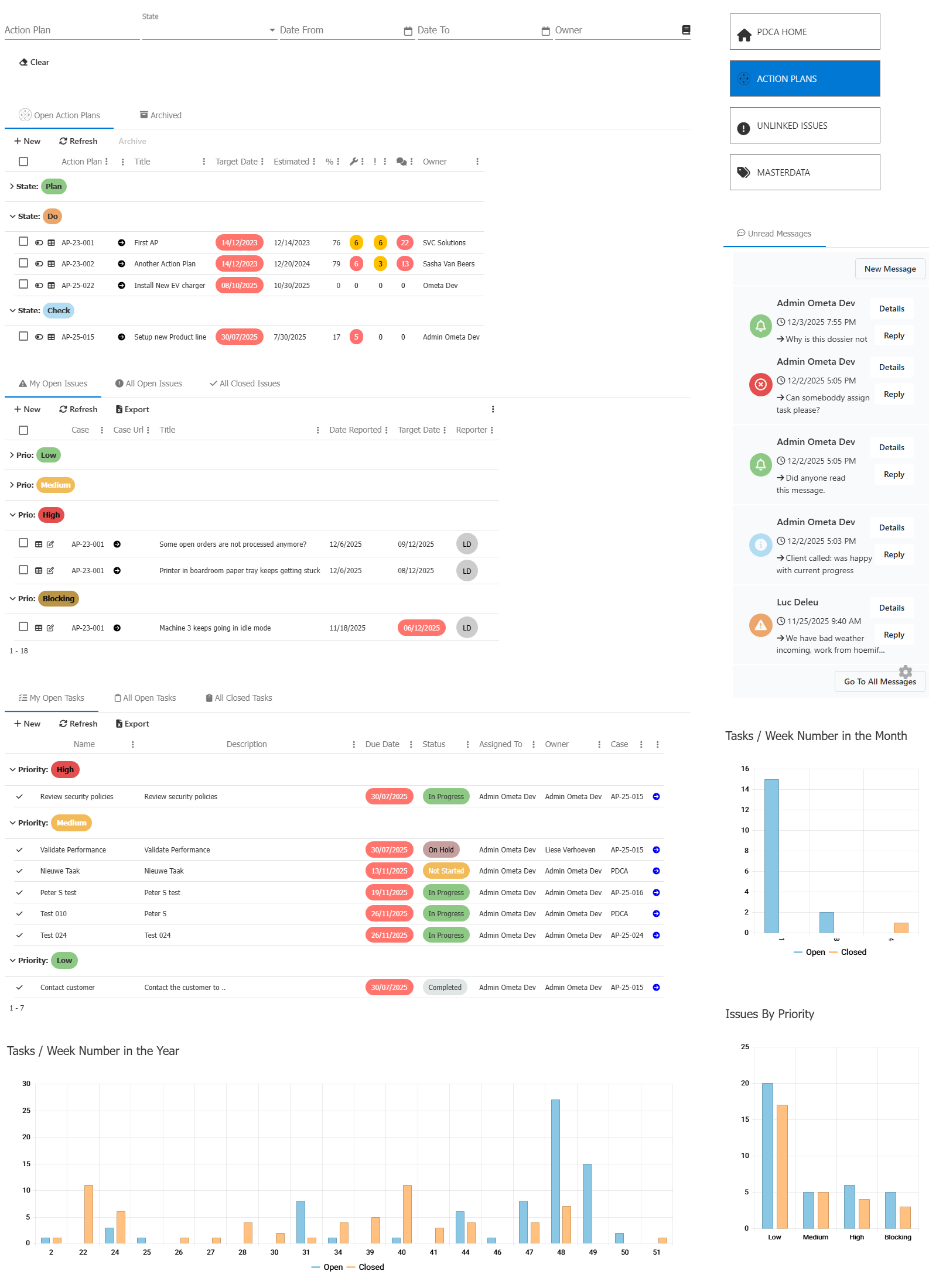
Filter
The filter on top of the page can be used to narrow down the overviews.
- Fields
- Example
| Fields | Details |
|---|---|
| Action Plan | The name of the action plan to be searched will be entered |
| State | It represents a list from which the state can be selected for filtering |
| Date From | It represents the date from which to start filtering on the values from Target Date |
| Date To | It represents the date from which to end the filtering on the values from Target Date |
| Owner | It represents the name of the Owner who created the action plan according to which the filtering is to be done |

When using the search functionality, it will only perform a search in the action plan overviews.
Action Plan Overview
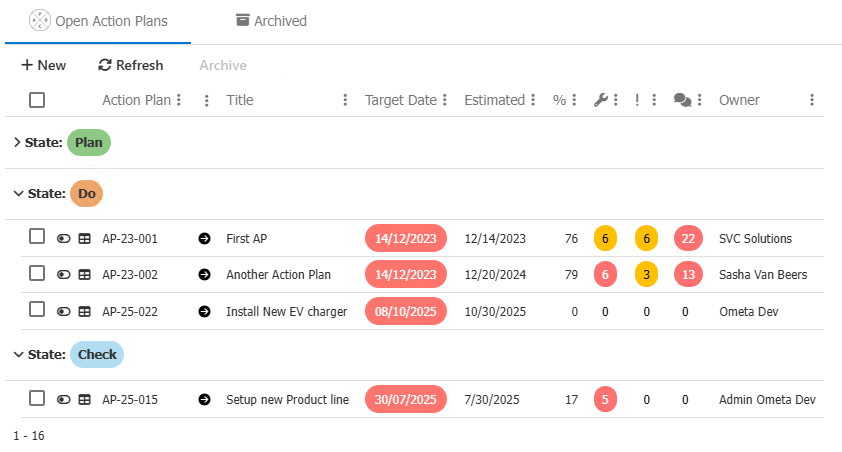
All Open Action Plans are presented in this overview.
When the context setter in front of an Action Plan is toggled, all Issue, Message & Task views will be refreshed, setting those views in context of the toggled Action plan
- Fields
- Example
| Fields | Details |
|---|---|
| State | Represents the State of the action plan |
| Action Plan | The name of the action plan. |
| Title | It represents the title of the action plan |
| Target Date | The date on which the action plan is to be completed |
| Estimated | Estimated date for the completion of the action plan. The value will be colored red if it is overdue |
| '%' | The percentage of close tasks and the total number of tasks |
| Wrench | It represents the number of open tasks for this case. The background of this counter changes color depending how many of the open tasks are past their Target Date |
| Exclamation Mark | It represents the total number of open issues on an action plan. The background of this counter changes color depending how many of the open issues are past their Target Date |
| Messages | It represents the total number of open messages on an action plan. The background of this counter changes color depending how many of the messages are unread |
| Owner | Represents the owner of the action plan |
Action Plan Details
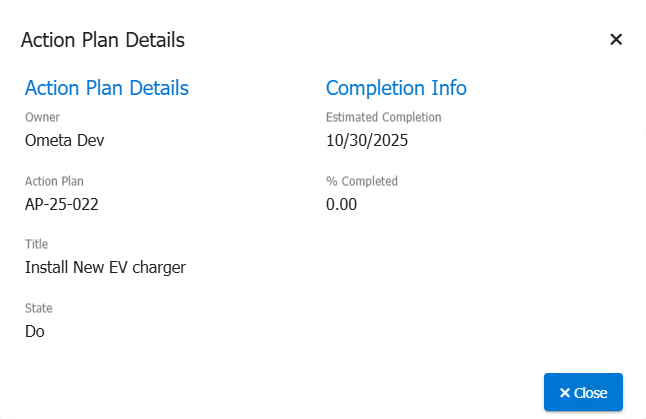
In the overview below, the details of the selected action plan are presented.
- Fields
- Example
| Fields | Details |
|---|---|
| Date Verified | The date the action plan was checked |
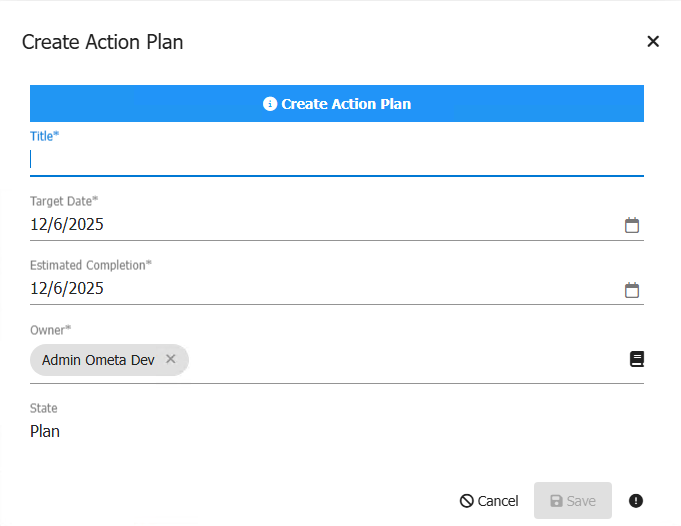
Create Action Plan
In this form, data is entered about the action plan for its creation.
- Fields
- Example
| Fields | Required | Details |
|---|---|---|
| Title | ✔️ | The title for the action plan. Text |
| Target Date | ✔️ | Date |
| Estimated Completion | ✔️ | Date |
| Owner | ✔️ | It will automatically fill in the current user. It can be replaced with another user |
| State | The default value is "Plan" and cannot be changed |
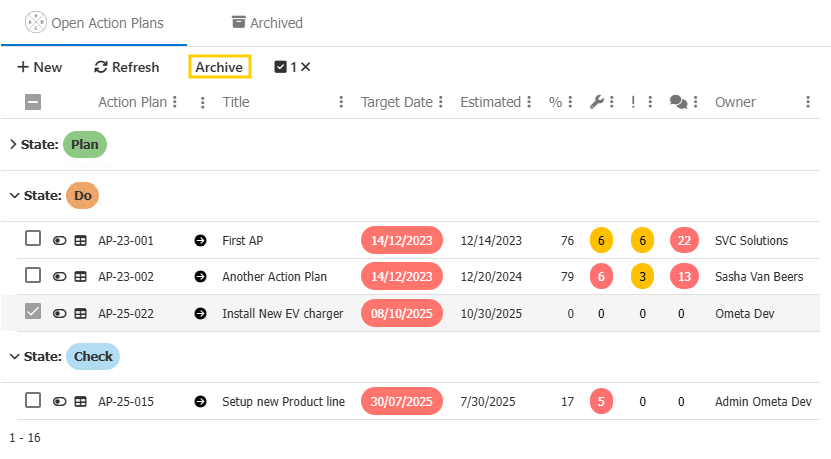
Archive function
This function changes the State of the action plan chosen to Archived.
Overviews
Available items on the page:
Archived overview
The Archived overview is opened from the overview on the Open Action Plan overview:
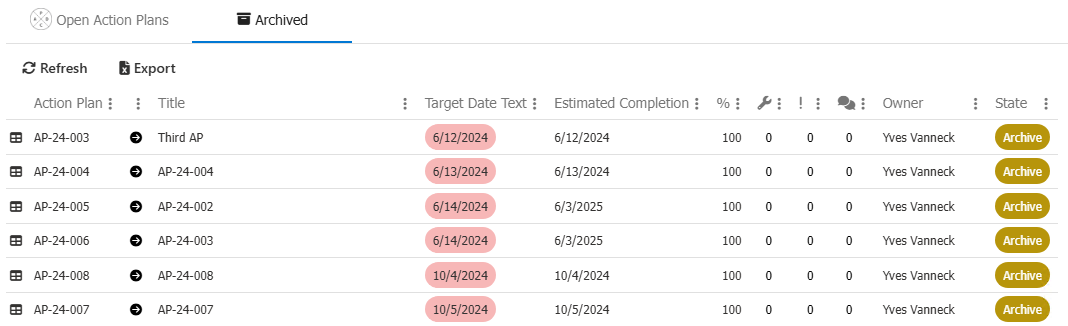
Here you can only find records with the State "Archive".
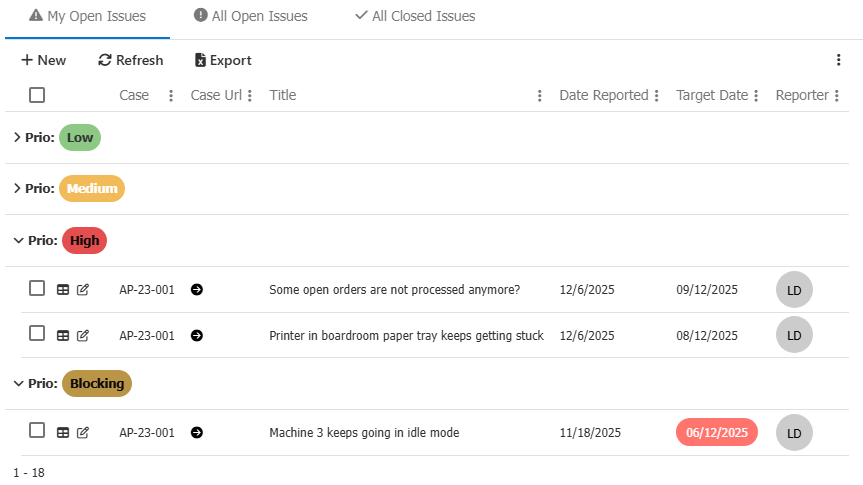
Issues overview
This overview shows all the Issues from all the Action Plans. A link to the corresponding Action Plan is provided per issue.
(more documentation about Issues can be found in the module's documentation)
Tasks overview
This overview shows all the Tasks from all the Action Plans. A link to the corresponding Action Plan is provided per Task.
(more documentation about Tasks can be found in the module's documentation)
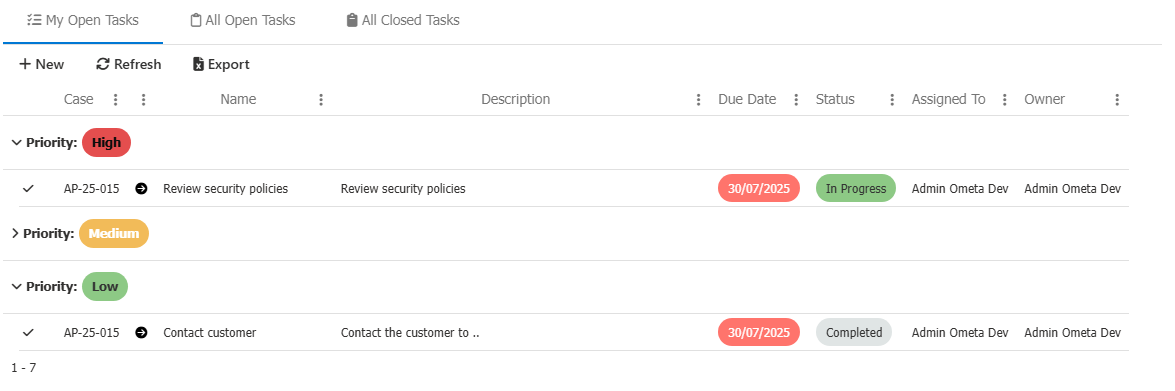
The overview is provided with 3 tabs (All Open tasks, My Open Tasks, All Closed Tasks) where all the tasks from all the Action Plans.
Unread Messages
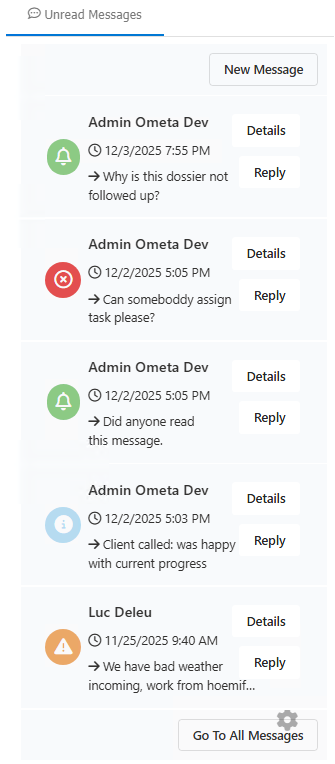
On the right side, below the menu, we have the last 5 unread unread messages across all action plans.
(more documentation about Messages can be found in the module's documentation)
Charts
Available charts on the page:
Issue Chart:
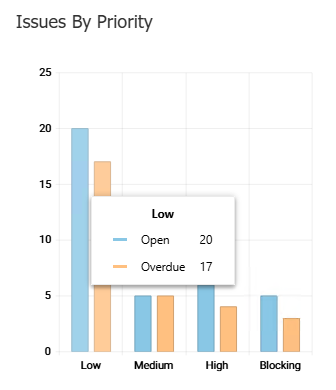
This chart represents all the issues from all the action plans ordered by priority. If you hover over each bar, the number of open issues and the number of overdue issues for a certain priority will appear.
Tasks for the current month Chart
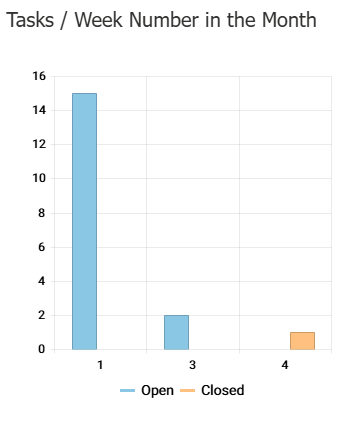
This Tasks chart represents the open and closed tasks for the last month.
Tasks for the current month Year
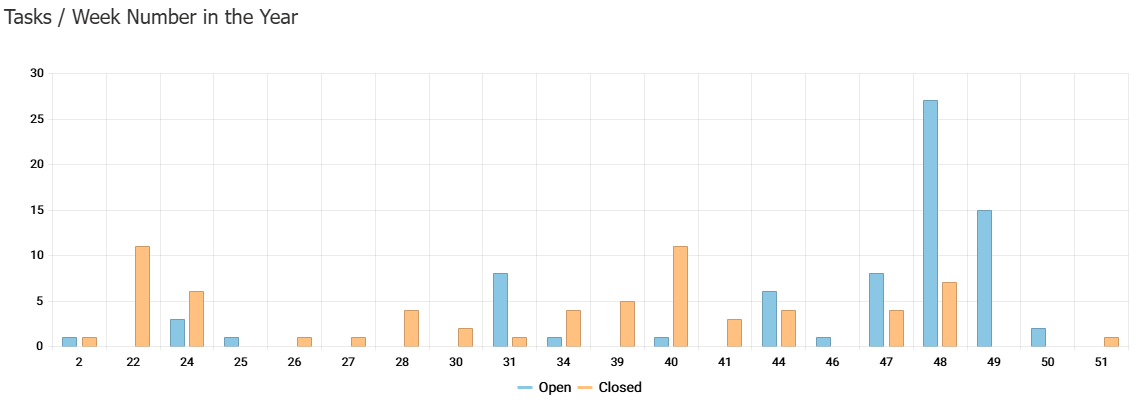
This Tasks chart represents the open and closed tasks divided by week for the last year.