Functionality
In the task module, various functionality is available.
Create a Task
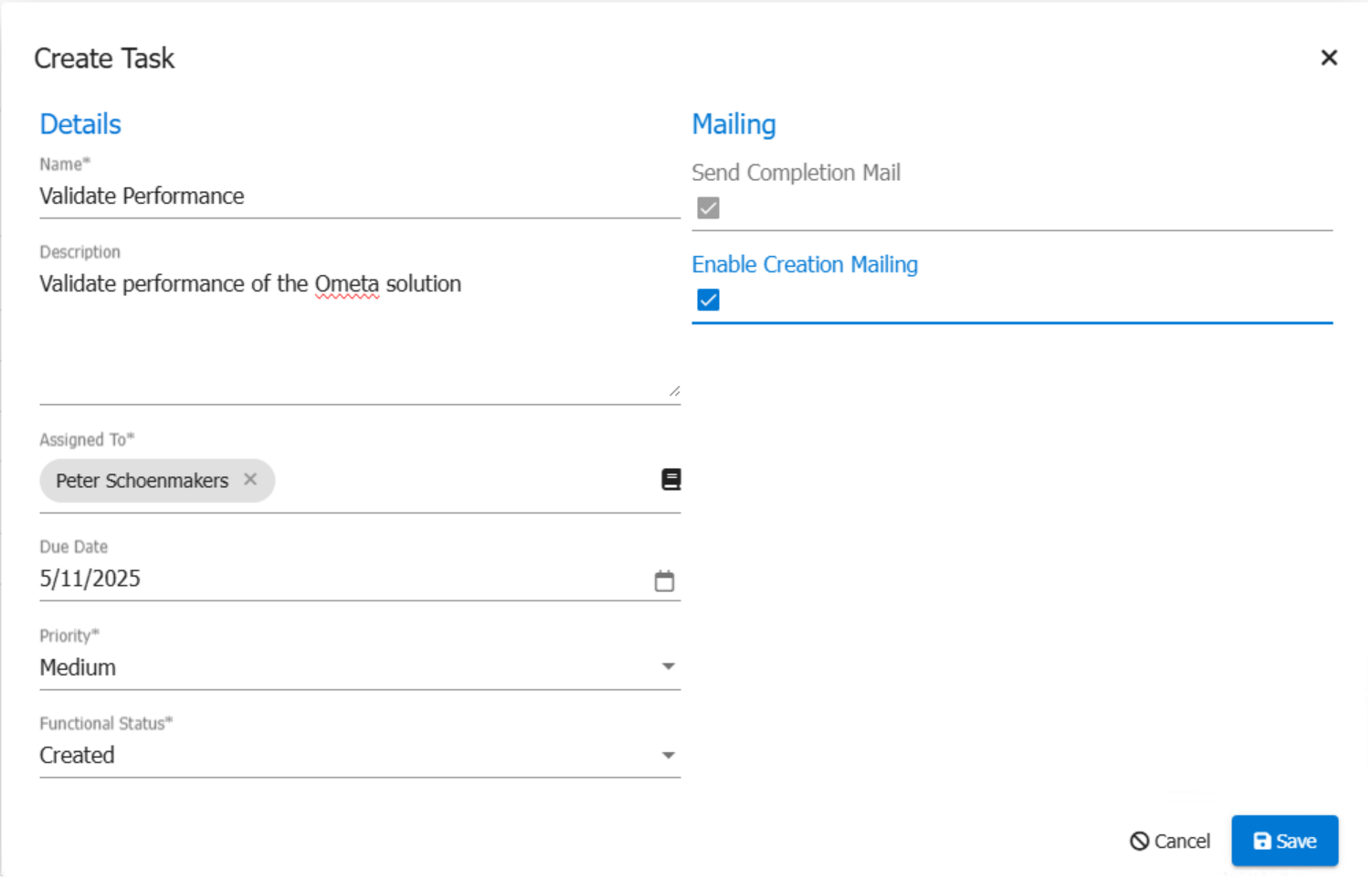
A new task is automatically linked to the current case. The following fields can be configured during task creation:
- Fields
- Example
| Field | Required | Description |
|---|---|---|
| Name | ✔️ | A name for the new task. |
| Description | Optional description. | |
| Send Completion Mail | Indicates whether a mail should be sent when the task is completed. | |
| Assigned To | ✔️ | The user or role to assign the task to. |
| Functional Status | ✔️ | Contains the functional status of the task. These can be managed on the Task Dashboard |
| Priority | ✔️ | Contains the priority of the task. These can be managed on the Task Dashboard |
| Due Date | ✔️ | Contains the due date of the task. |
| Enable Creation Mailing | Indicates whether a mail should be sent to notify the assignee when the task is created or reassigned. |
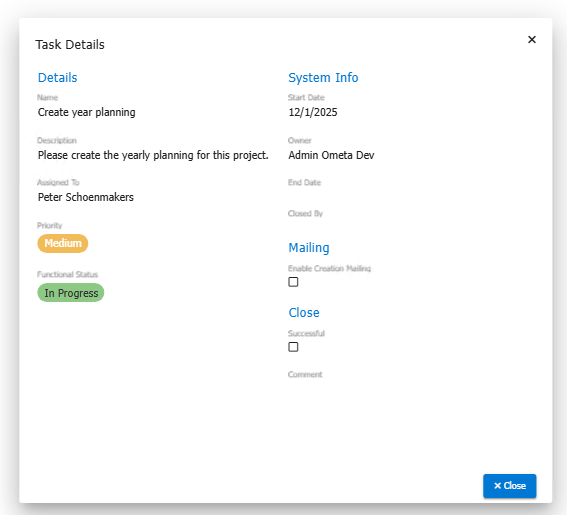
Task Details
This provides the details for a given task.
Update a Task
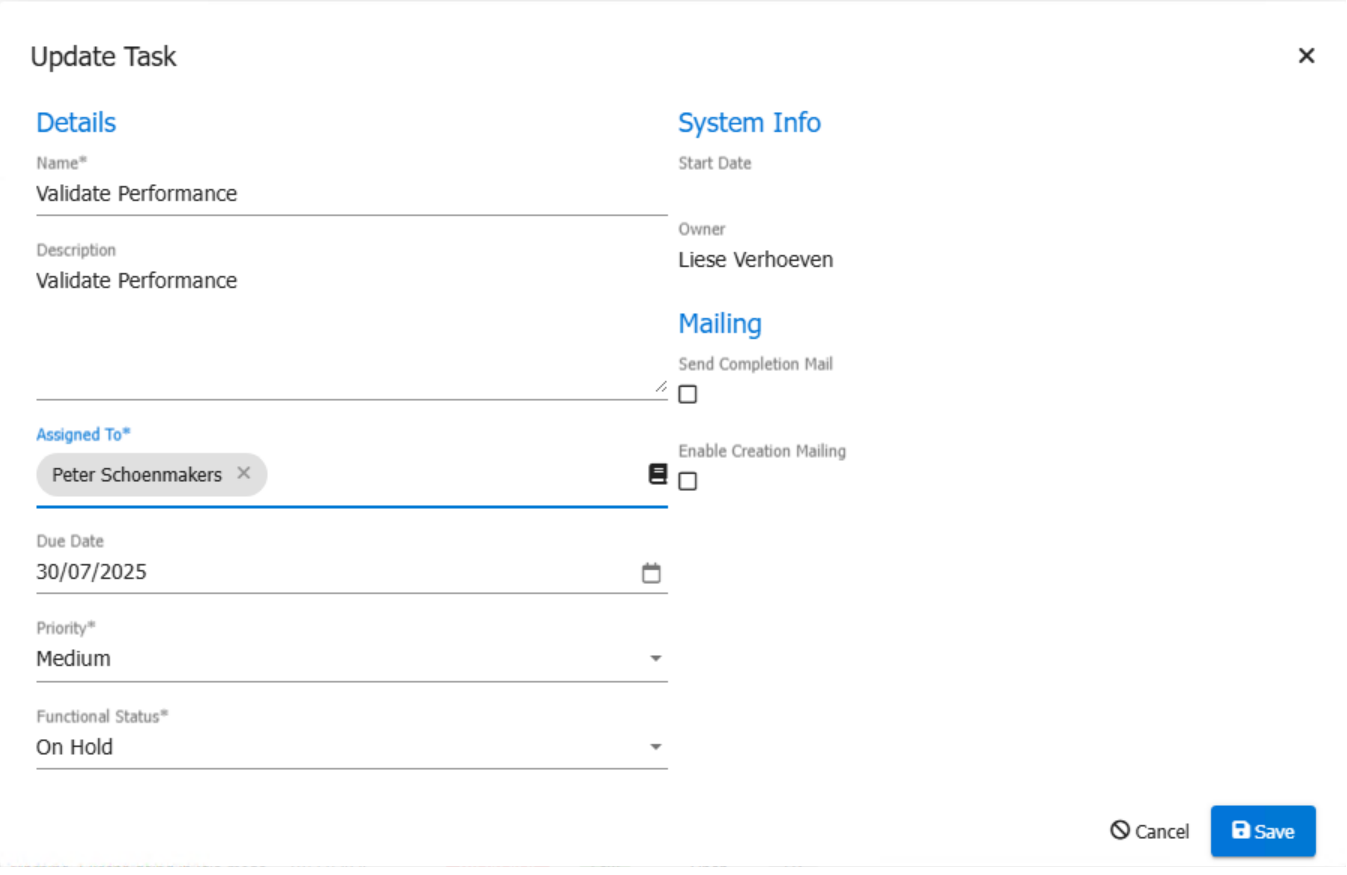
When the logged in user is either assignee or owner of a task, he/she can update following fields.
When the functional status changes and it is configured in the Task Dashboard, the task's priority and due date can be automatically updated.
- Fields
- Example
| Field | Required | Description |
|---|---|---|
| Name | ✔️ | A name for the task. |
| Description | Optional description. | |
| Assigned To | ✔️ | The user or role to assign the task to. |
| Functional Status | ✔️ | Contains the functional status of the task. These can be managed on the Task Dashboard |
| Priority | ✔️ | Contains the priority of the task. These can be managed on the Task Dashboard |
| Due Date | ✔️ | Contains the due date of the task. |
| Successful | Only visible when the selected functional status is set to close the task. Indicates whether the task was successful or not. | |
| Comment | Optional closure comments. |
Reassign a Task
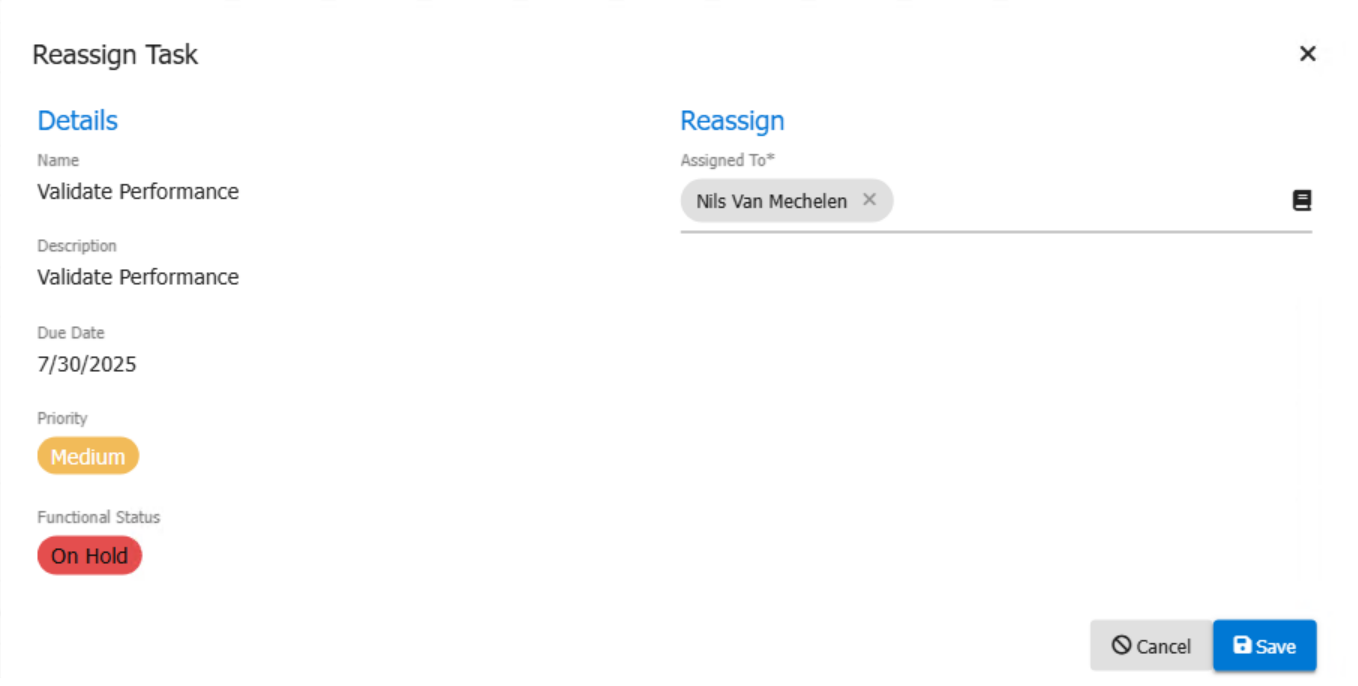
When the logged in user is either assignee or owner of a task, he/she can reassign the task to another user or role:
- Fields
- Example
| Field | Required | Description |
|---|---|---|
| Assigned To | ✔️ | The user or role to reassign the task to. |
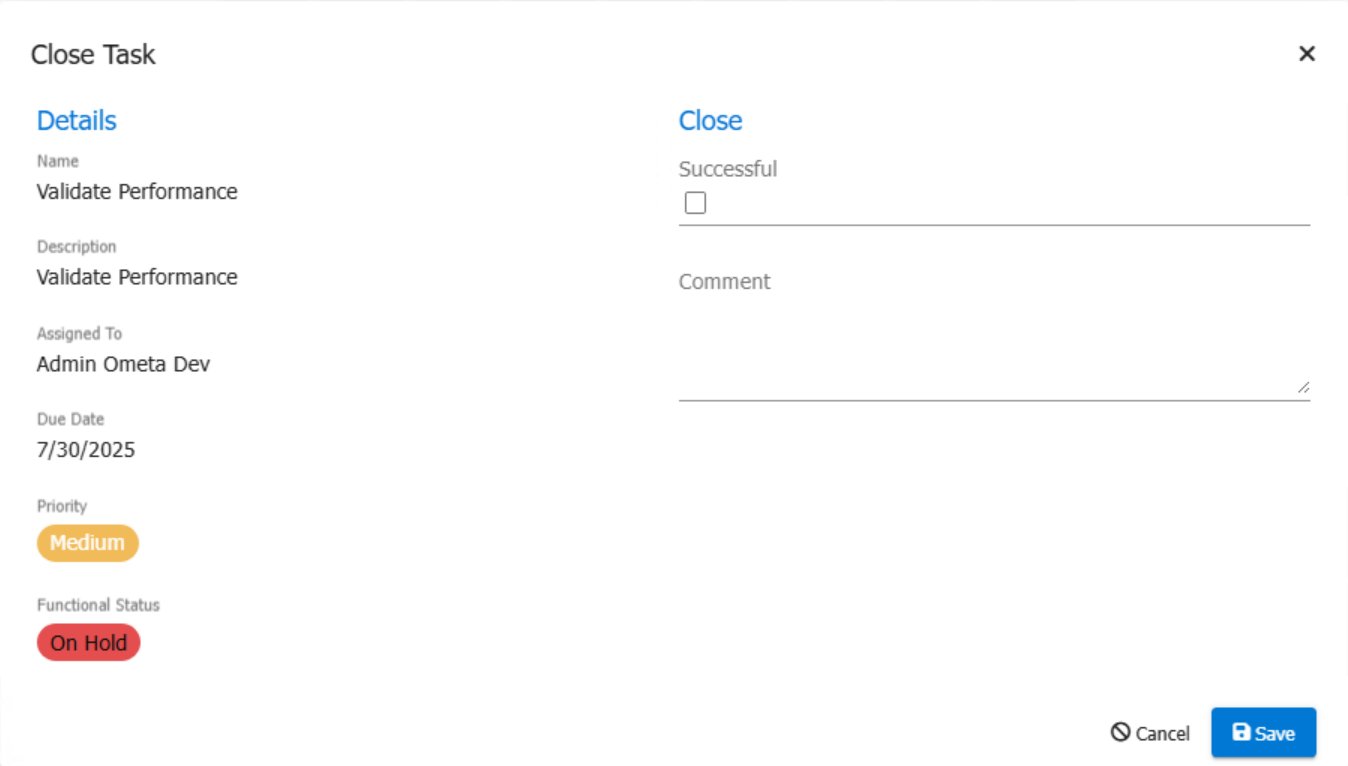
Close a Task
When the logged in user is either assignee or owner of a task, he/she can close a task:
- Fields
- Example
| Field | Required | Description |
|---|---|---|
| Successful | Indicates whether the task was successful or not. | |
| Comments | Optional closure comments. |
Copy a Task
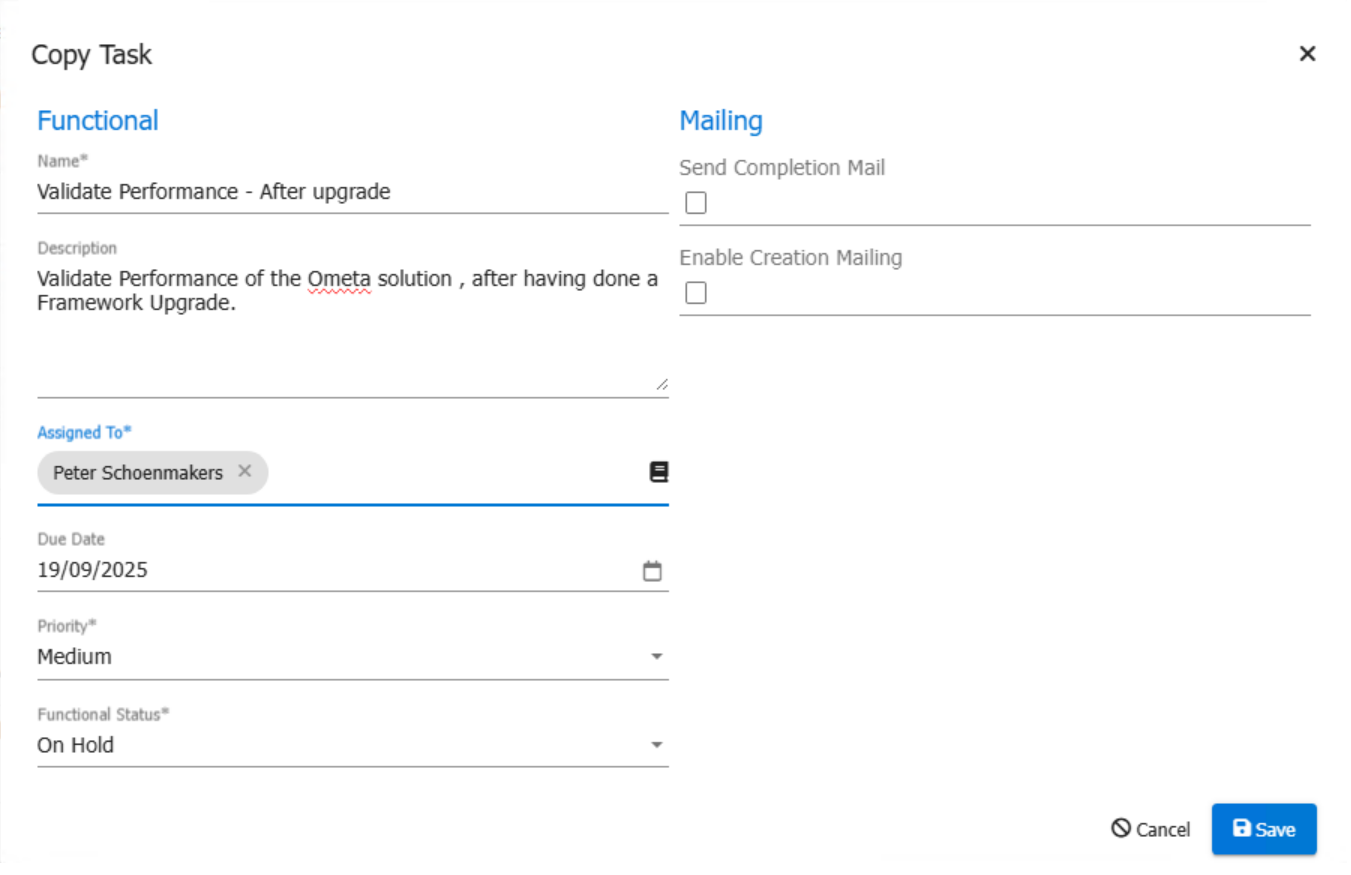
An existing task can easily be duplicated.
- Fields
- Example
| Field | Required | Description |
|---|---|---|
| Name | ✔️ | A name for the new task. |
| Description | Optional description. | |
| Send Completion Mail | Indicates whether a mail should be sent when the task is completed. | |
| Assigned To | ✔️ | The user or role to assign the task to. |
| Functional Status | ✔️ | Contains the functional status of the task. These can be managed on the Task Dashboard |
| Priority | ✔️ | Contains the priority of the task. These can be managed on the Task Dashboard |
| Due Date | ✔️ | Contains the due date of the task. |
| Enable Creation Mailing | Indicates whether a mail should be sent to notify the assignee when the task is created or reassigned. |
View history of a task
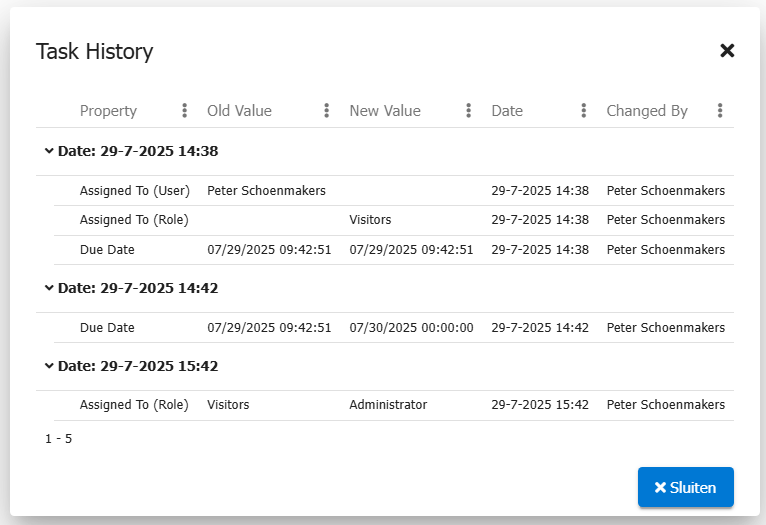
For any task, the history can be reviewed. In the history overview, all changed data can be reviewed. The data is grouped by change timestamp .
- Fields
- Example
| Field | Description |
|---|---|
| Property | Name of the changed property |
| Old Value | The value of the property before being changed. |
| New Value | The value of the property after being changed. |
| Date | Timestamp of the change. |
| Changed By | The user that changed the field. |
Archive a Task
Archiving a task removes the task from all dashboard and case task overviews. Archived tasks can be reviewed and unarchived by an administrator on the Task Dashboard.
In the All Open Dashboard Tasks-view, it is possible to archive multiple tasks at once if the logged in user has a role containing Owner or Administrator.
Unarchive a Task
Unarchiving a task removes the archived status from the task. The task will be shown again in dashboard and case task overviews.
Restart a Task
Restarting a task is only available in Closed Task overviews.
Restarting the task does nothing more than resetting its status back to Created and setting the Functional Status to In Progress.