Alerts
What Are Alerts ?
Alerts notify users when specific events occur. They start from a trigger which creates a certain amount of events based on the logic configured in that trigger. A user can then configure a set of rules on the trigger which will filter out events. Only events that match all rules will be taken into account. As a last step, actions can be configured that will be executed for each event that is left after filtering.
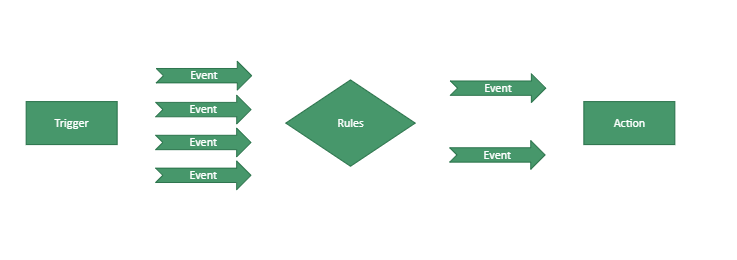
Click here for a simple example on how to configure an alert starting from a trigger and ending in a complete setup.
Configuring an Alert
Alerts can be managed in the 'Alerts' section within Alert Management. Whenever Information was added to the trigger that is linked to the alert, this information can be viewed via an item function.
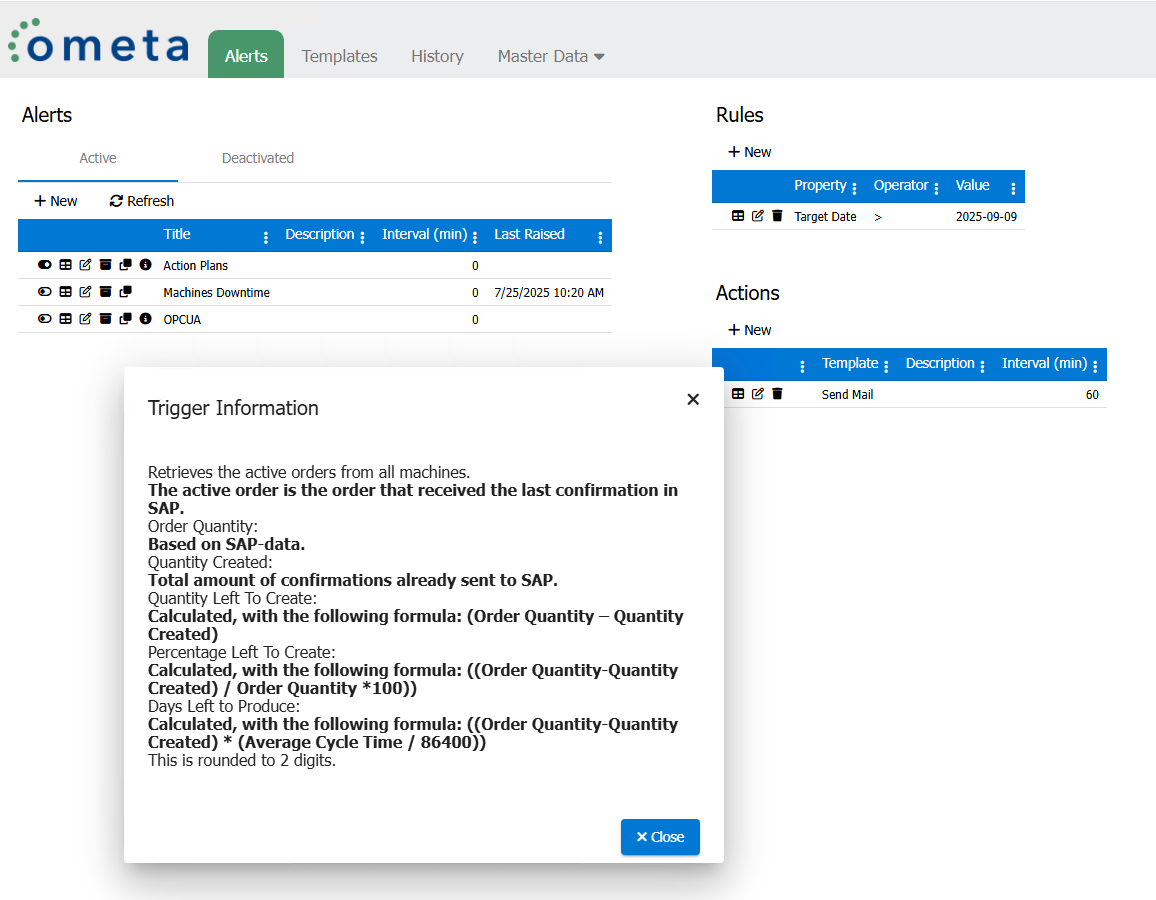
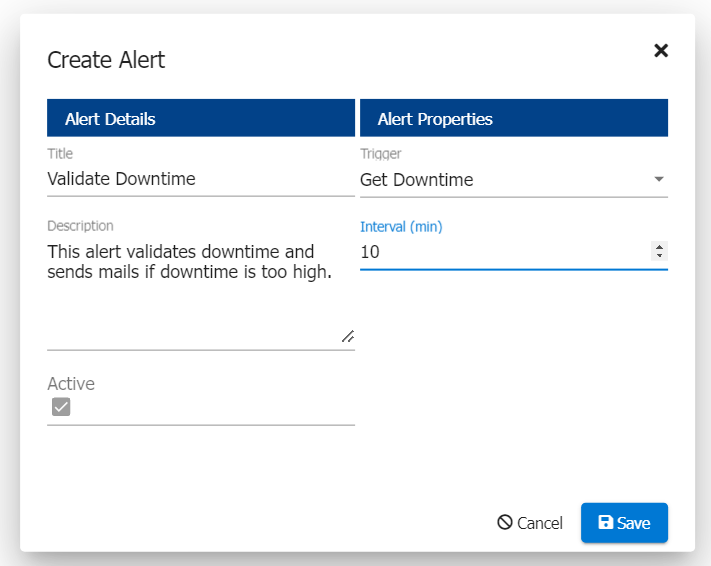
Creating a new alert starts by configuring a trigger that will generate certain events. A trigger needs a few values before it can be used. By default, each trigger is executed once per minute, but this can be configured by setting the Interval parameter on an alert.
- Fields
- Example
| Field | Required | Description |
|---|---|---|
| Title | ✔️ | A name for the new alert. |
| Description | Optional description. | |
| Active | Shows whether the alert is active or archived. Archived alerts won't be executed. | |
| Trigger | ✔️ | The trigger used as the basis for this alert. |
| Interval | ✔️ | How often the trigger has to be checked (in minutes). |
Rules
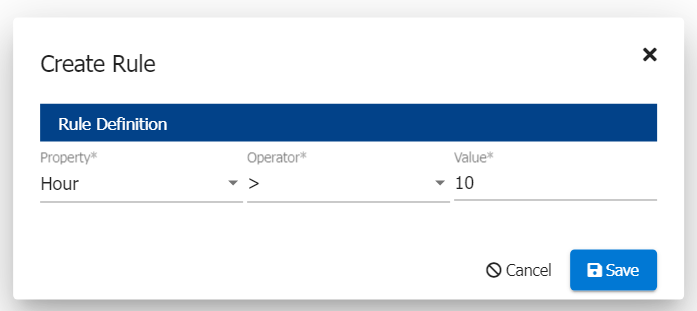
Each event created by a trigger contains a set of properties on which rules can be applied.
By applying rules, specific events can be filtered out if no alert should be raised. If more than one rule is configured, all rules need to be matched for an event to pass.
A rule can have the following fields, depending on the field type. Numerical or date-fields don't have textual operators and YesNo-fields are only supported using Equals and Not Equals.
- Fields
- Example
- Operators
| Field | Required | Description |
|---|---|---|
| Property | ✔️ | The property that is validated against the value. |
| Operator | ✔️ | A list of operators defining how property and value are checked. |
| Value | ✔️ | The value that is checked against the trigger output. |
| Operator | Description |
|---|---|
| = | Compares if a property is equal to a value. |
| != | Compares if a property is not equal to a value. |
| > | Compares if a property is greater than a value. Used for numbers or dates. |
| >= | Compares if a property is greater than or equal to a value. Used for numbers or dates. |
| < | Compares if a property is less than a value. Used for numbers or dates. |
| <= | Compares if a property is less than or equal to a value. Used for numbers or dates. |
| Starts With | Checks if a property starts with a specific text. |
| Ends With | Checks if a property ends with a specific text. |
| Contains | Checks if a property contains a specific text. |
| Does Not Contain | Checks if a property does not contain a specific text. |
Actions
As a last step in configuring an alert, necessary actions have to be linked.
These actions tell the system what has to happen if an event passed all rules.
By default, an action will be executed for each event that passed the rules.
It is also possible to set an interval here to prevent any action spamming once the rule was passed once, for example to make sure only one email is sent every 30 minutes even if an event is triggered every 5 minutes.
The following fields need to be configured:
- Fields
- Example
| Field | Required | Description |
|---|---|---|
| Template | ✔️ | A user-friendly action title. |
| Interval | ✔️ | How often the action needs to be raised (in minutes). |
| Description | Description of the action. | |
| Context Fields | A list of context fields that can be used in the Title and Message fields. | |
| Title | This value replaces the value of the field set as Title Field in the action linked to the template. | |
| Message | This value replaces the value of the field set as Message Field in the action linked to the template. |
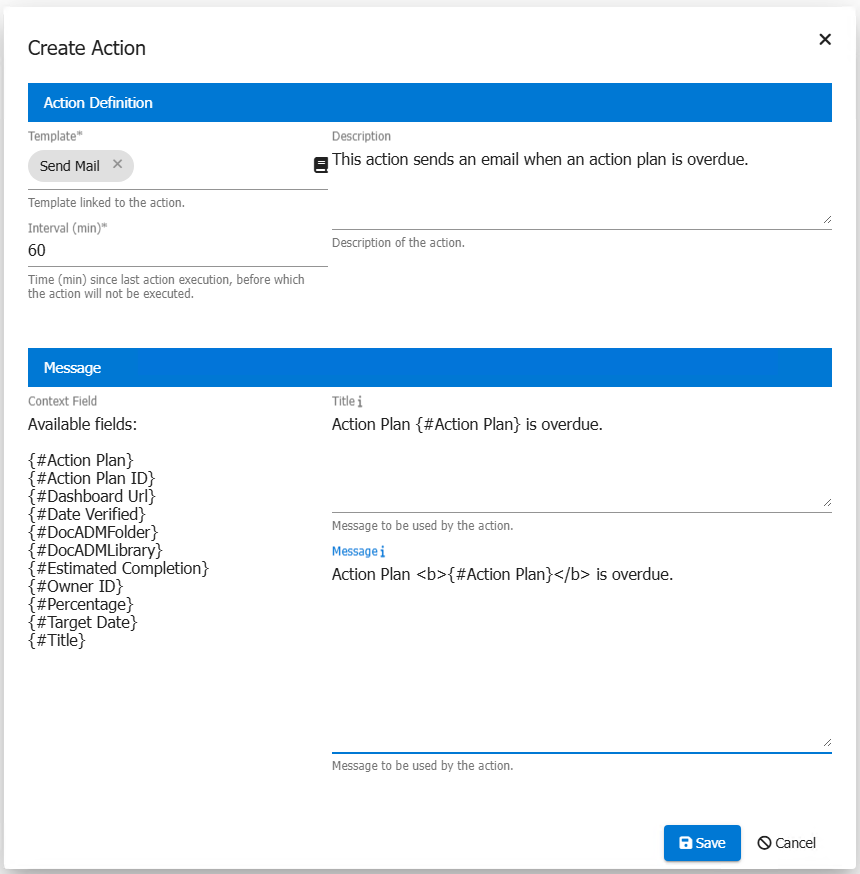
Actions are based on templates. When a Title Field and/or Message Field was set in the action linked to the template, the values of the corresponding fields will be overwritten with the dynamic Title and Message values configured in the action.