Case Details
Case Info
When working in a case, the homepage will show you all necessary info you need at first glance.
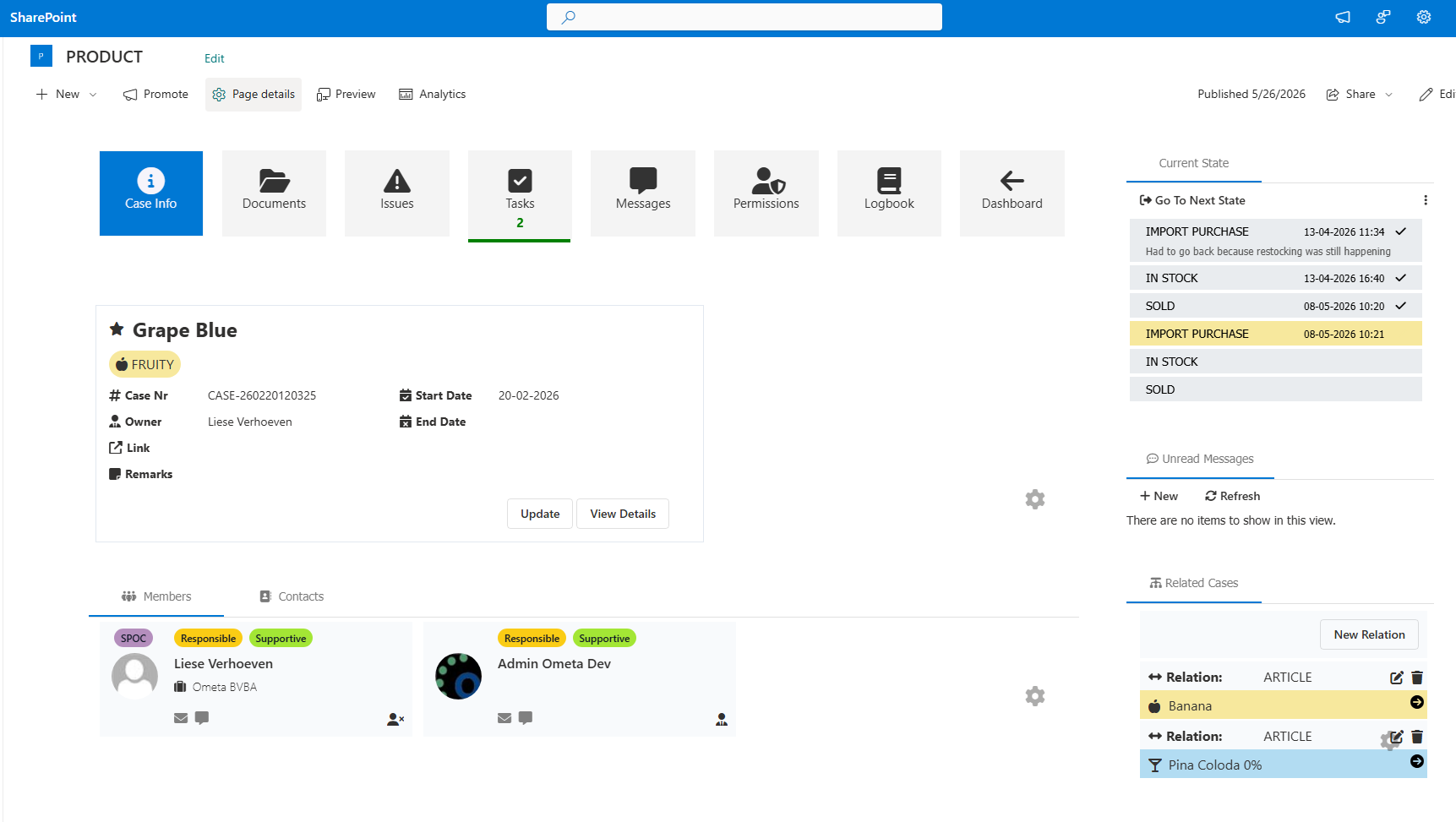
This page consists of a few different things:
- Case info
- Members and Contacts
- The current state with timing info
- Unread messages
- Related cases
With the top navigation you can move to other parts of your cases. It also visualizes your open issue count, open task count and unread messages count.
Update The Case
By clicking the Edit button you will be able to update all case meta data including custom properties.
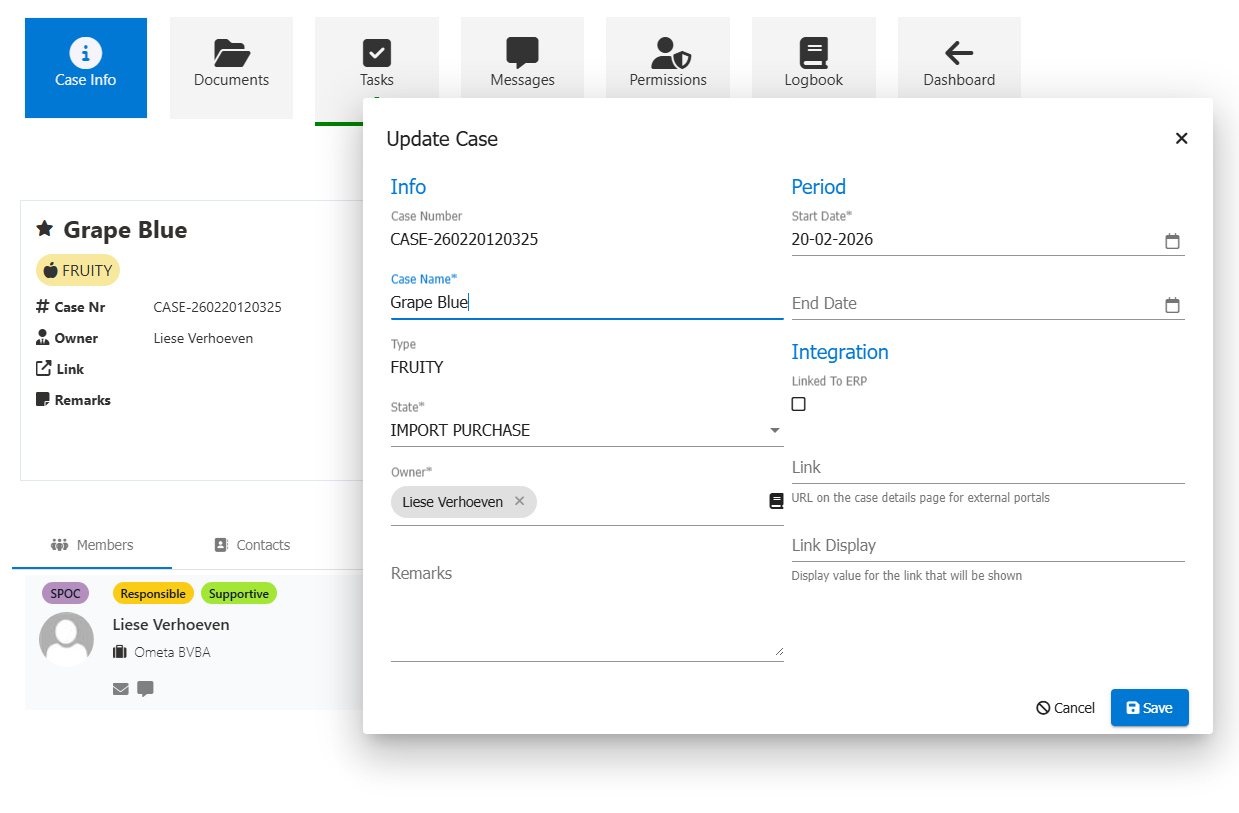
The Edit button will only be visible to users with the Owner role.
Some info will be read-only in the update form if the case is linked to ERP.
Members
The members overview shows you all persons that are granted access to the case with their company info, their role or responsibility level (if RASCI was enabled) and also quick access to contact options (call, mail, chat).
The owner of the case will automatically be added during case creation as a Member of the case with the Owner and SPOC role.
If the owner is changed afterwards via Case Details, the original SPOC will remain the same.
Clicking on the avatar will open the details, giving you all the information known about that person.
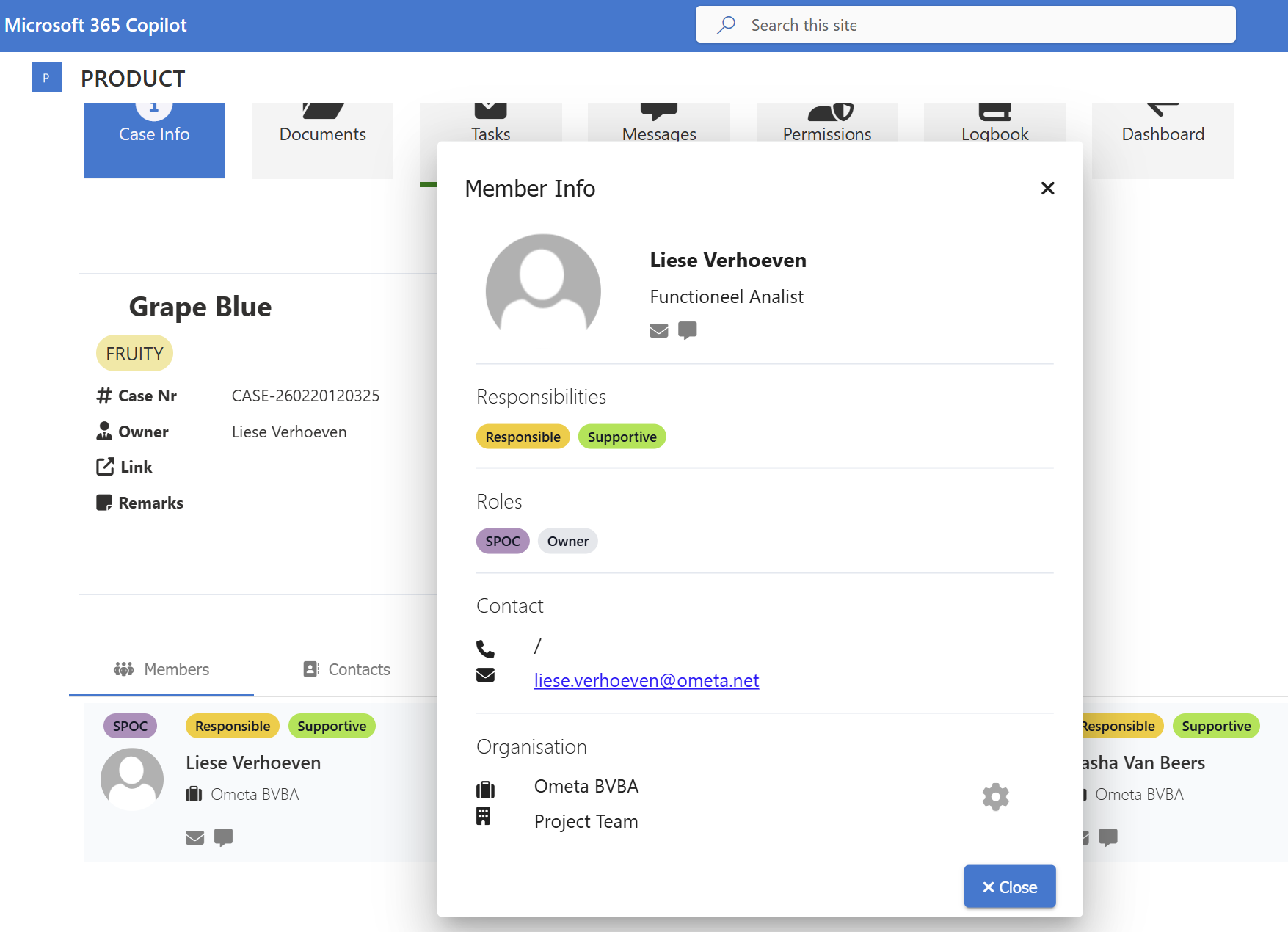
You also have the option to set a user as SPOC using the icon in the right corner, which will add an extra tag.
SPOC's are always shown first in the overview so you can see your primary contact persons at first glance.
Contacts that are set as SPOC are also visible in this overview with the role Contact but are not given any permissions to the case unless you explicitily grant them another role in the Permissions tab.
Contacts
The contacts overview shows you all external contacts linked to the case.
You have the option to add a new contact, update or remove an existing one via the dotted row menu or (un)set a contact as SPOC using the user icon in front of the row.
All contacts will be added as Ometa user behind the scenes so extra permissions can be given to the case if necessary.
All contacts will also retrieve the role "Contact" on the case, but will not have any permissions untill they are given another role in the Permissions tab.
Contacts set as SPOC will also be visible in the Members overview.
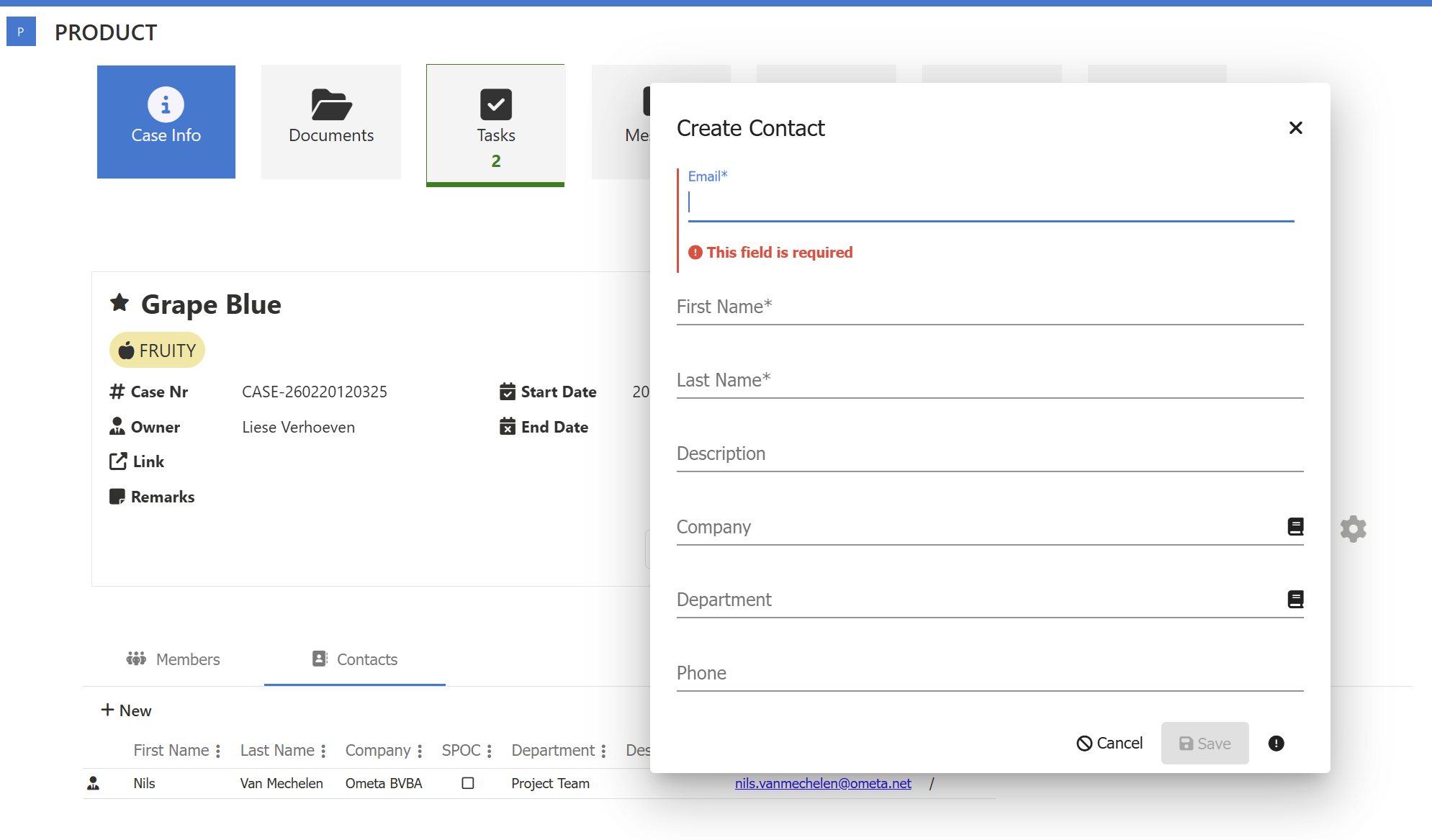
During creation Email is a required (and unique) field.
Once you start typing existing suggestions will be displayed, when selecting one the info from that person will be loaded.
First Name and Last Name are also required.
Company has an optional picker linked to Legal Entities (master data).
Department has an optional picker linked to Departments (master data).
Go To The Next State
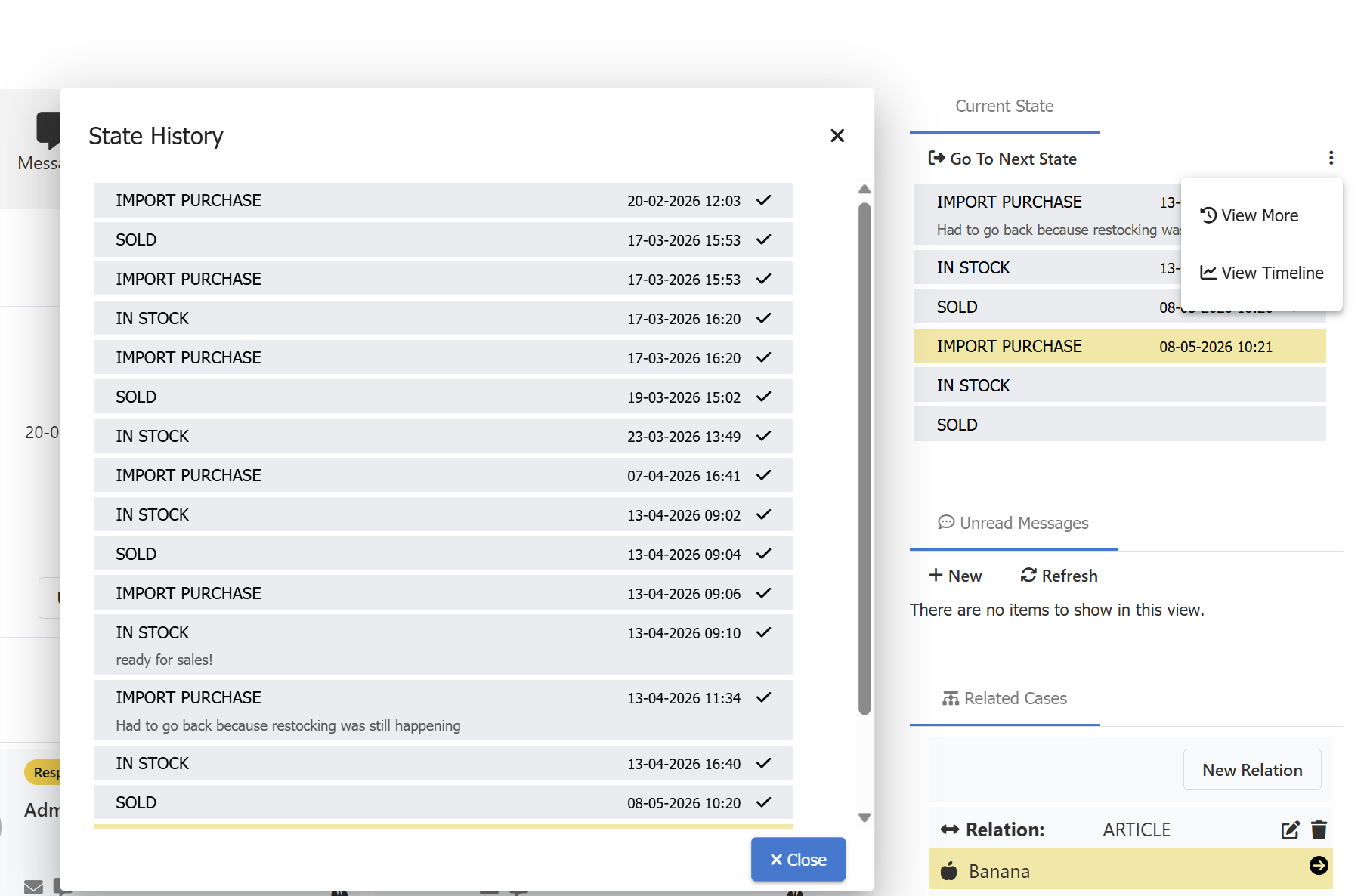
In the case state overview you can view the current state and also the past 3 states your case has been through with the corresponding timestamps and optional comments.
You will be able to continue in the process flow using the Go To Next State function.
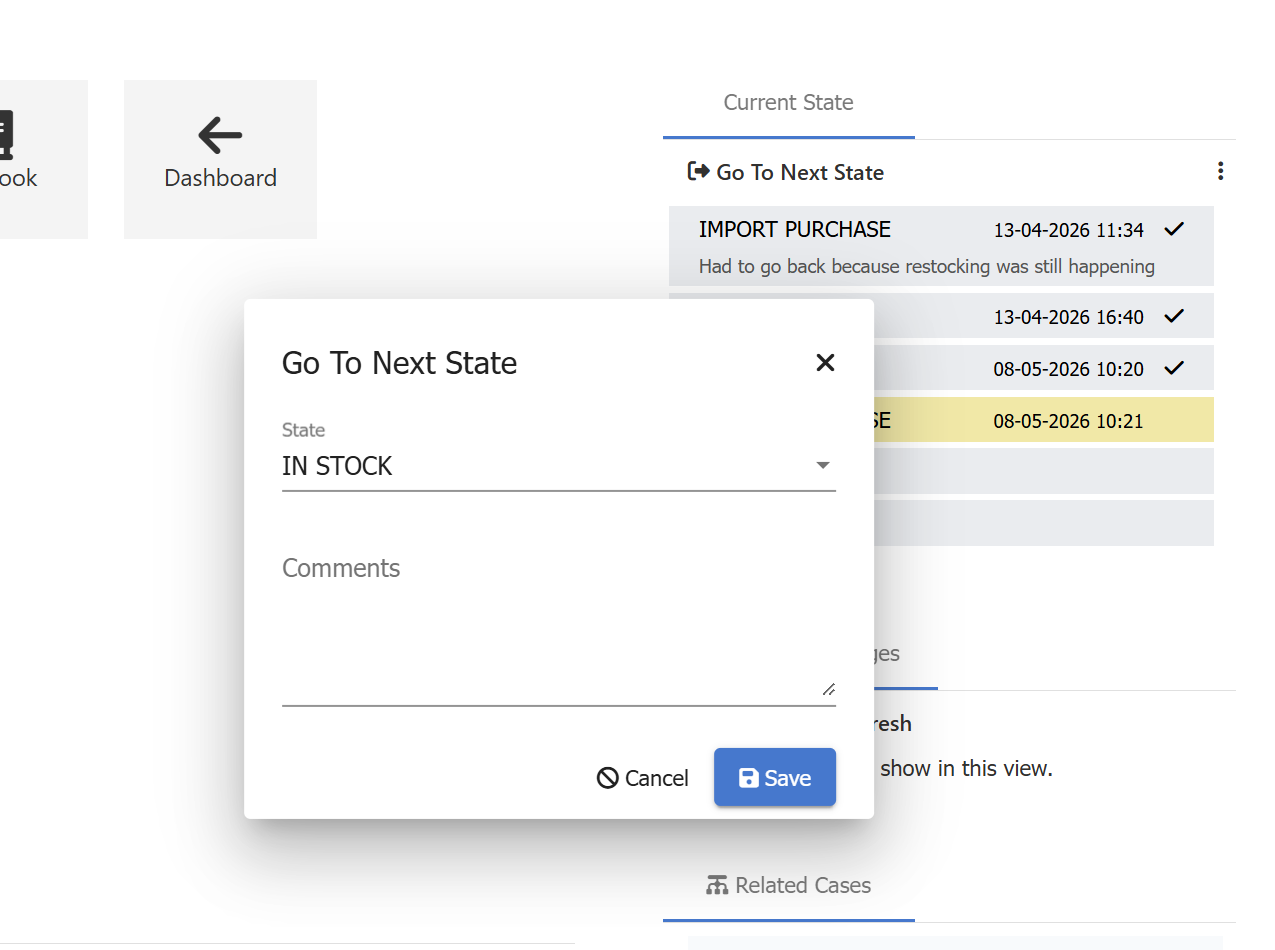
The Go To Next State button will only be accessible to users with the Owner role.
Via the dotted header menu you can also View More to see all history.
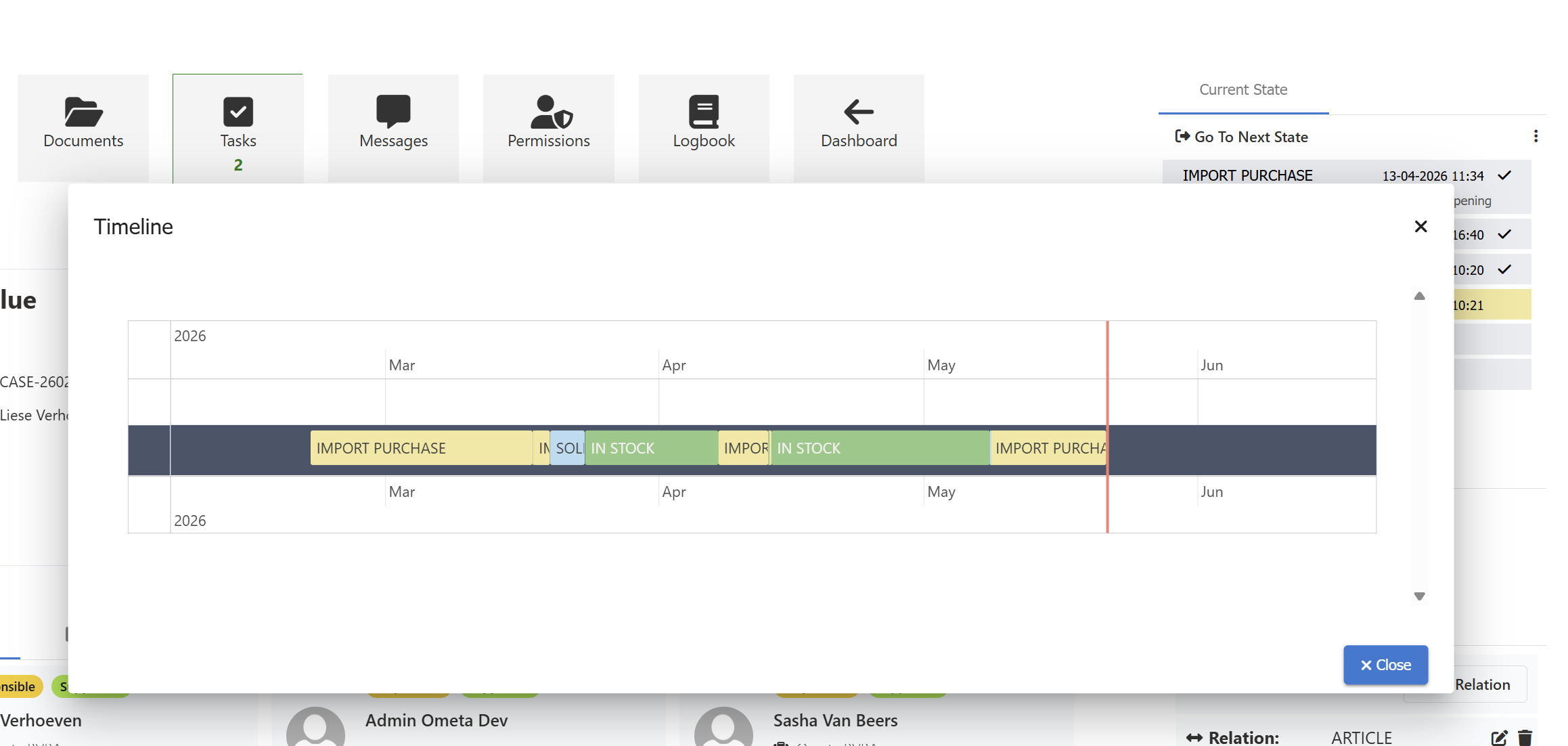
You can also View Timeline to get a more visual representation
Manage Case Relations
Relations to other cases can be consulted and defined in the Case Relations overview.
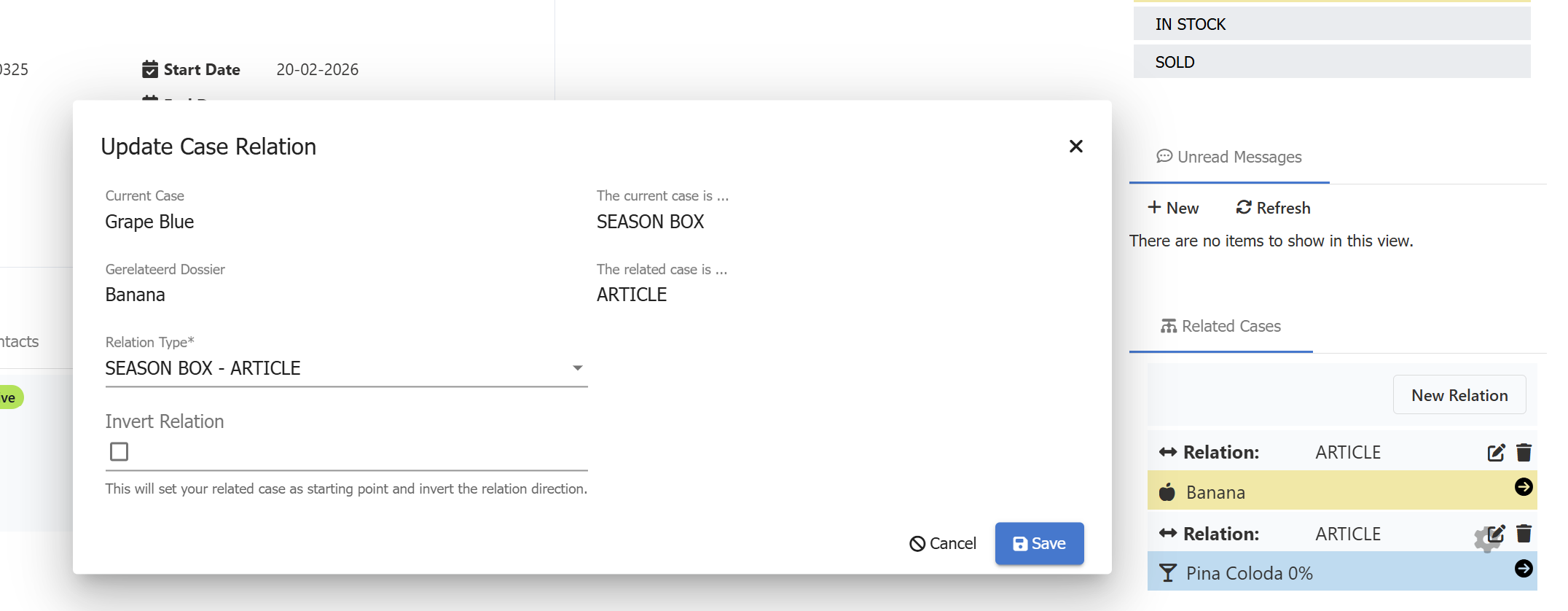
Only users with the Owner role will be able to create, update or delete relations.
Tasks, Document Approvals And Messages
More info on these parts can be found in the documentation of the corresponding module or solution.
Documents
The documents page shows you an overview of all your documents in the case.
By default the general Documents library is loaded. When no other libraries where configured, this will be the only library that is visible.
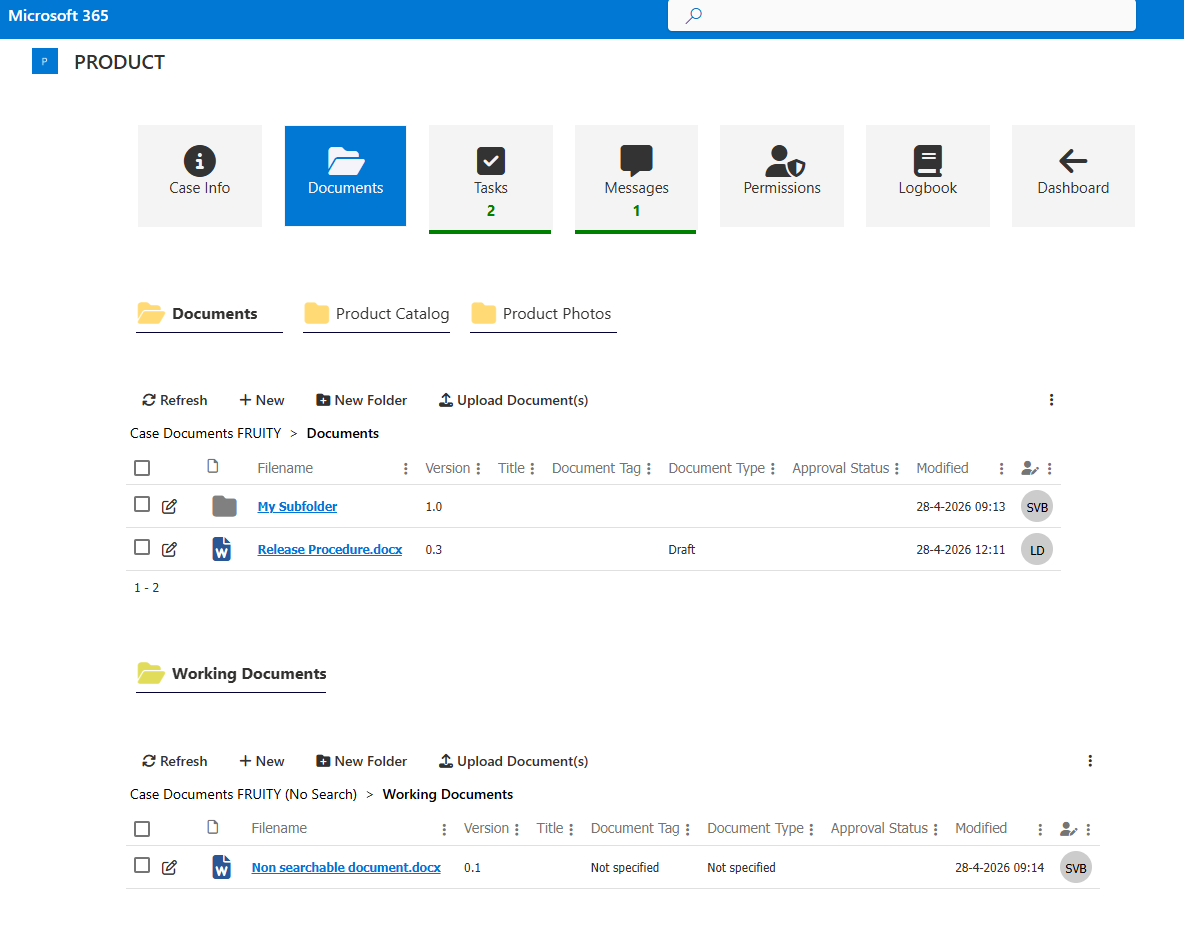
When you do configure multiple libraries in Master Data, you will be able to navigate between them above the overview. The currently open folder is always highlighted and also shows an open folder icon.
Searchable and not searchable libraries are splitted in two overviews, with the searchable ones on top.
When your case is in an Active state, default functions like View Details, Edit, Upload, Start Approval (if enabled on the portal), Copy, Move, Recycle, Publish, etc. will be available and create a working environment.
When your case is in an Inactive state, the functions you can perform will be limited and create a Read-Only environment.
Issues
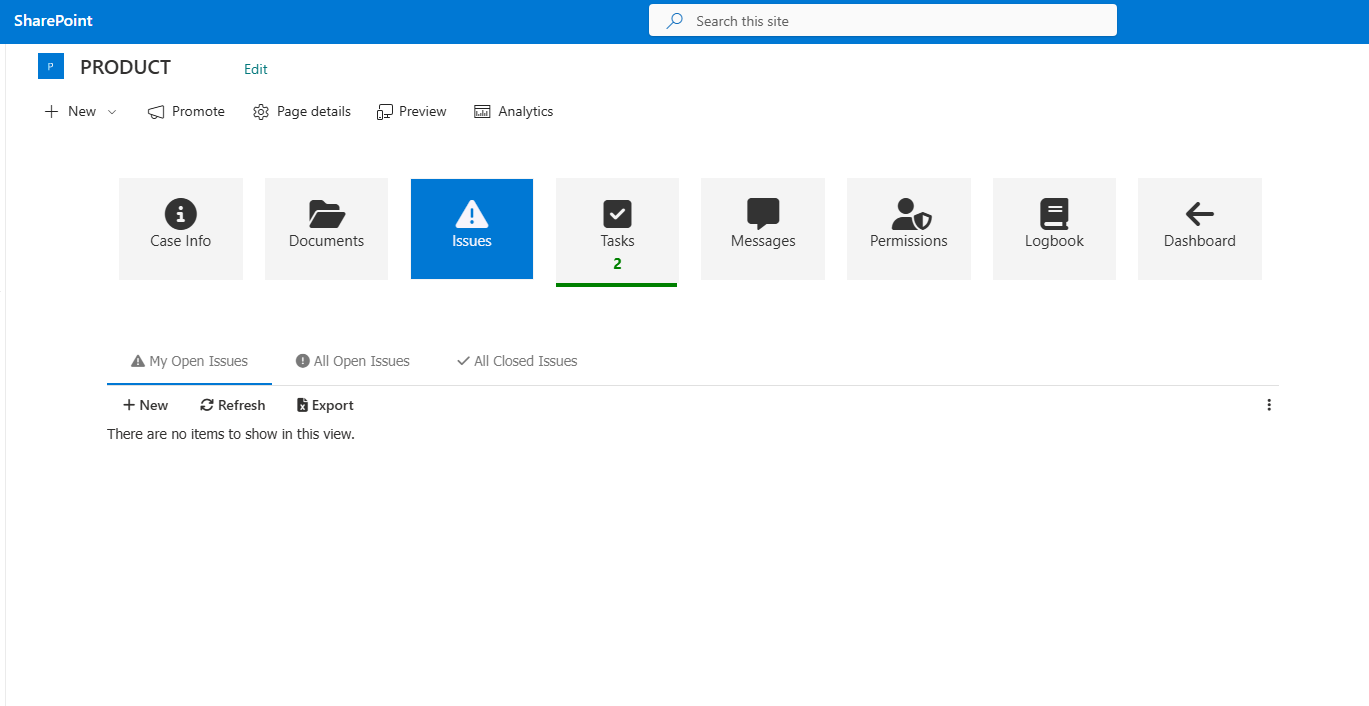
The issues page shows you an overview of all your issues for that specific case. You have the option to view, edit or add photos to an issue.
Tasks
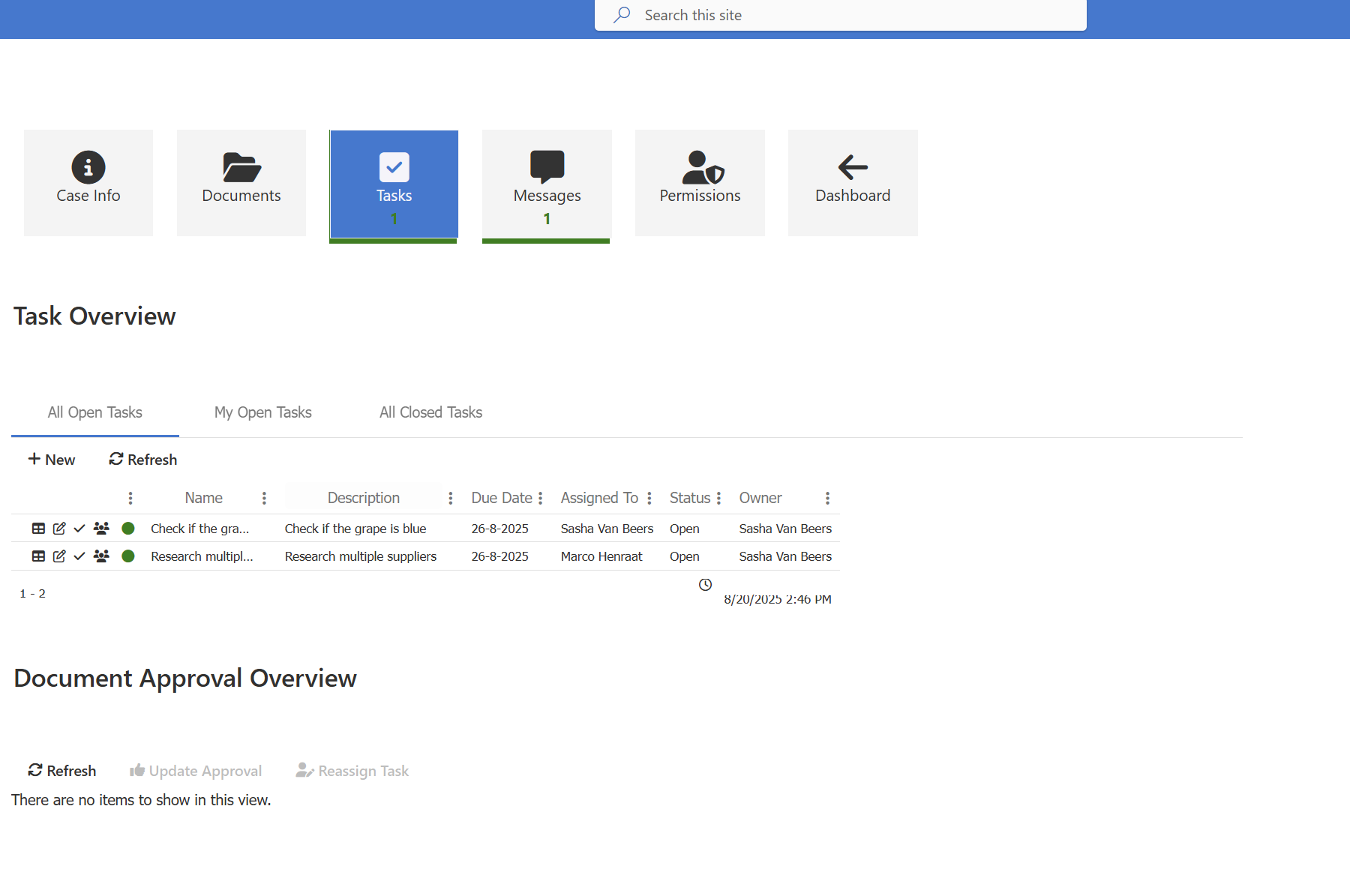
The tasks page shows you an overview of your tasks for that specific case. You have the option to view, edit, close or reassign a task. You can also view and manage your document approvals for that specific case on this page.
Messages
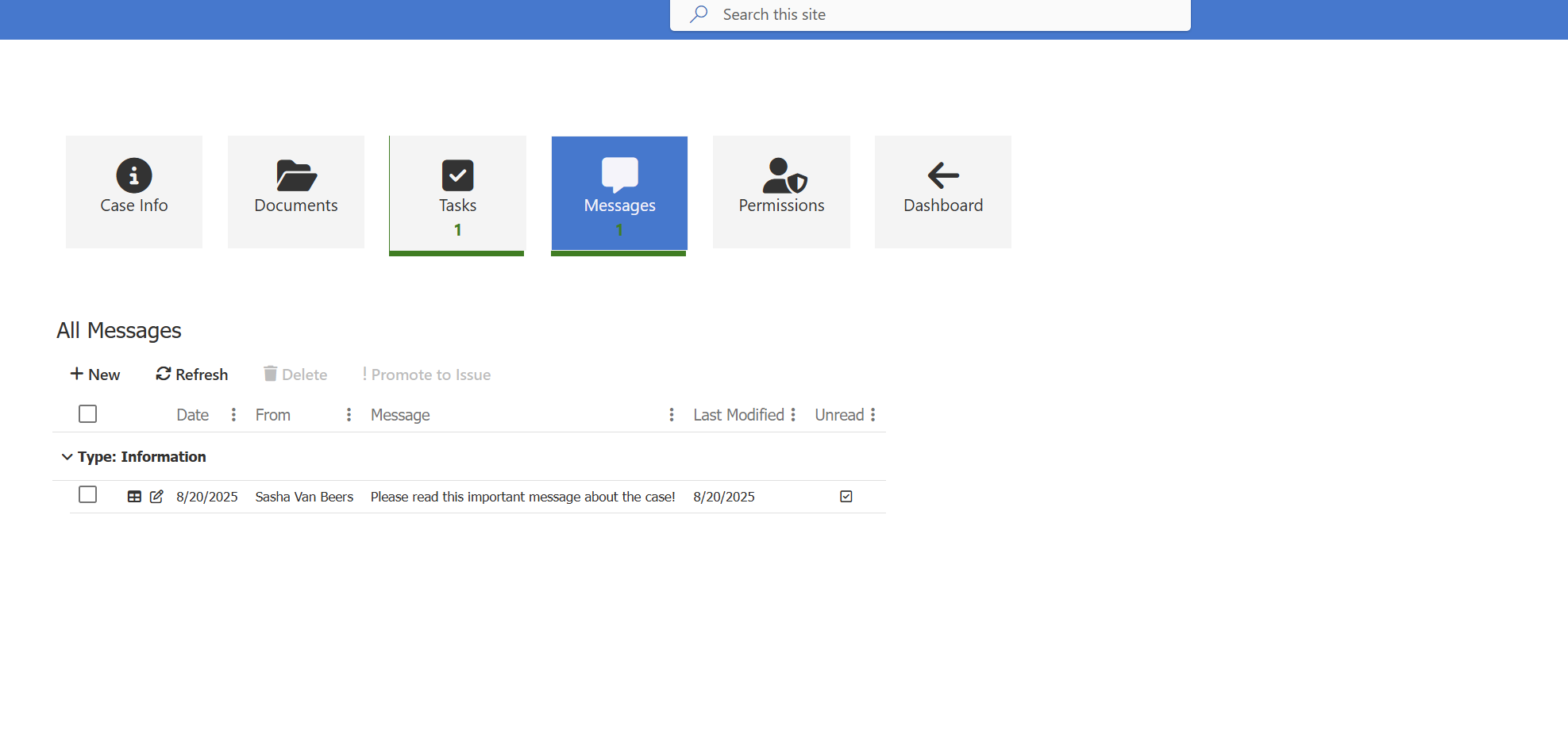
The messages page shows you an overview of all messages created in the case. You have the option to read, create, update or delete messages.
Permissions
This page is only accessible to users with the Owner role.
On the permission page you can manage access to the case.
When permissions are set, access to the case will be up-and-running immediately. Access to the documents is processed through the Permission Queue.
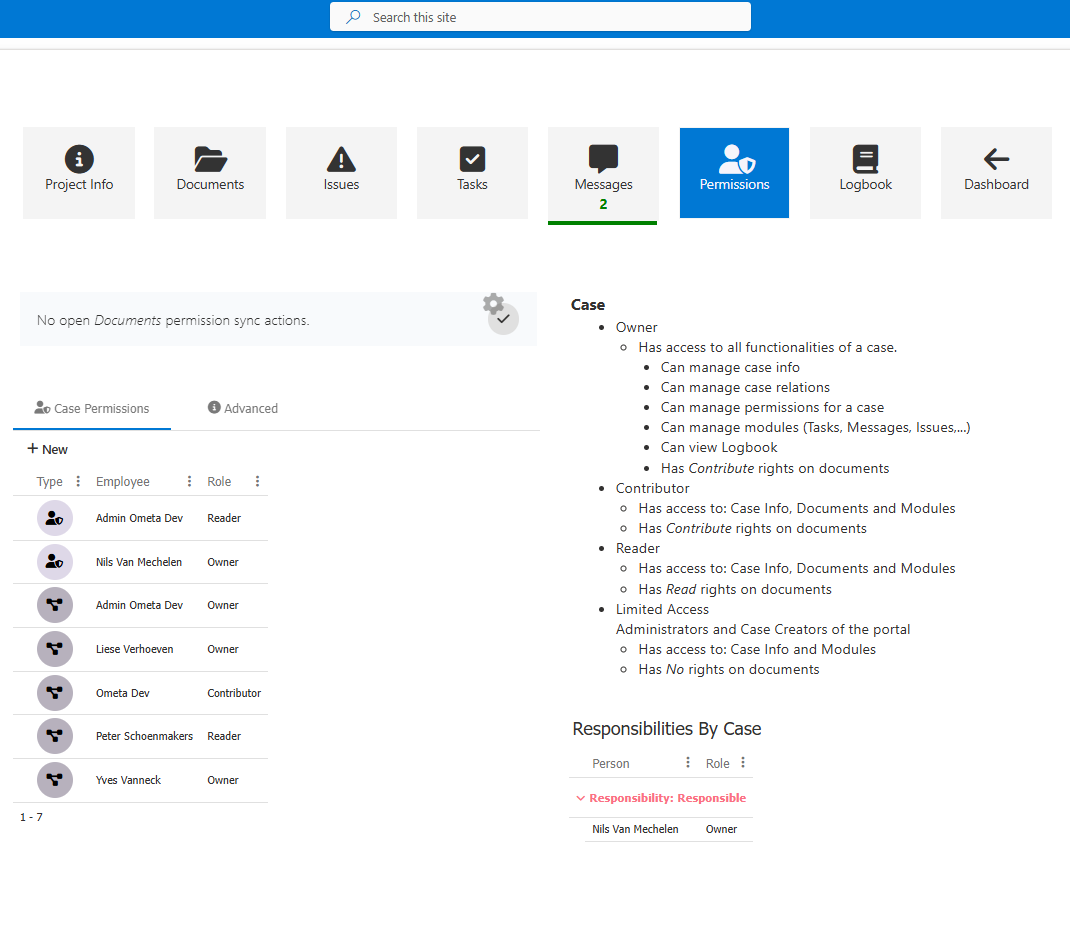
Queue details and the error log icon will be shown first, followed by the Case Permissions overview.
The permission overview is sorted by case specific permissions first, global permissions second. It's only possible to manage global permission on portal level.
The role definitions are explained on the right side of the page.
If enabled, you can also view the Responsibilty Matrix on the right.
More info on how to configure permissions can be found in the Configuration > Permissions section.
Queue details and Error Log
During the Documents synchronisation process the message of the queue details will change.
When no open actions are found it will be shown as above "No open Documents permission sync actions".
When In Progress:

When an error occured:

When clicking the error icon the overview will open where you have the option to view more details and Retry.
Logbook
On the logbook page you can view all your case activity.
A filter is available to limit the results to your needs.
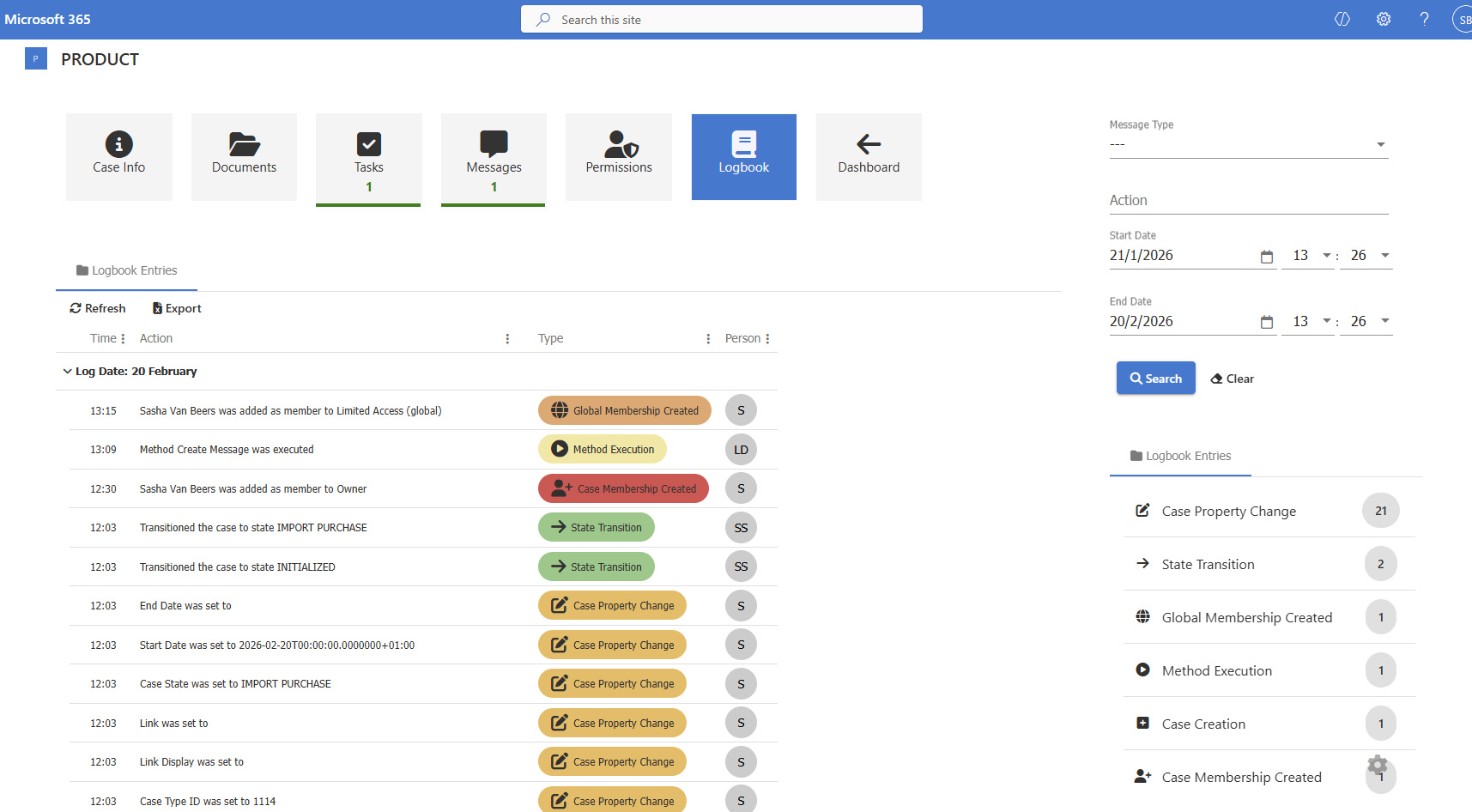
This page is only accessible to users with the Owner role.