Permissions
In order to give people access to a portal or a specific case, permissions have to be configured.
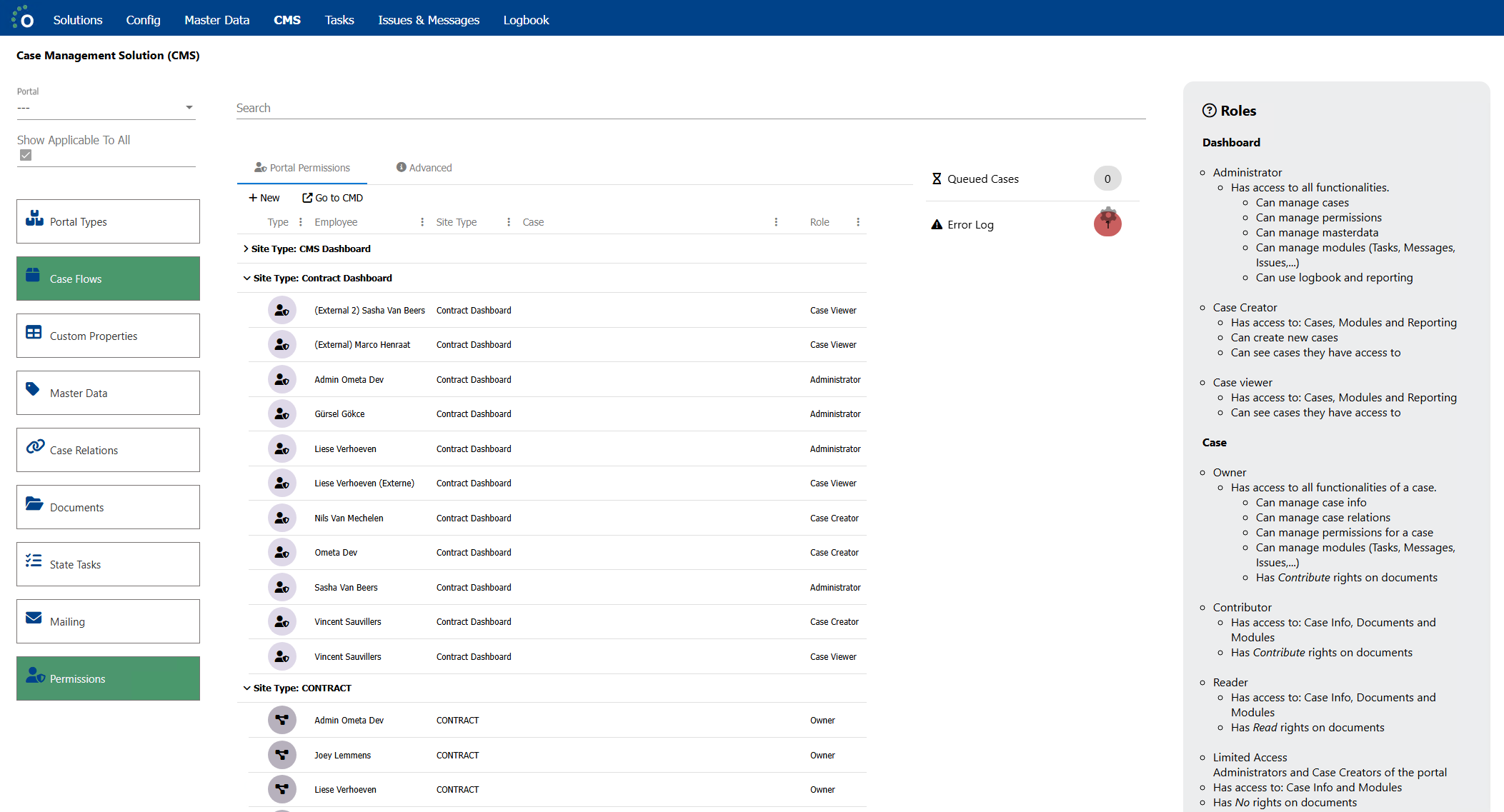
An overview is available that shows all currently configured permissions. You have the option to create new permissions, update or delete existing ones via the dotted row menu (visible on hover).
When you are managing permissions on a portal itself, only framework administrators or users with the role Administrator can manage dashboard permissions.
You can switch to the Advanced tab to view more info on who set a permission and when. You can also view Limited Access roles which are permissions set for Dashboard Administrators and Case Creators so they can access all cases.
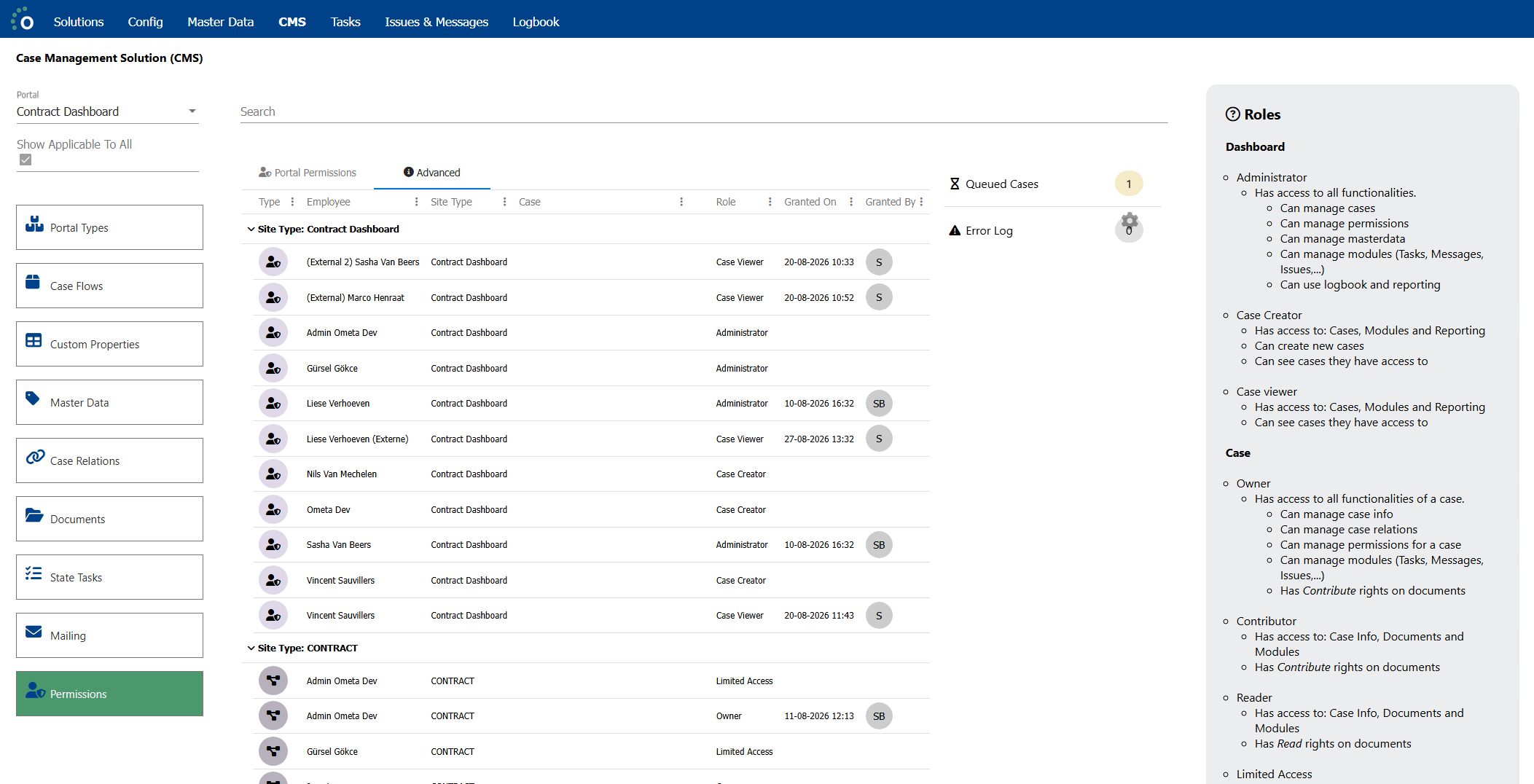
In the right corner the Queued Cases and Error Log counters for the Documents permission sync are available. When clicking them their overview will open to do some more follow-up.
You can filter the page by setting a Portal Type in the filter (top left). You can also enable Show Applicable To All which will show you configuration that is applicable to all portal types apart from your filtered Portal Type.
You also have Search available if you want to find a specific permission record.
Role information is shown on in the right pane on the page.
Case access is immediately up-and-running when permissions are set.
The permission queue only syncs permissions to documents and is processed every 1 minute, but a case creation or update will also trigger this immediately.
Create Or Update A Permission
When creating or updating a permission, the following fields are expected:
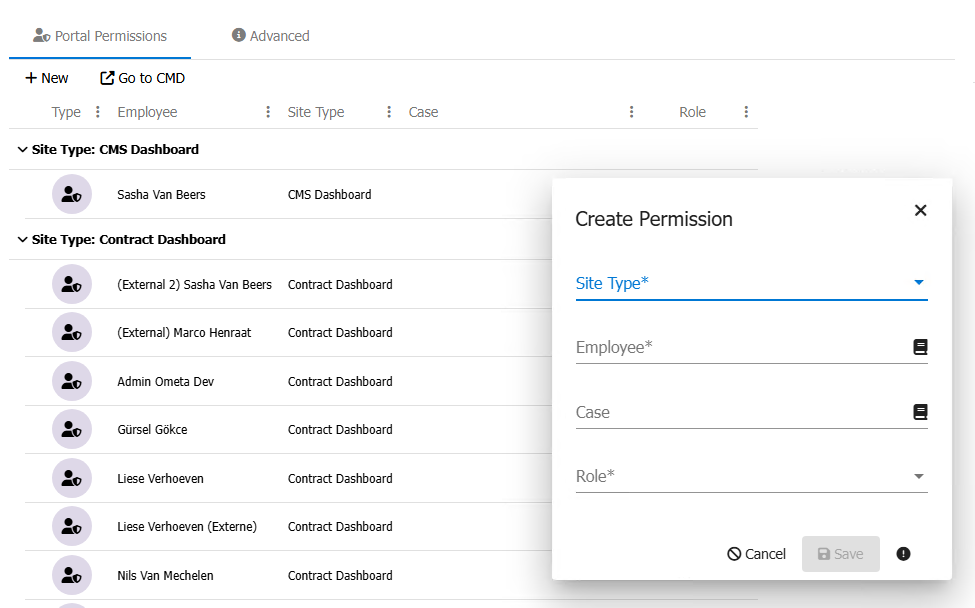
In the Site Type you will need to select one of the following.
- Dashboard
Permissions that are set to grant access to a portal - Case
Permissions that are set to grant access to a specific case
Roles available on a dashboard are :
- Administrator
- Has access to all functionalities.
- Can manage cases
- Can manage permissions
- can manage masterdata
- Can manage modules (Tasks, Messages, Issues,...)
- Can use logbook and reporting
- Has access to all functionalities.
- Case Creator
- Has access to Cases, Modules and Reporting
- Can create new cases
- can see cases they have access to
- Case Viewer
- Has access to Cases, Tasks, Messages and Reporting
- can see cases they have access to
Roles available on a case are :
- Owner
- Has access to all functionalities.
- Can manage case info
- Can manage case relations
- Can manage permissions for a case
- Can manage modules (Tasks, Messages, Issues,...)
- Can view logbook
- Has contribute rights on documents
- Has access to all functionalities.
- Contributor
- Has access to Case Info, Documents and Modules
- Has contribute rights on documents
- Reader
- Has access to Case info, Documents and Modules
- Has read rights on documents
The Owner defined on a case and the one who creates it will automatically be granted permissions to that case.
Once a permission record is created, users will immediately have access to the case.
The case is added to the queue for the Documents permission sync.
Queued Cases
Queued Cases shows an overview of all cases that still need processing for the Documents permission sync.
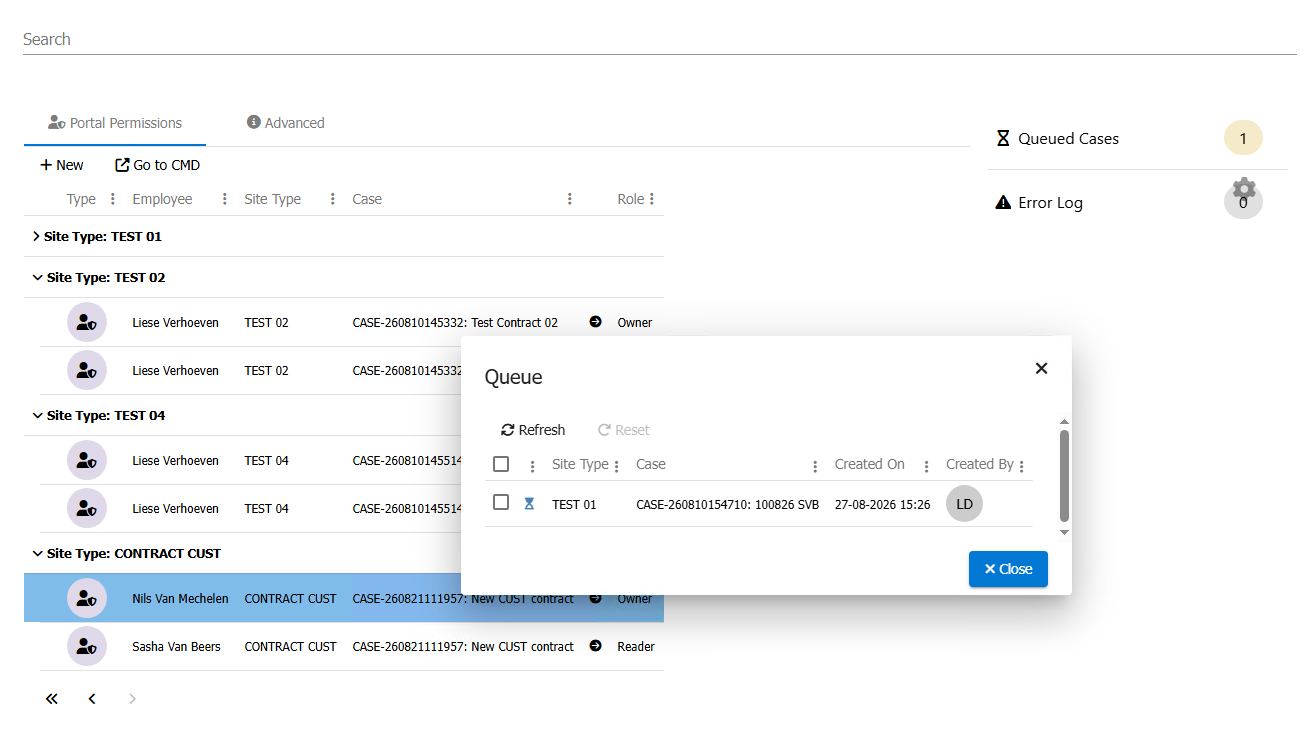
During synchronisation you can follow-up the status by the icons in front of the row (new or in progress). When processed, the record will disappear from the overview.
You also have the option to Reset a case if it would ever get stuck in the queue.
Error Log
Errors that occured during the synchronisation process will appear in the Log overview.
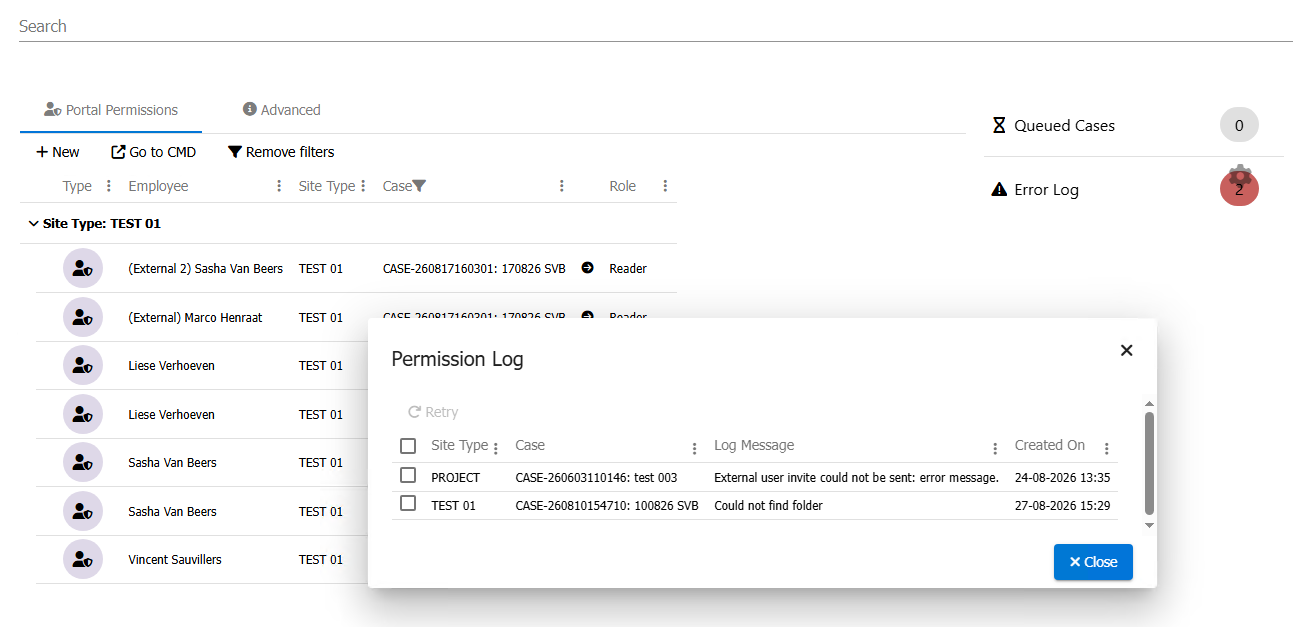
You have the option to Retry, which will put the case back into the queue for processing. During every permission sync all errors for a case are cleared and the process will (re)try to set all permissions. Usually a manual action is needed before retrying depending on the error message.