Libraries
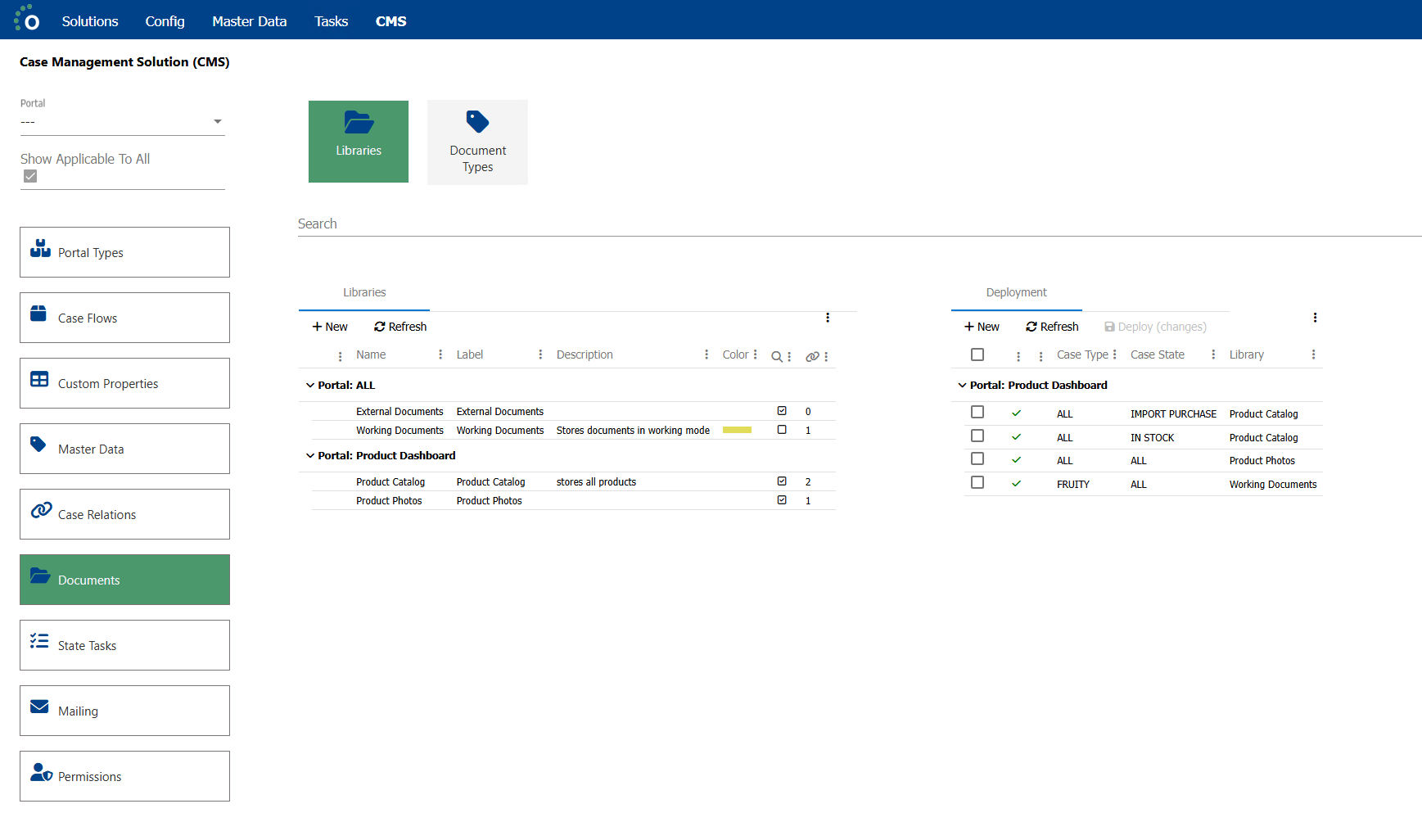
You can configure and deploy libraries that are needed in your portal(s).
Library
An overview is shown of all your active libraries. You have the option to create new libraries, update or recycle existing ones via the dotted row menu (visible on hover) and manage the archive via the dotted header menu.
Create Or Update A Library
When creating or updating a library the following fields are expected:
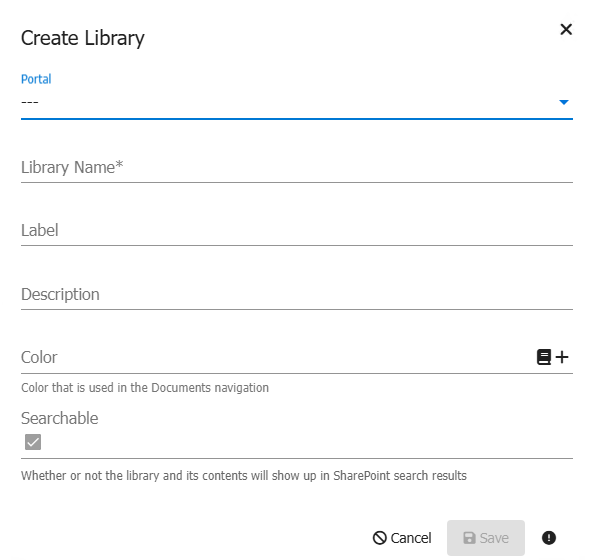
When the Portal is not filled the library is marked as Global and can be used in any portal.
The Library Name will be used in SharePoint and therefore will become uneditable once deployed.
The Label and Description will be shown on the Documents page of a case and the Color (if filled) will be used as the background color for the library navigation icon.
Searchable will define if the documents in that library show up in the SharePoint search results. It is set to True by default.
Recycle A Library
When you recycle a library it will be moved to the archive. Only libraries that do not have linked deployments can be recycled.
Archive
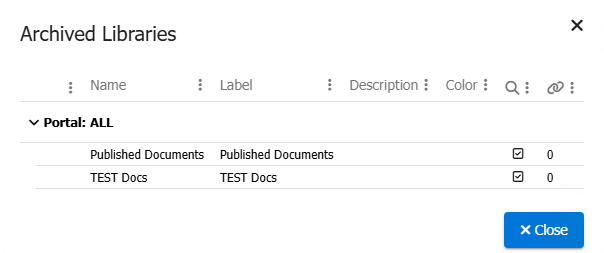
The archive holds all recycled libraries. Here you have the option to Edit , Restore or Delete it via the dotted row menu (visible on hover).
A restore will move the library to the active overview again along with its archived deployments.
A delete will permanently delete the library and its linked deployments.
Deployment
In the Deployment overview you can see where a library is linked and if it is deployed. You have the option to create a new deployment, update or recycle existing ones via the dotted row menu (visible on hover), deploy (changes) and manage the archive via the dotted header menu.
Create A Deployment
When creating a new deployment, the following fields are expected:
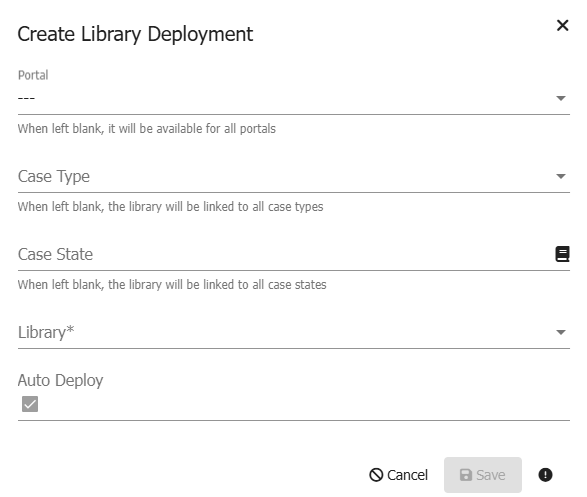
When you do not fill the Portal with a specific value, it will become applicable to all portal types.
During creation you can only select one case type, but multiple states (optional).
If you do not choose a specific state, the library will be visible in the navigation during ALL states. If you do select a state, the library will only be visible in that selected state.
You have the option to Auto Deploy when saving. This will ensure the library configuration in SharePoint is set up. You can also choose to disable it and trigger it manually when you are ready.
During deployment you can follow-up the status by the icons in front of the row. Hovering over it will show you more info.
| Icon | Description |
|---|---|
 | New (not deployed) |
 | Updated (changes not deployed) |
 | In Progress |
 | Ready |
 | Error |
Recycle A Deployment
When you recycle a deployment, the record will be moved to the archive. Archived records are not shown in the Documents navigation, but still physically exist in SharePoint.
View Log
When an error occurs during the deployment process, you can view more info by clicking View Log in the dotted row menu.
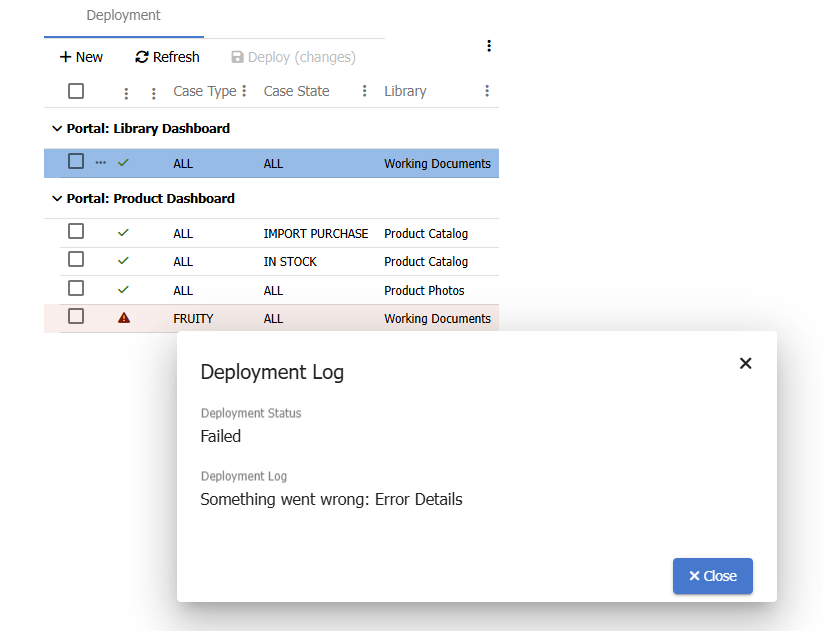
When everything was successful the View Log function will not be visible (anymore).
Archive
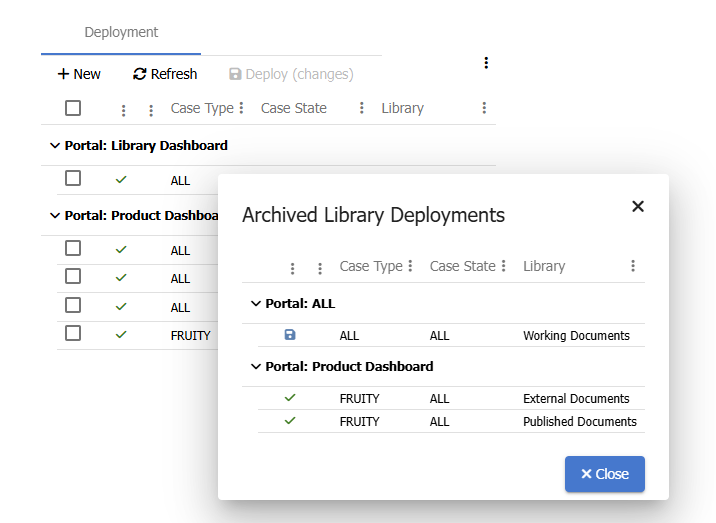
The archive holds all recycled deployments. Here you have the option to Edit , Restore or Delete it via the dotted row menu (visible on hover).
A restore will move the deployment to the active overview again.
A delete will permanently delete the record, but it does not delete the configuration in SharePoint for historical purposes.
Document Types
All documents in a portal can be tagged with the field Document Type which you can define in the master data.
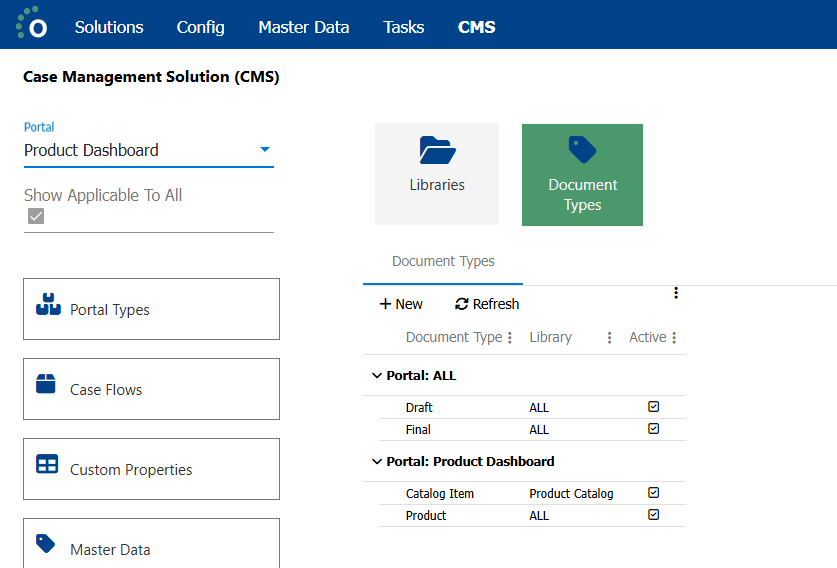
An overview is available that shows all active document types. You have the option to create new document types, update, (de)activate or recycle existing ones via the dotted row menu (visible on hover) or manage the archive via the dotted header menu.
Document types that are marked as Inactive will not be shown in the choice list when creating or updating a document.
The archive hold all recycled document types where you have the option to Edit , Restore or Delete a relation type via the dotted row menu (visible on hover). You can also Clean the entire archive.
You can filter the page by setting a Portal Type in the filter (top left). You can also enable Show Applicable To All which will show you configuration that is applicable to all portal types apart from your filtered Portal Type.
Create Or Update a Document Type
When creating or updating a document type, the following fields are expected:
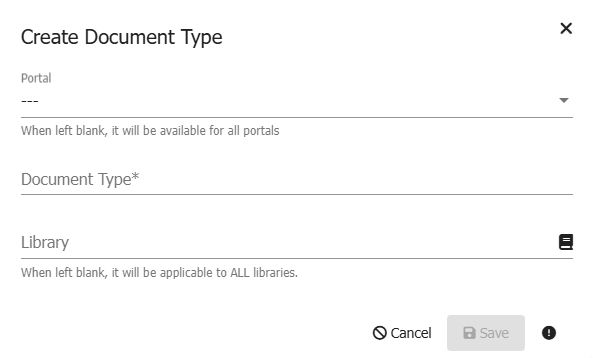
When the Portal is not filled the document type is marked as Global and can be used in any portal.
You can optionally choose to specify a Library. When left blank, the document type will be applicable to all libraries.