Project Management
The Project Management template provides a portal in which users can manage and follow up projects.
It inherits from the Base Template, but has its own default flow, project properties and reporting. Only the functionality that differs from the base template is documented below.
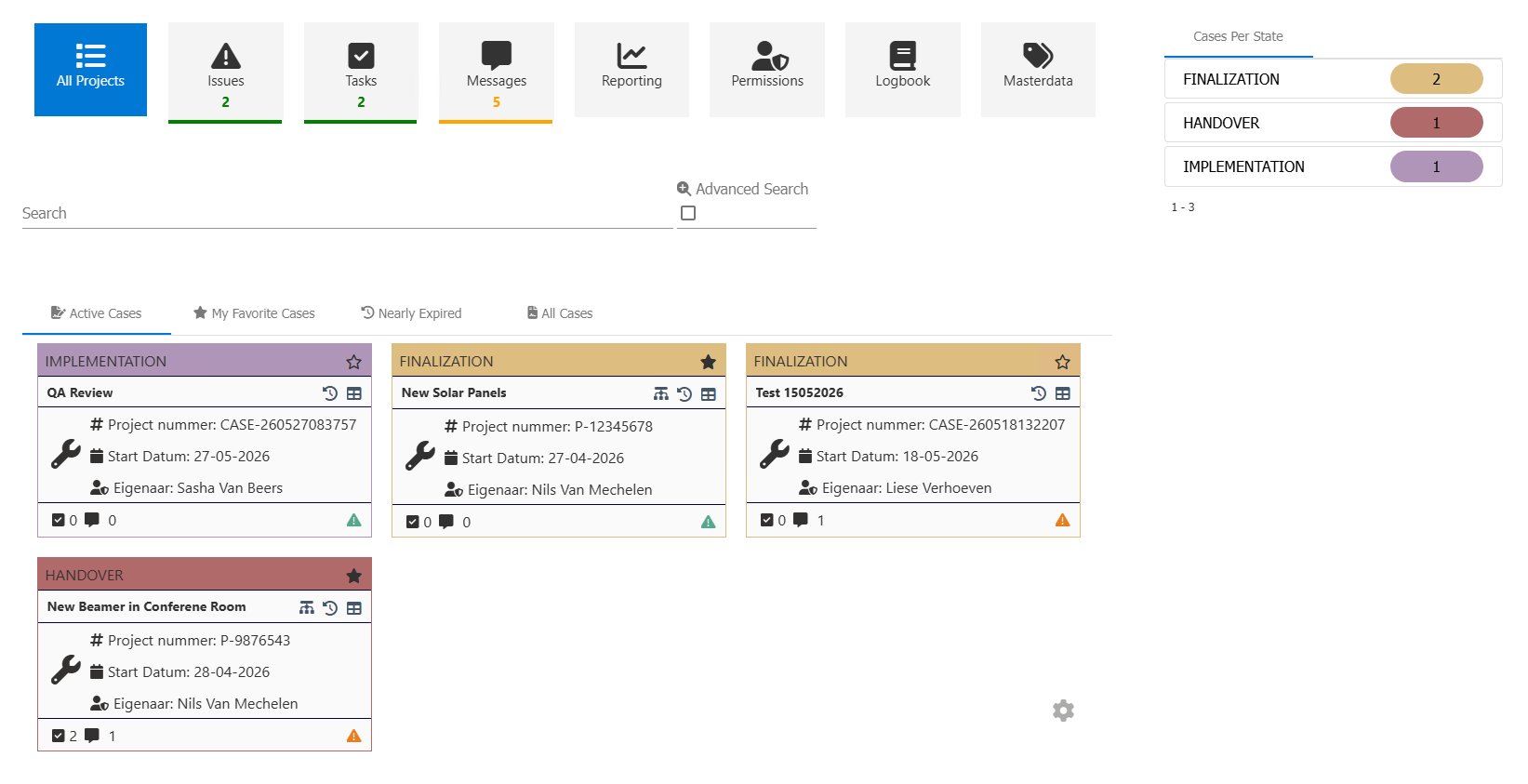
The landing page of the portal shows the projects where you have permissions to.
There are four overviews available:
- Active Cases (Cards overview)
- My Favorite Cases
- Nearly Expired
- All Cases
Project fields that can be found on these overviews:
- Project Number
- Start Date
- Owner
- Project Type (indicated with an icon)
- Project State
The project cards also show counters for tasks and messages on the bottom left. When issues are available for a project, the issue indicator will be shown on the card on the bottom right. This indicator will change color depending on the amount of open issues.
When you use Advanced Search, you can further refine the project overview.
Create Or Update A Case
During case creation only the default fields can be entered. The default Case Type is PROJECT and has the following statuses:
- Functional Analysis
- Implementation
- Finalization
- Handover
- On Hold
- Closed
Once this process is completed you can continue with filling in the project properties by editing the case. Cases that have required properties that are not yet filled will show a warning icon in front of the row that serves as a reminder.
The project details can contain the following fields:
- Project Manager
- Project Value
- Priority
- Responsible
- Sales Contact
- Department Name
- Customer Number
- Customer Name
A few of these fields are linked to a data source:
- Project Manager, Responsible & Sales Contact > Ometa DCS Employees
- Priority > Master data priorities
- Department > Master data departments
Reporting
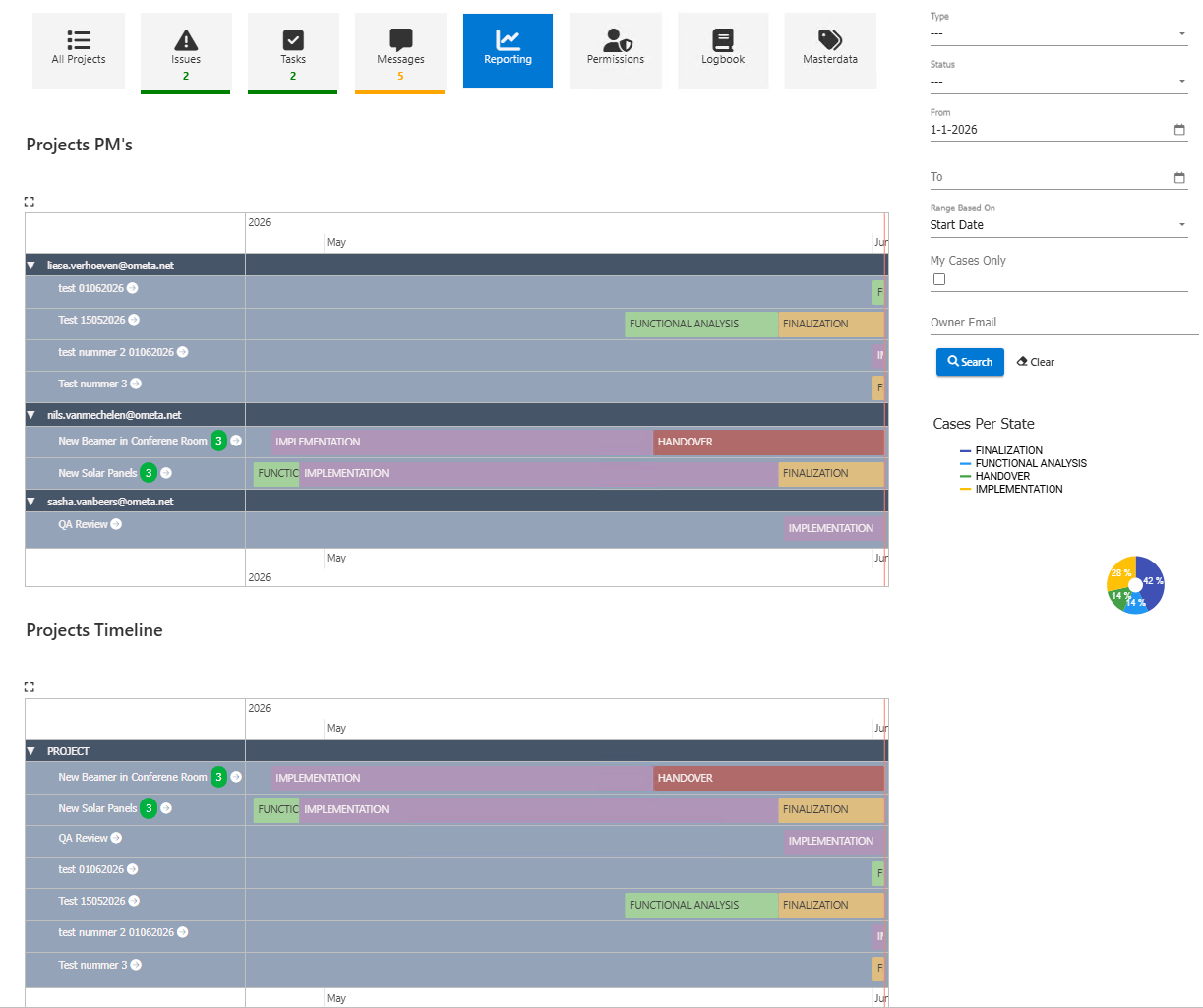
On the reporting page there are overviews available for project follow-up.
- Cases Per State Piechart
- Projects PM's Timeline
- Projects Per Type Timeline
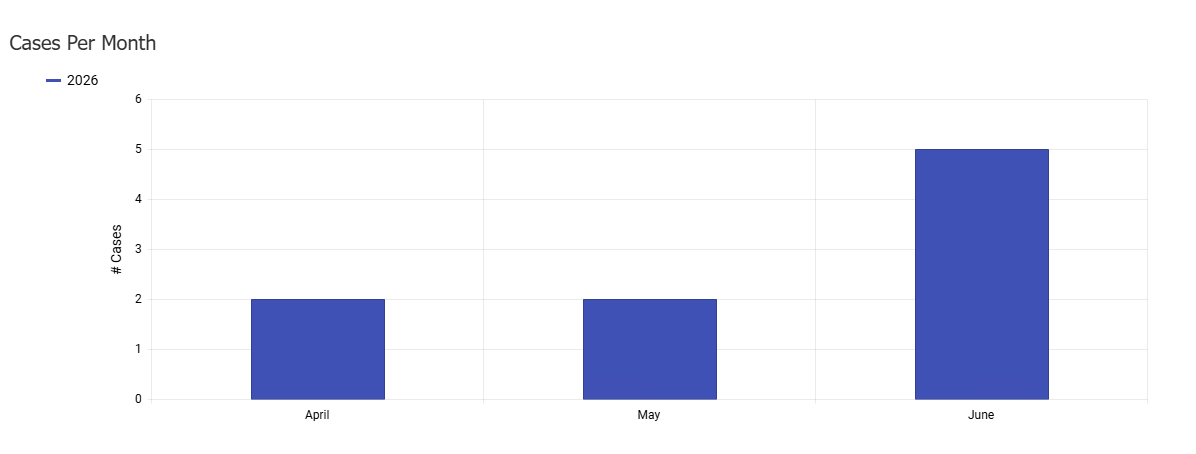
- Case Per Month Bar chart
The Cases Per State chart shows how the projects are divided over the configured project states.
The project timeline can be used to follow the duration of the projects:
- Based on Project Per PM
- Based on Projects Per Type
Finally the bar chart shows the projects created for the given month.
Case Details
The project details page shows the same info as the base template with the extension of project information & a project planning timeline.
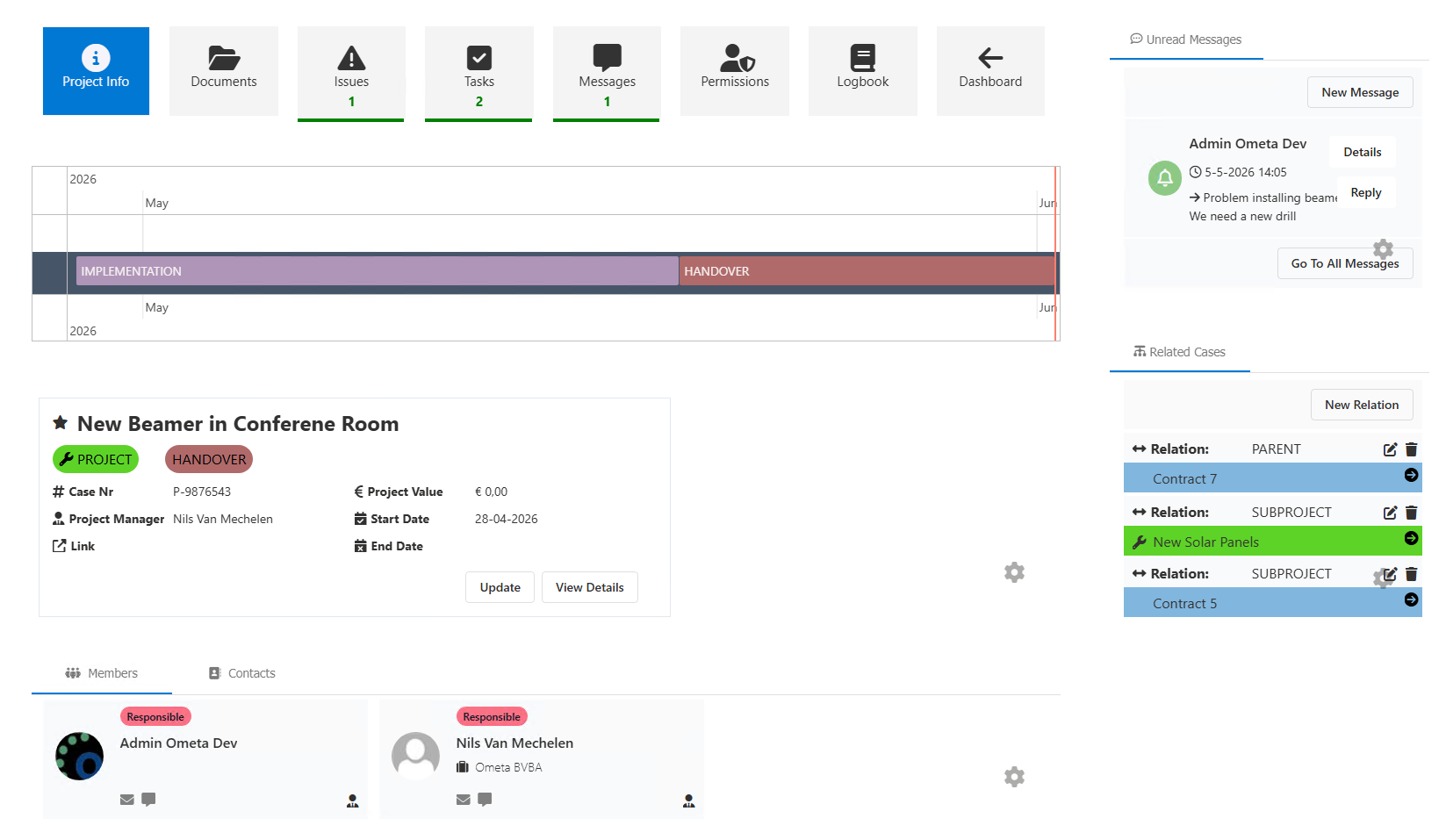
This page contains the project timeline, project detail card, unread messages, related cases, members and contacts.
The project detail card shows the current project type and state together with the most important project properties.
Related cases can be used to link projects to other cases, such as parent projects, subprojects or contracts.
Master Data
The data sources used in this portal can be managed in Masterdata. View the Master Data page in Configuration for more info.
Installation
You can import the template via the Solution Initialization of the Case Management solution. The Portal Type PROJECT will become available with its default flow and custom properties which you can adjust before deploying.
Configuration
Portal Type
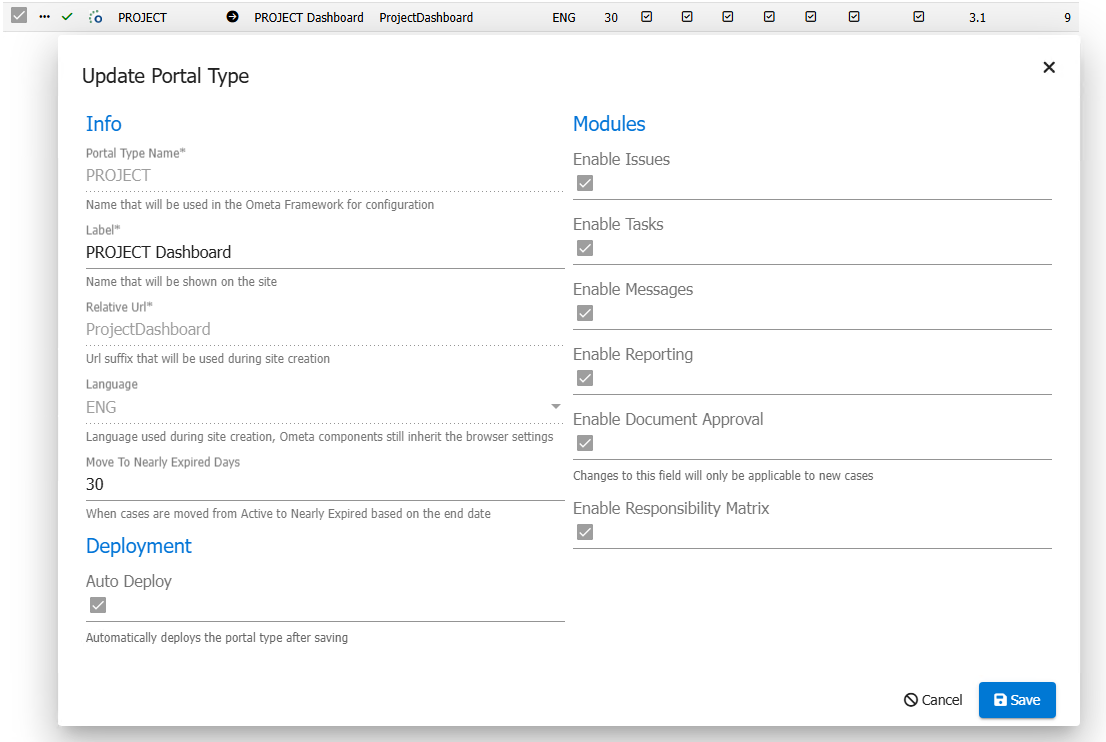
Before deploying it is possible to edit the portal type settings. You can change the Label, Relative Url, Language and unselect the modules you might not need.
Case Flow
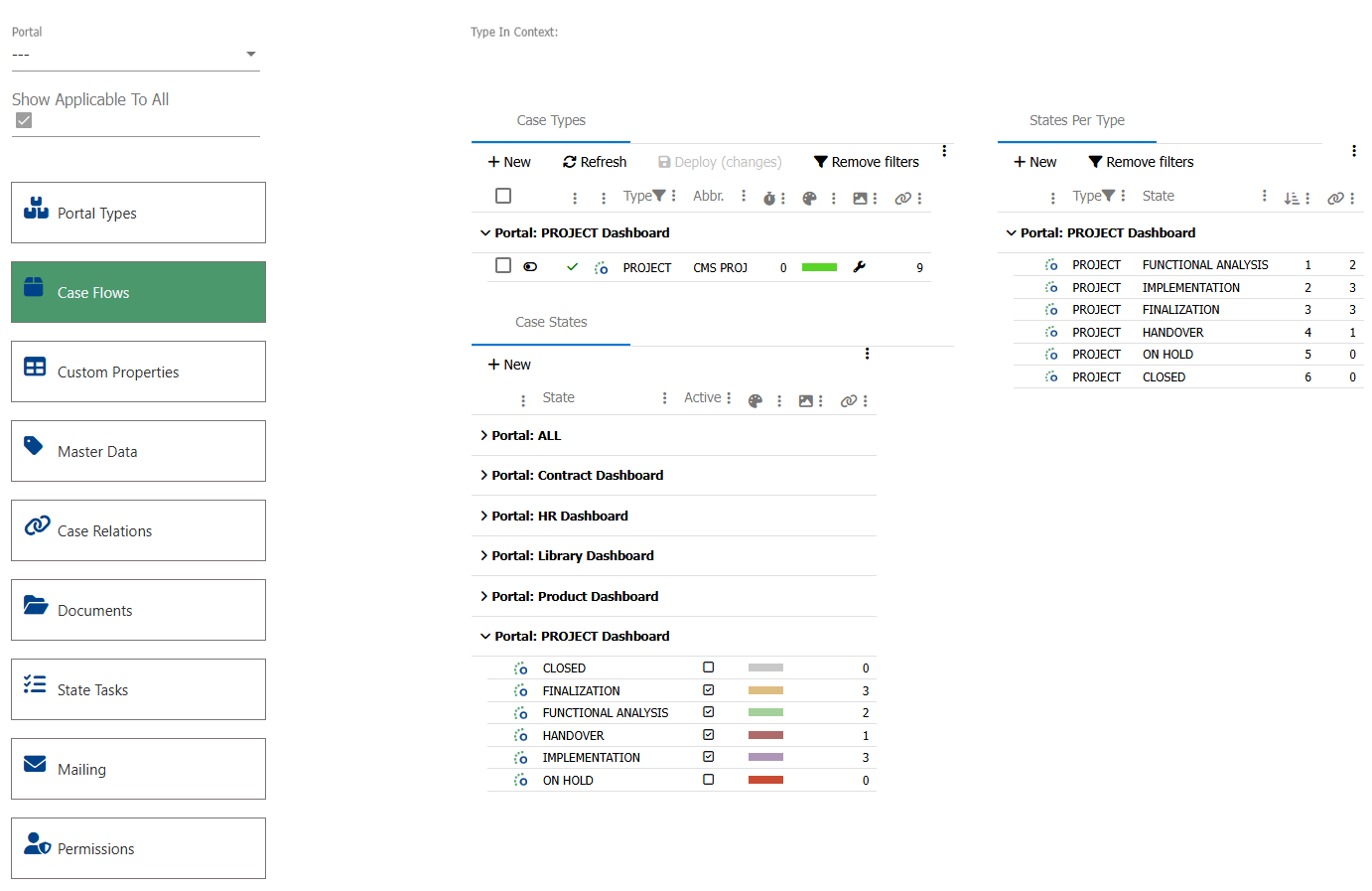
The default PROJECT flow is available when the Portal Type is deployed. It is possible to edit the Name, Default Duration and Color.
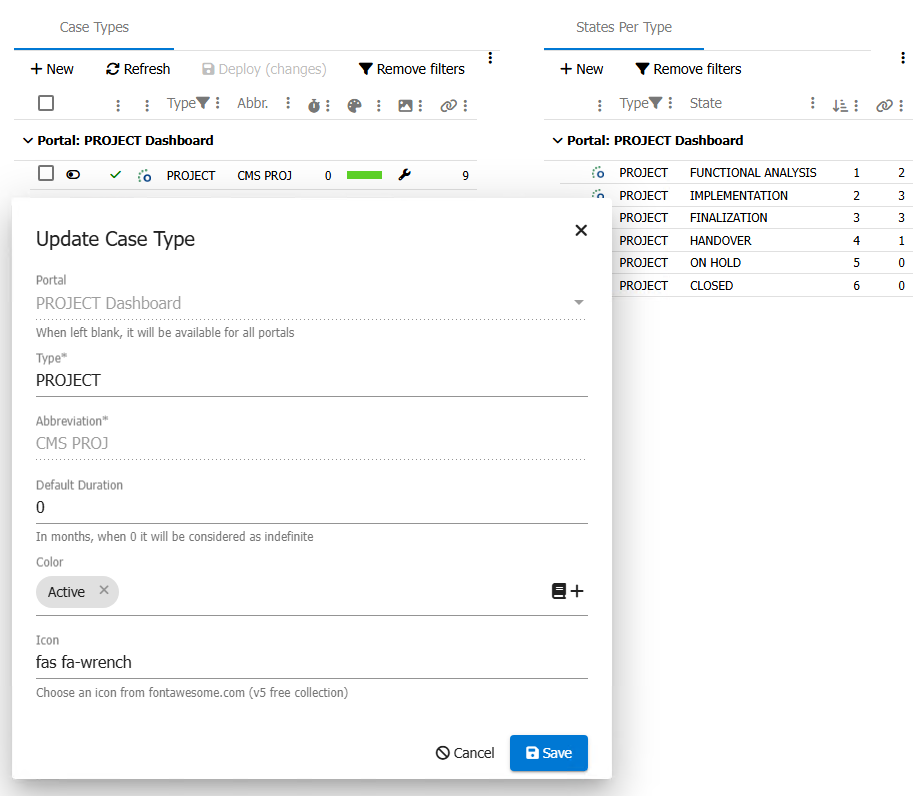
If the default flow does not fit your needs, you can create a new flow that Starts From the template flow and adjust that one.
Custom Properties
The Project template has custom properties which are applicable to all its flows.
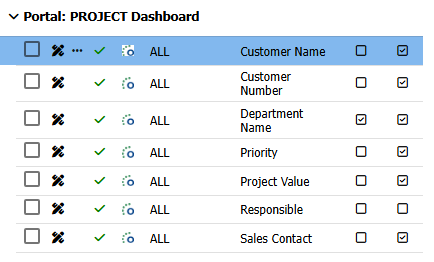
It is allowed to edit the Show In Overview or Show In Details, but it is not allowed to edit or delete anything else.
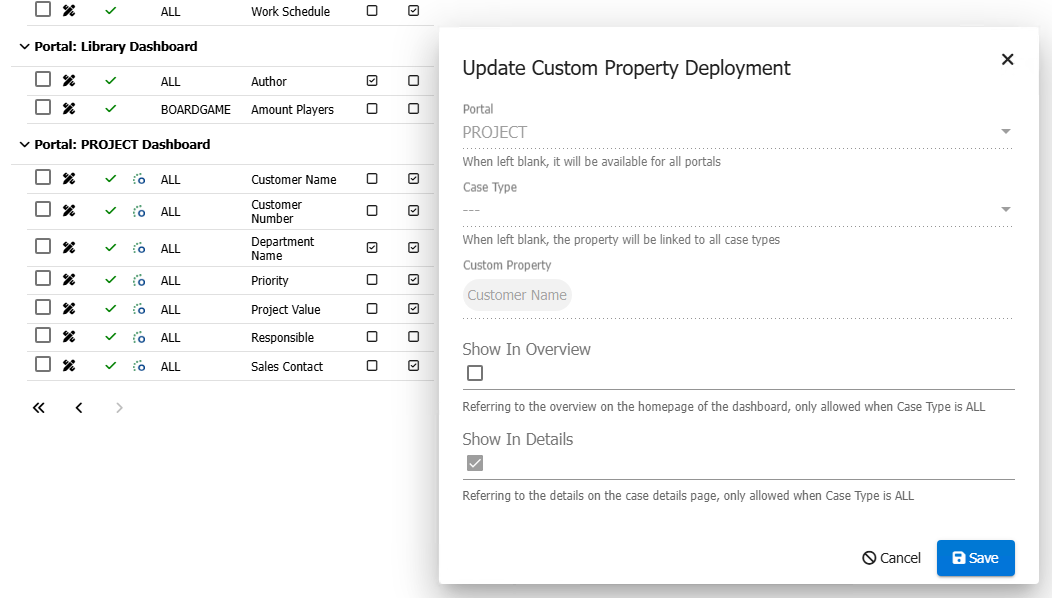
Also keep in mind here that if you add properties to the default PROJECT or All Case Type(s), the default PROJECT Case Type configuration will be overwritten in the framework during an upgrade and would need redeployment and customisations again.
It's also better to use specific case types or put the default PROJECT flow as Inactive and only use your own flows which are started from the default template flow.
If you do not use the default PROJECT flow you can ignore this statement.