Shift
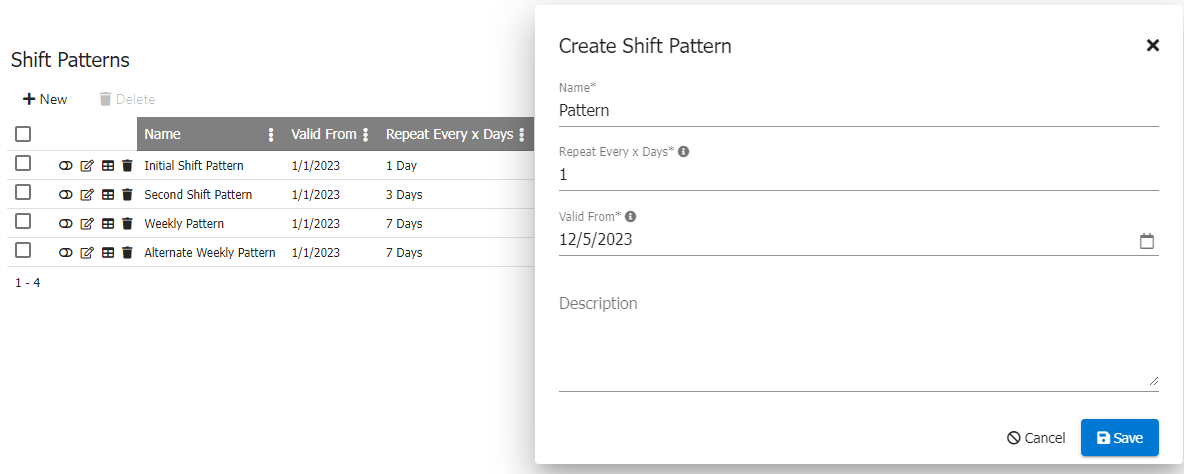
Each machine should have a shift configured on it. Users can create new shift patterns which each have a set of shifts configured on them.
Shift Pattern
A shift pattern groups together a sequence of shifts that repeat periodically. A shift pattern occurs first on a configured date and then repeats every x days, where x is also configured when creating the shift pattern.
Shifts
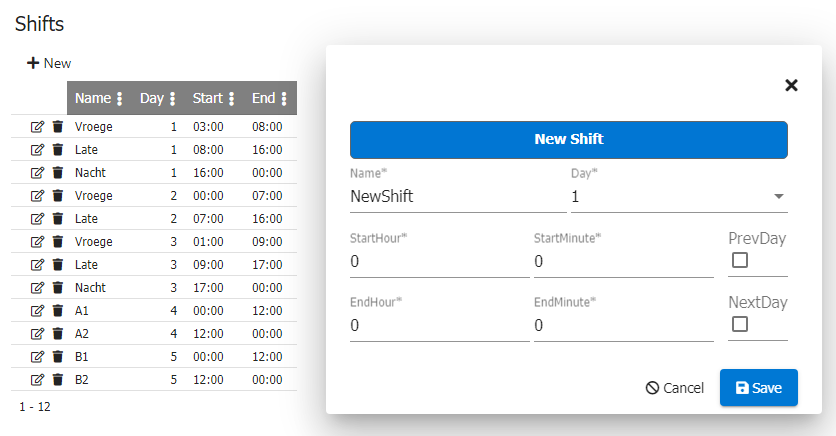
Users can add shift definitions to a shift pattern. A shift definition is a slice of a day on which a specific shift is active. Shifts should have a name, a day and a start and end time. The combination of the shift pattern start date, shift pattern repeat frequency, the shift day and the shift start and stop will determine the actual date on which the shift will occur. Shifts follow a couple of rules:
- Shifts cannot overlap
- A shift can start on the previous day by selecting Start Yesterday
- A shift can end on the next day by selecting End Tomorrow
- The start of a shift cannot be later than the end of that shift
- The day of a shift cannot be greater than the repeat frequency of the shift pattern
If no shift is defined for a period of the shift pattern, that period will be considered a 'no shift' (an example could be a weekend when employees only work during the week).
Shift Definition Example
In this example we will create a shift pattern that runs for 3 days before repeating. This pattern will have two days of shifts and a third day where no shift is defined. First we start by creating a new shift pattern, let's call it Example.
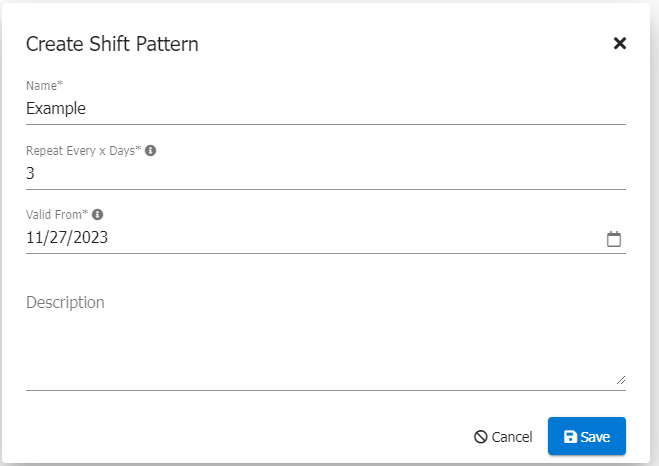
We set Repeat every x days to 3 because the pattern will span 3 days before repeating itself. The first day on which this shift pattern is valid is the 27th of november, so we set that date as the Valid From value. After clicking save, we will have our new shift pattern:
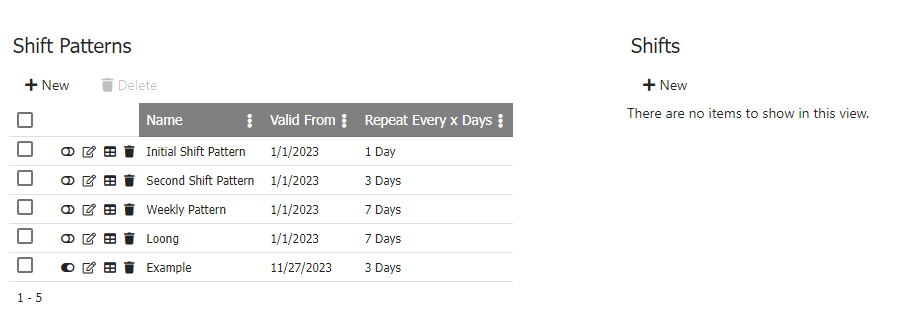
The shift pattern has been created, now we have to add the actual shifts. Make sure that the correct shift pattern is set in context by clicking the context setter slider, and then click + New under Shifts to start creating the first shift. This shift starts at 4 in the morning on day 1, so let's give it a name and create the first shift.
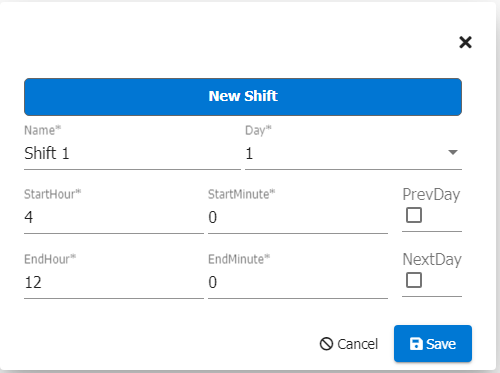
After clicking save we have our first shift. We will have each shift following the previous one, so the next shift would be Shift 2 from 12 till 8 in the evening, and the third shift will be from 8 until 4 the next day. To configure this last shift, make sure to tick NextDay.
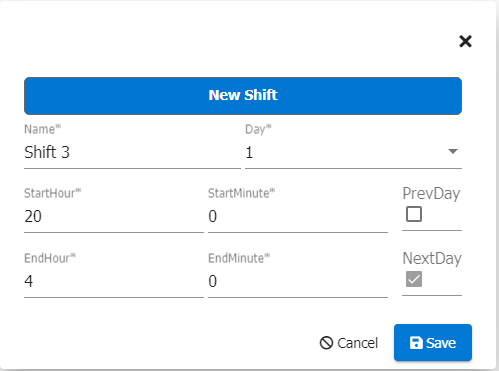
We have now defined all shifts for the first day of our pattern. Do the same for day 2 to get the following configuration:

Because the third day has no shifts defined (for example because it is a holiday), we are now finished. This shift pattern can now be used by machines and will result in the following pattern:
