Cancelling an Approval
If you've started an approval with the wrong input or the wrong input you can cancel the approval for this document.
Only the requester who started the approval flow or administrator on the task management view can cancel approvals.
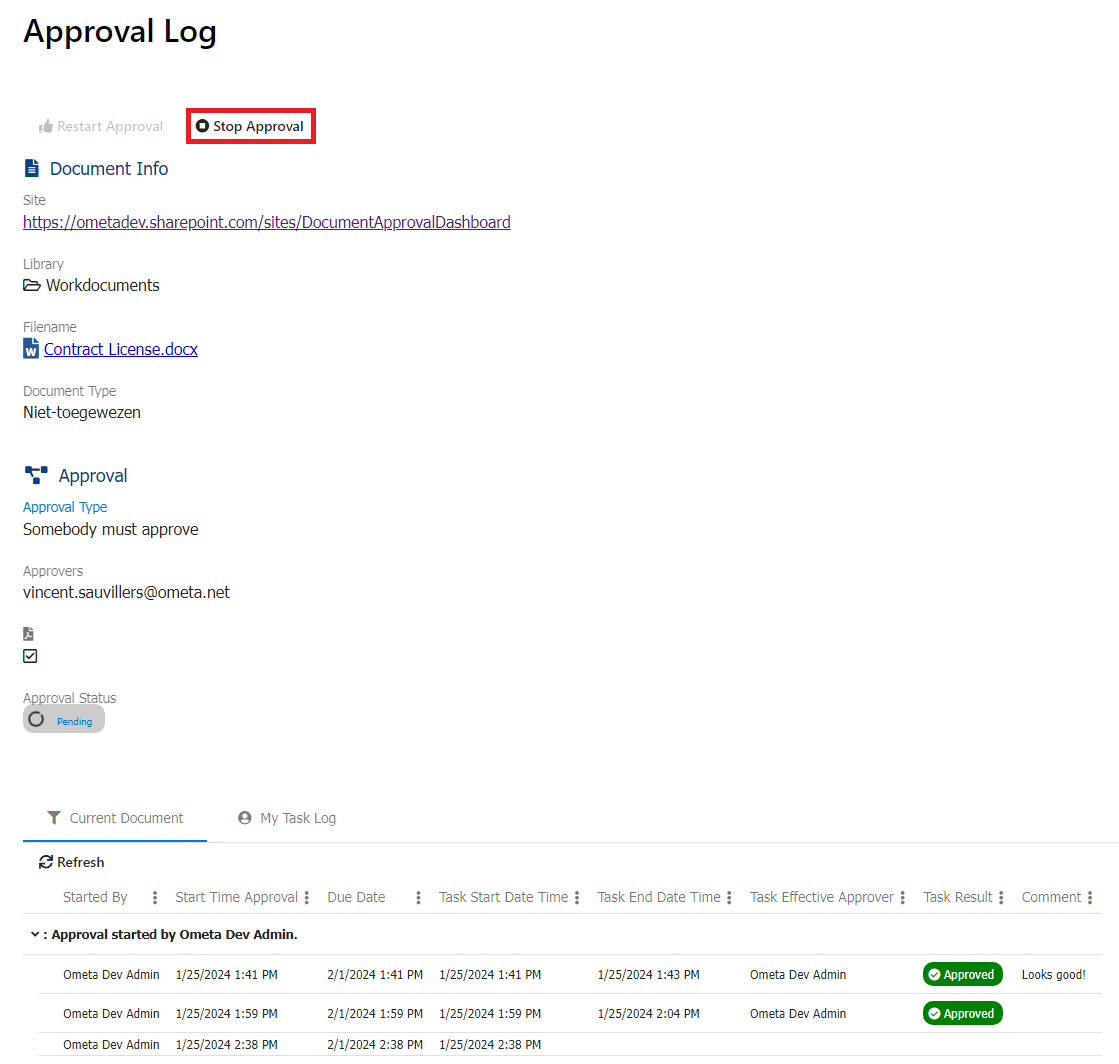
1. Cancelling Via Approval Log
When you're on the approval log page page you have the option to cancel the approval log at the top of the page. The button is only available if the approval is pending and you're the requester.
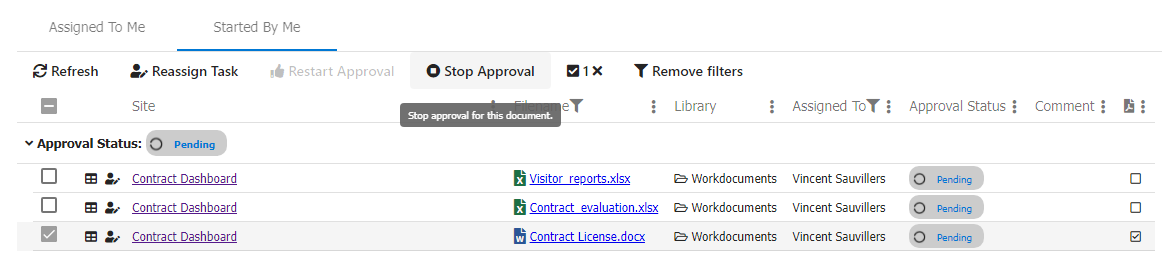
2. Cancelling Via Your Personal Overview
On your personal approval view you can navigate to the Started By Me view, in this view you can select any pending approval and click on the cancel button.
3. Cancelling Via the Administrator / Management View
When someone is out of office and they are unable to cancel their approval, the administrator / manager of the solution can also cancel the approval via the global administrator task view. This global task view is usually ensured on an administrator dashboard via the view Get All Document Approval Tasks in the object DocumentApproval.Task as specified in the configuration section in the documentation.