Starting an Approval
Navigate to the documents you want to approve.
Start the approval in the documents view by clicking on the approval button. Depending on how the document approval is configured in your project you will start the flow from a document library in SharePoint or an ADM.
Starting in a SharePoint document library: in your document view you will have an approval column at the end. If an approval was already started, the field contains the current status.

Starting in a ADM document view: in your ADM view you have a button in the row or in the header to start the approval.

When you've clicked on the approval button a dialog or a new page will be opened with the approval form:
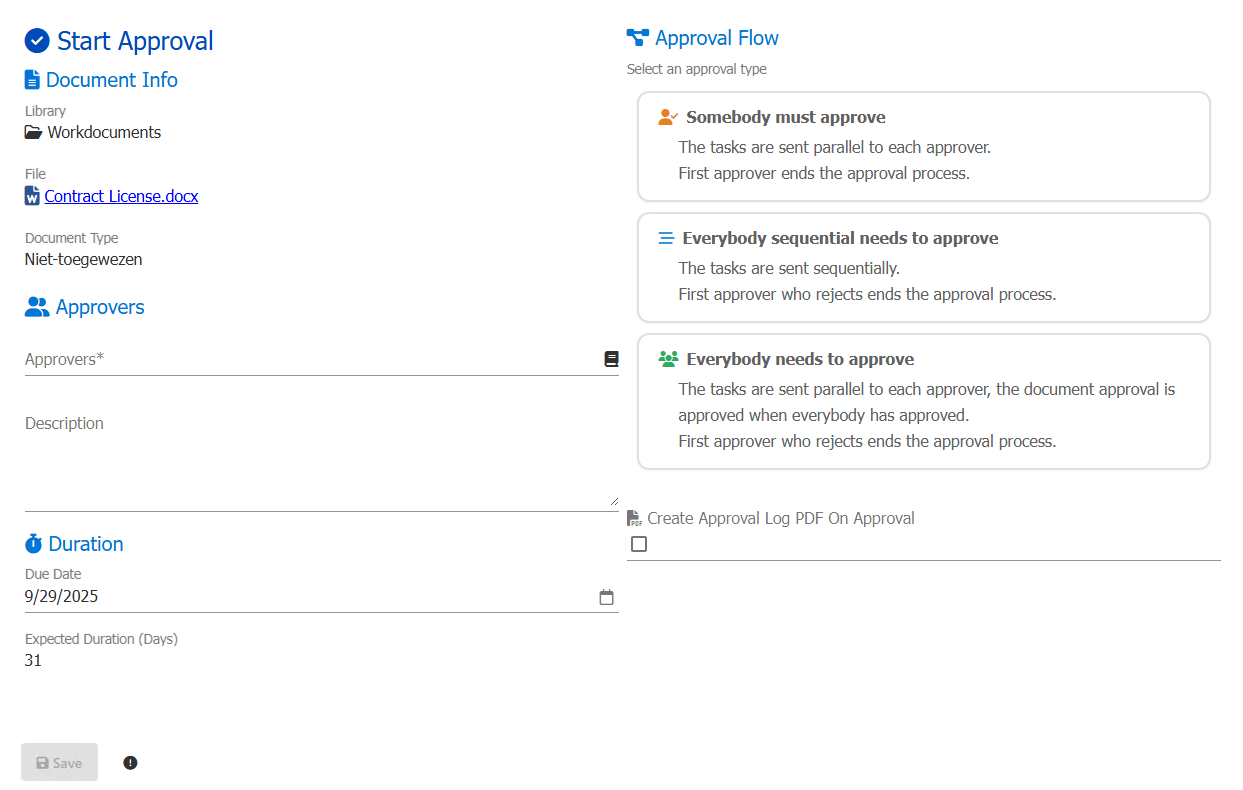
Fill in the fields to start the approval:
| Field | Required | Description |
|---|---|---|
| Approvers | ✔️ | The approvers of the document. Depending on how it is implemented you can select roles too. When a role is selected the approval will be assigned to the role of the case. When starting a sequential flow the order in this field will be used. If an external user is selected, the user will receive a guest invite to Entra. |
| Description | The remark / description you want to send to the approvers. This will be included in the mail and task to the approver. | |
| Duration | The due date of the approval. Below the expected duration in days will be shown. If the due date is near (depending on how many days) a reminder mail will be sent to the approvers and it will be marked in their approval task view. | |
| Approval Type | ✔️ | The following approval types can be selected when starting an approval: - Somebody must approve: the tasks are sent parallel to each approver. First approver ends the approval process. - Everybody sequential needs to approve: the tasks are sent sequentially. First approver who rejects ends the approval process. - Everybody needs to approve: the tasks are sent parallel to each approver, the document approval is approved when everybody has approved. First approver who rejects ends the approval process. |
| Create Approval Log PDF On Approval | Creates a PDF file with the name [original document name]_approval.pdf next to the approved document. This PDF-file contains the original document and a log of the approval and its last status. |
- Click on the Save button to start the approval.
If there is already an approval flow running and in the Pending state, the current approval details and a message will be shown be shown.
The save will be blocked.
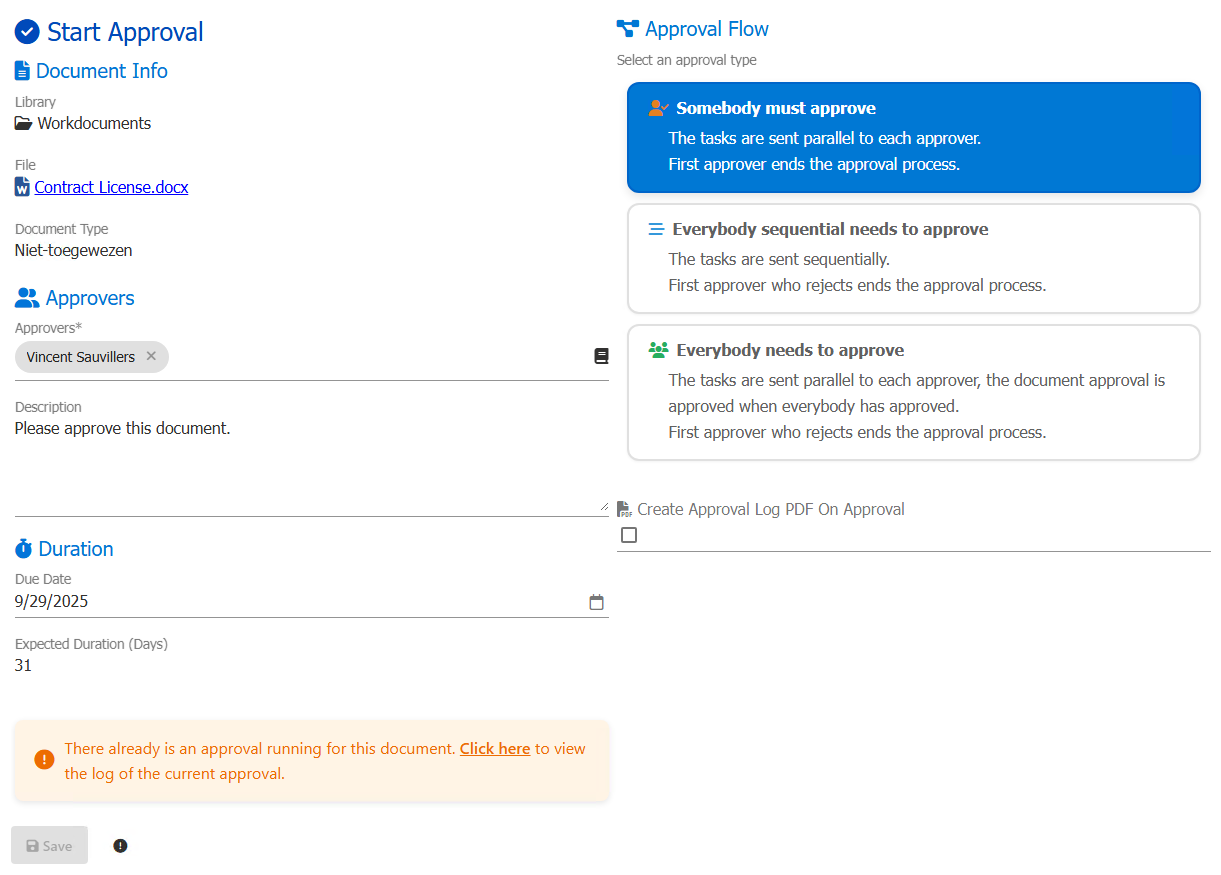
- You will be redirect to the document library again if the form was opened on a separate page.