Example
How to Configure the Quality Solution
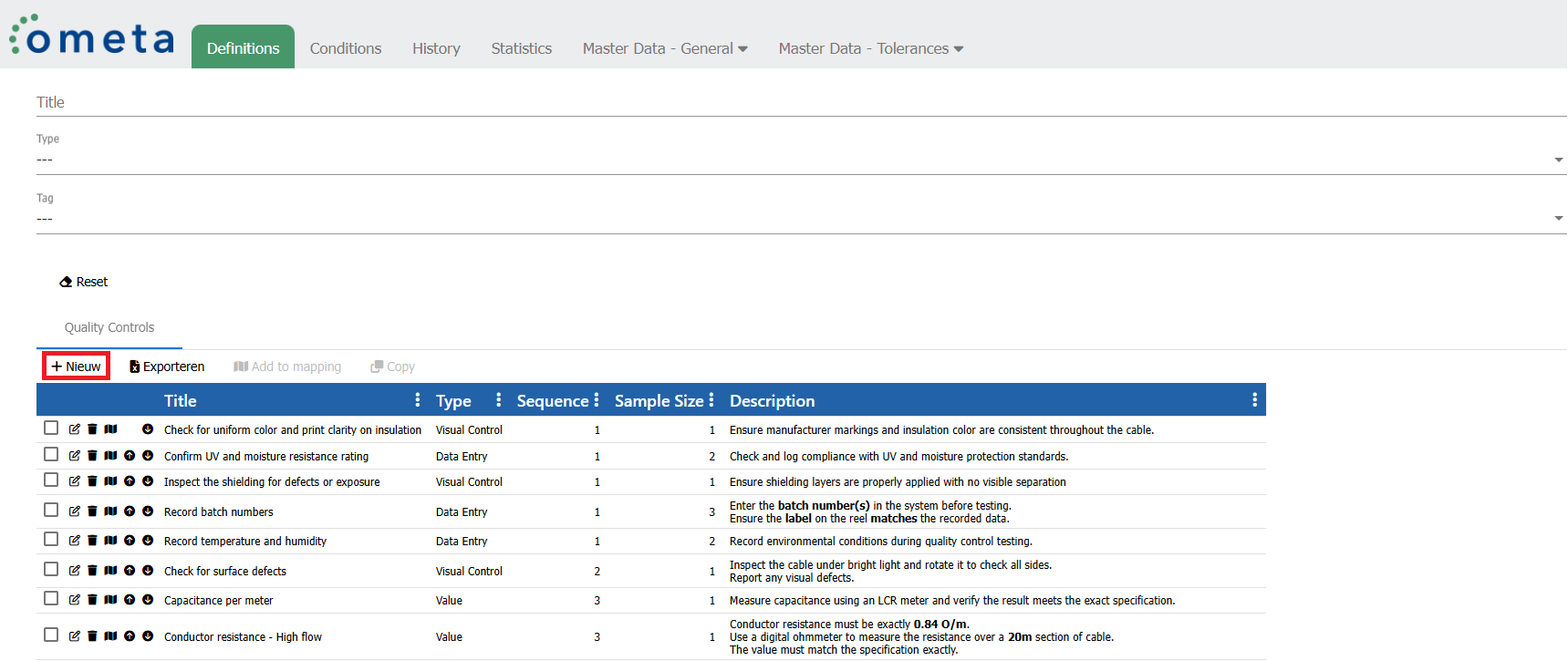
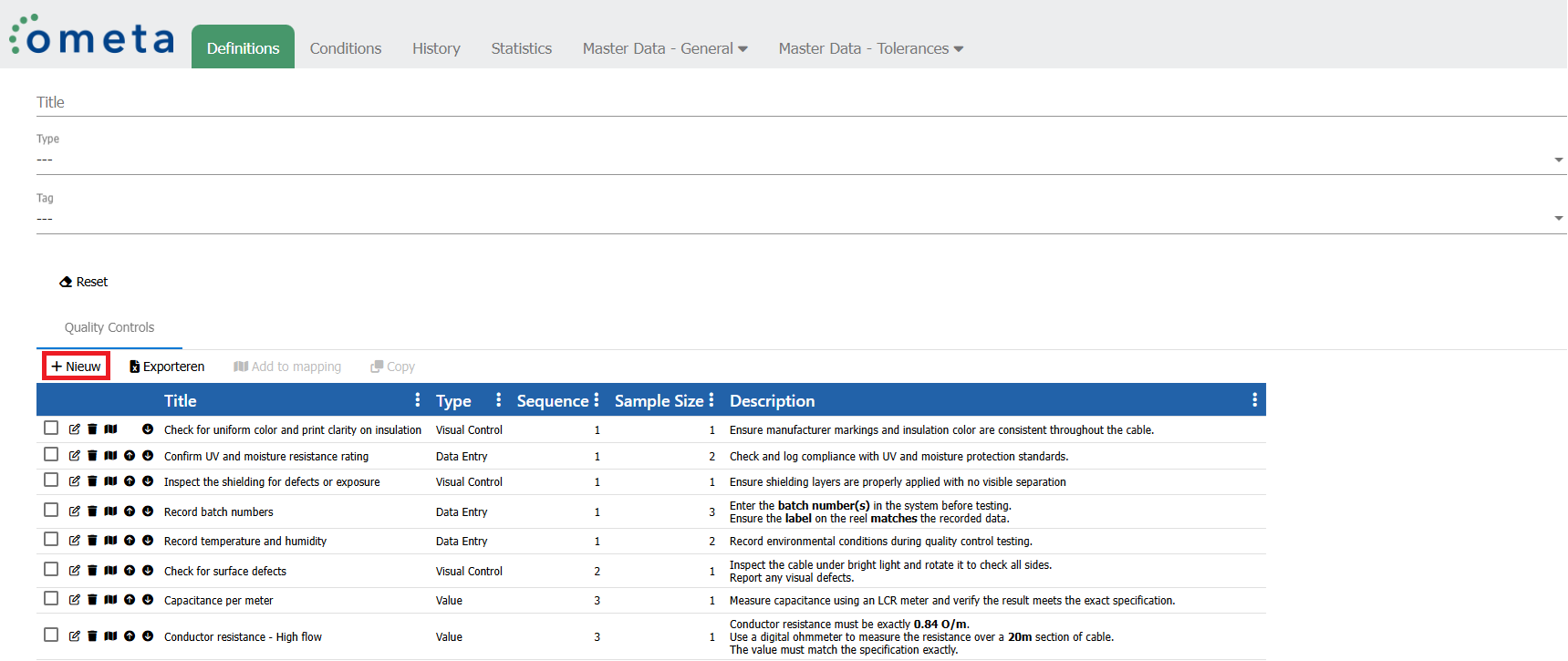
- Create a quality control definition, input may vary from the selected type. Click the highlighted button.
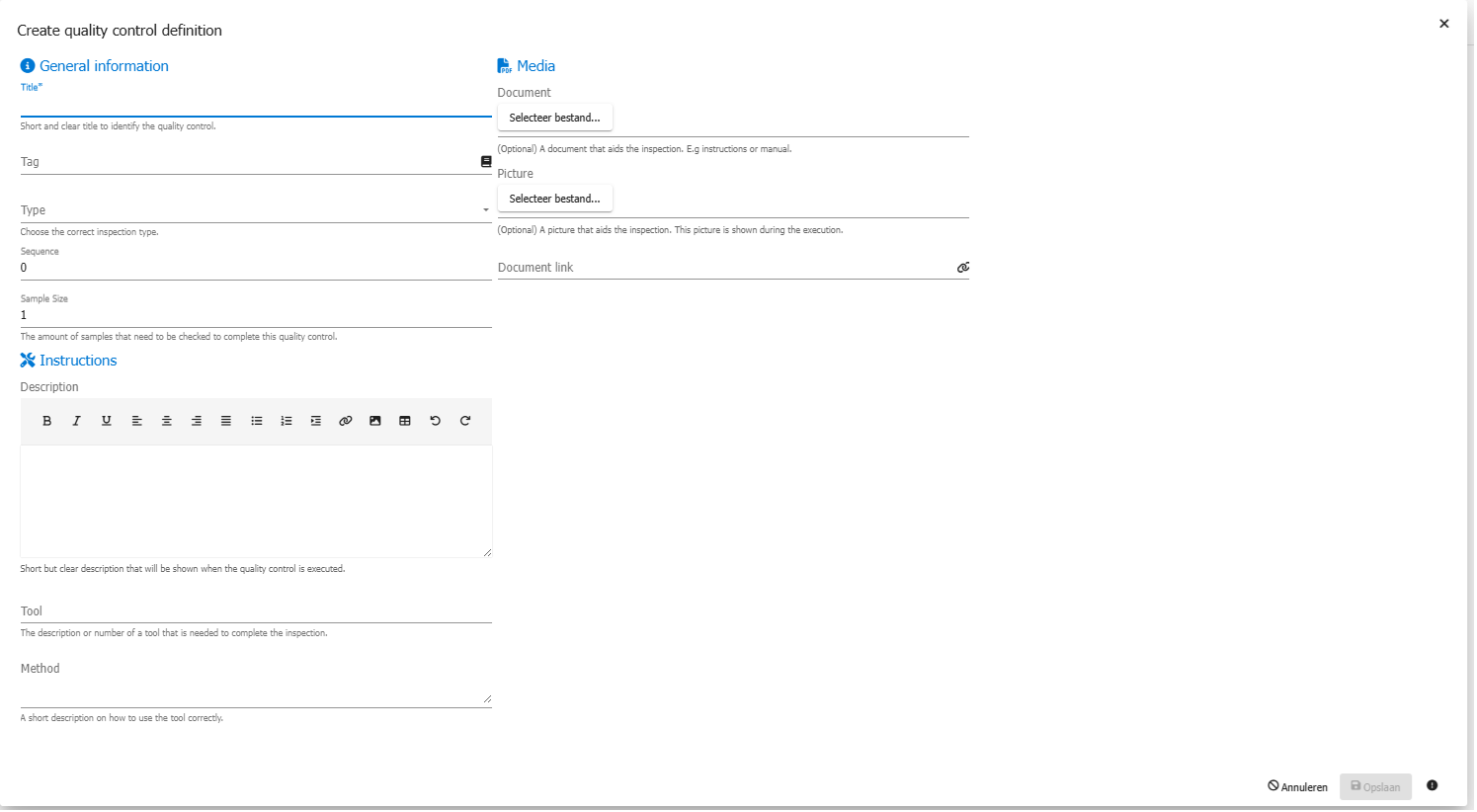
This will give the following form that needs to be filled out:
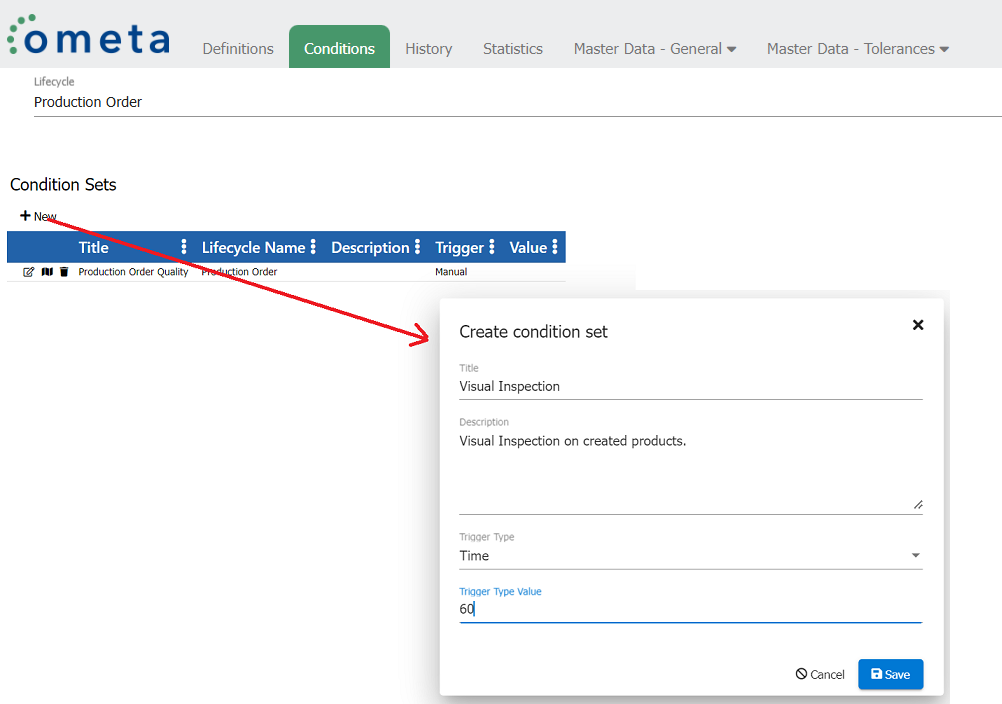
- Create a condition set
- Add a condition to this condition set
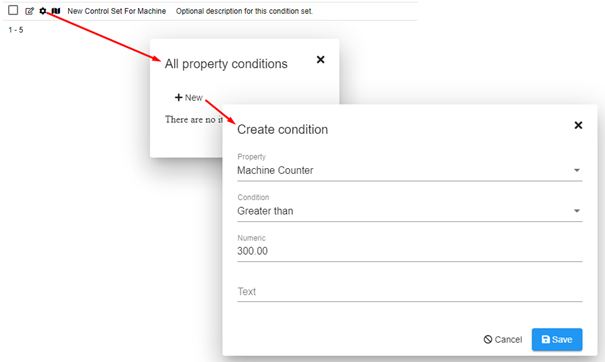
- The mapping form can be reached in two different ways:
Via definitions

Via conditions
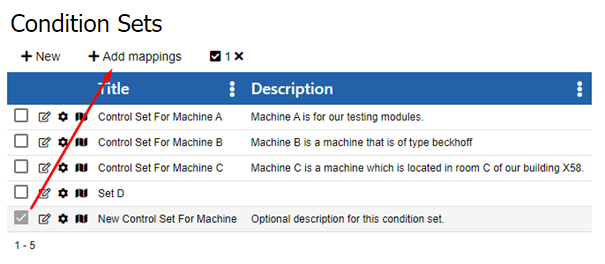
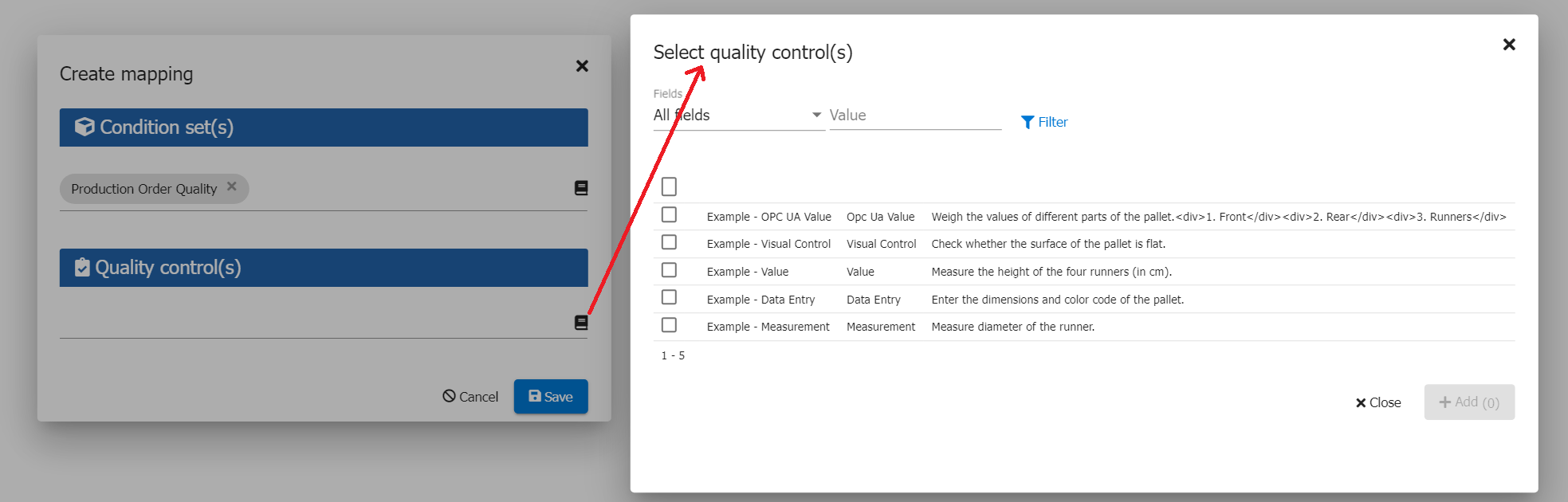
- Fill out the mapping form. Multiple quality controls or condition sets can be selected via the picker.
Result of the Configuration
Once you have mapped lifecycle condition set(s) to quality control(s), the process will be as followed: When a case is triggered, it will check if it has any lifecycle condition sets. If it has, it will check if this lifecycle condition set is satisfied. If the condition set is satisfied it will fire the quality control definitions that are linked to this condition set. The quality controls that needs to be executed are available in an overview where they can be completed by an end user.
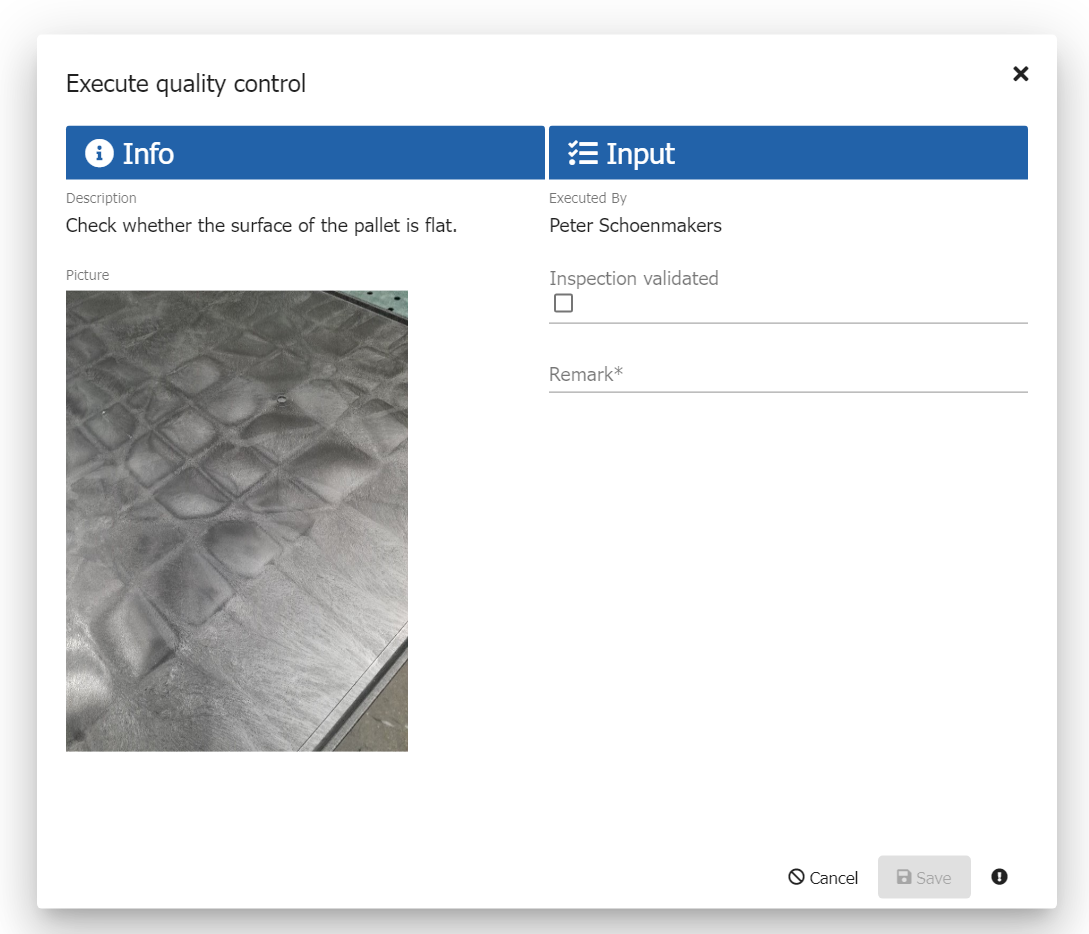
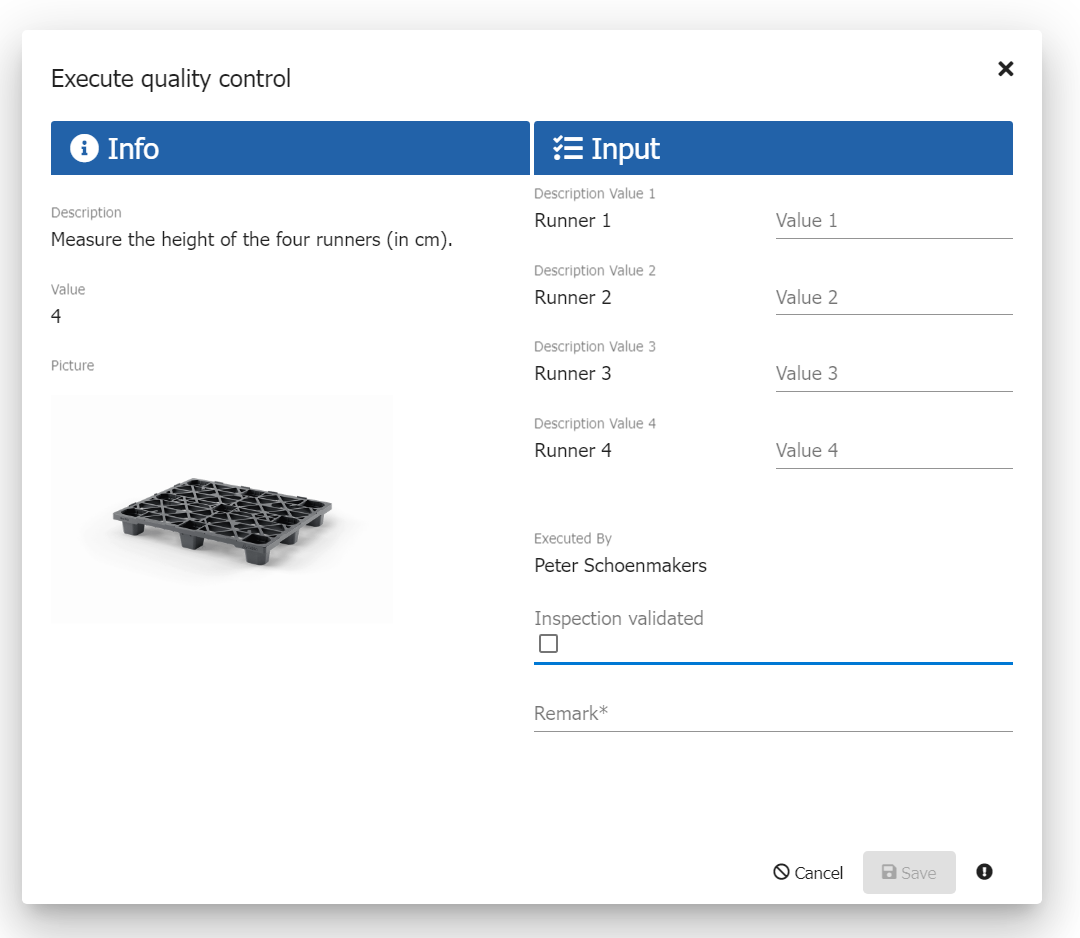
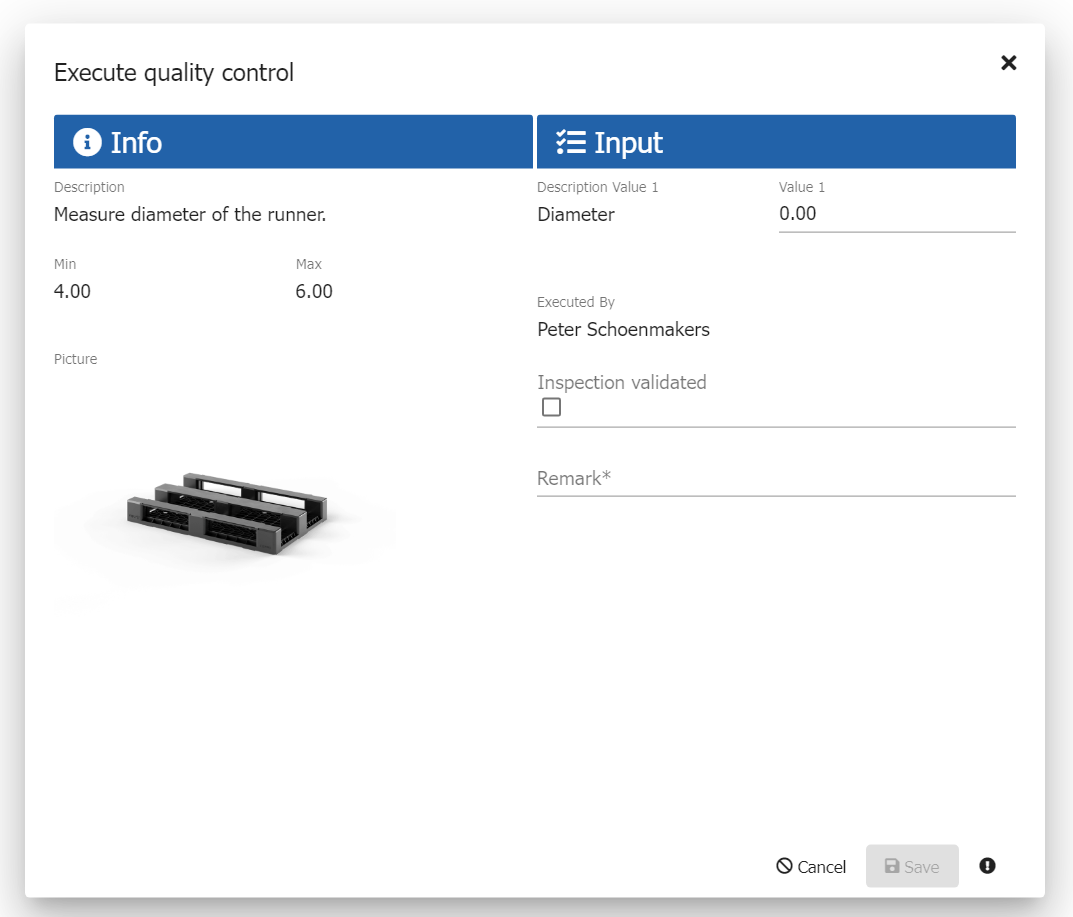
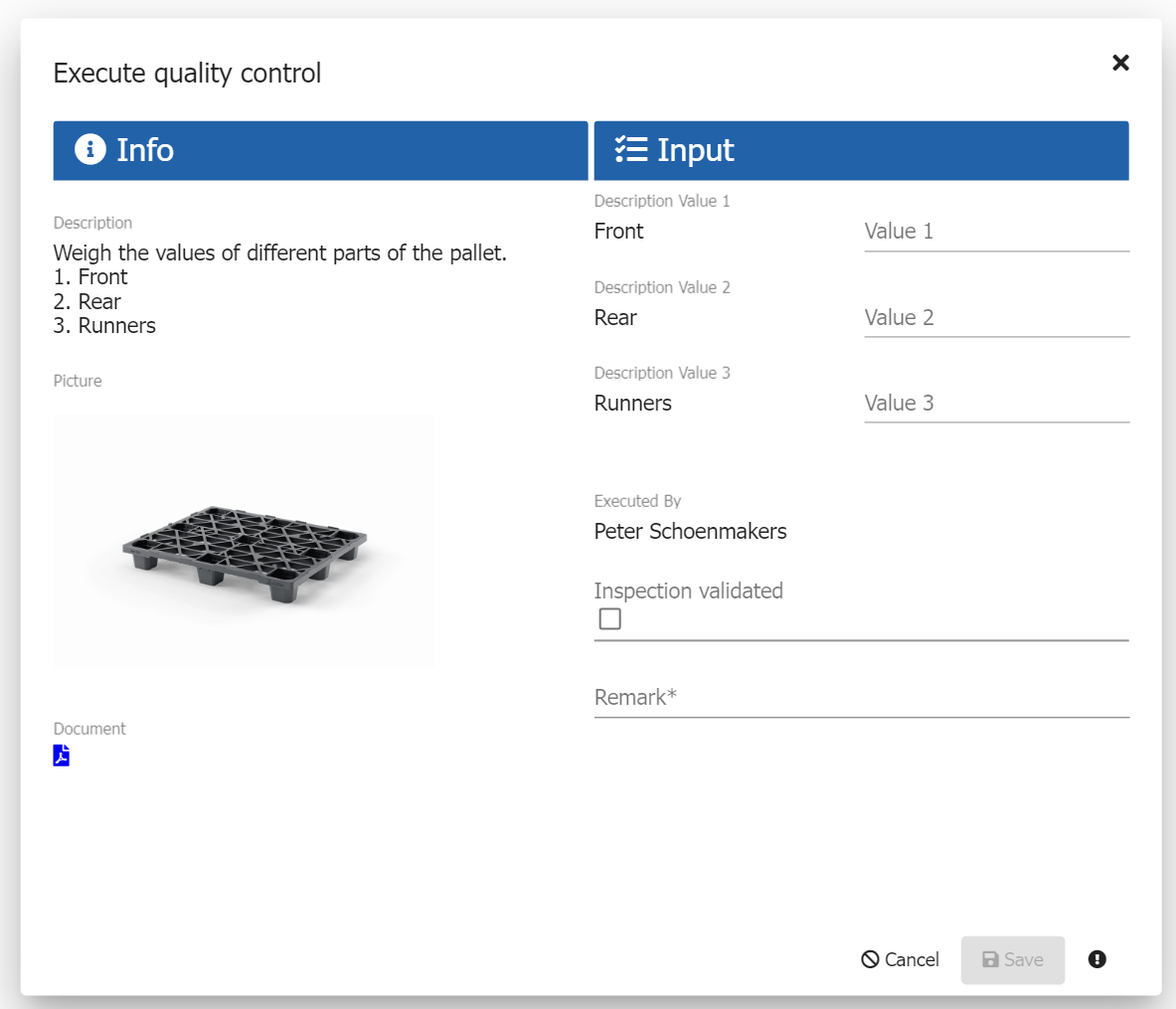
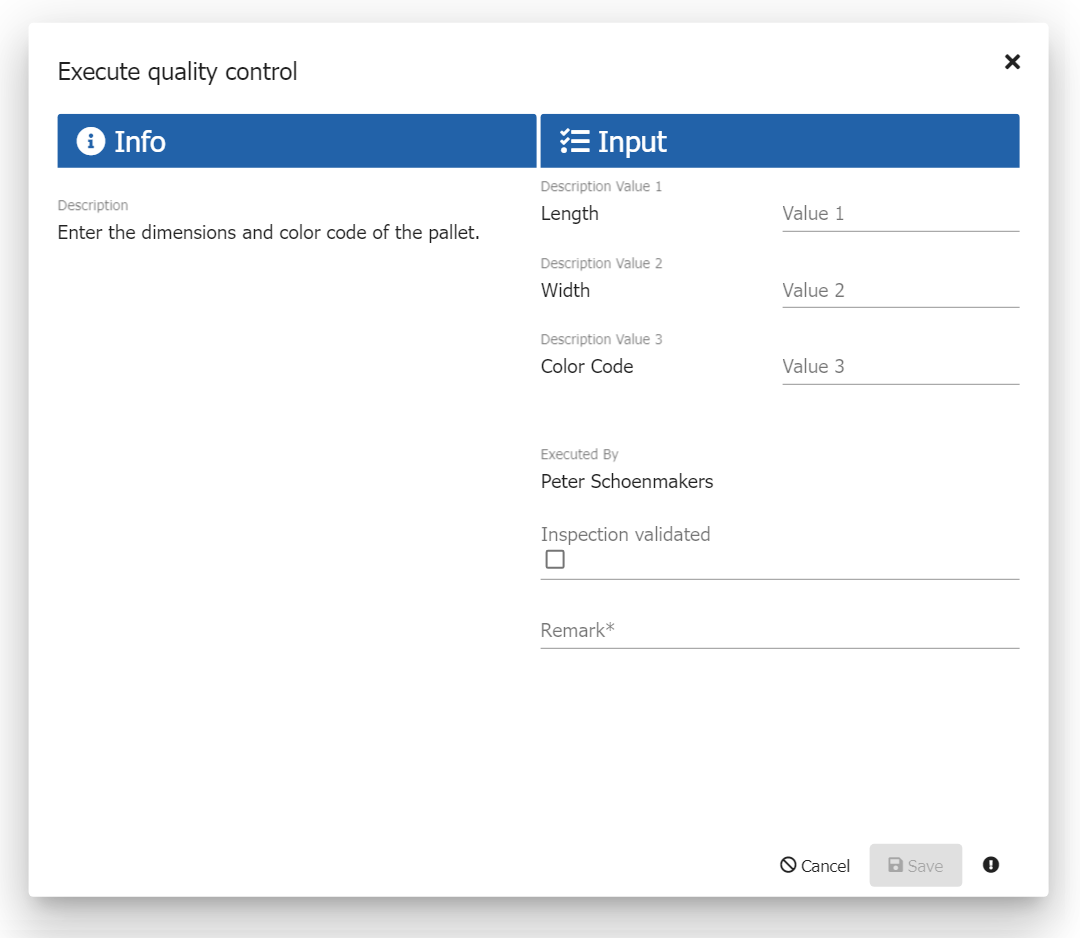
The quality control can then be executed. The quality control looks like the following depending on its type:
- Visual
- Value
- Measurement
- OPCUA
- Data Entry
Store Results (Report)
The data from these quality controls are saved in the configured database. The quality solution offers out of the box a few tables and filters to see this data.
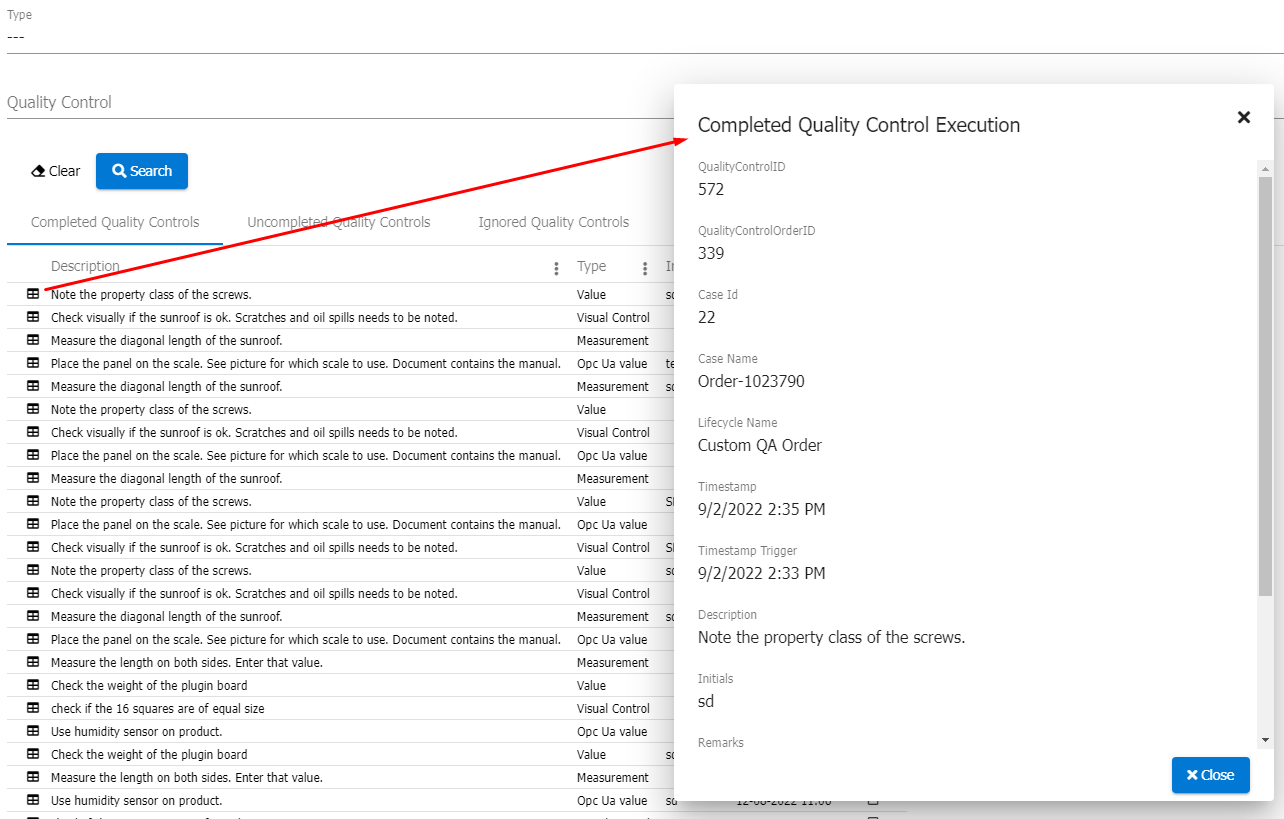
The following overviews can be used to view the history of the quality controls:
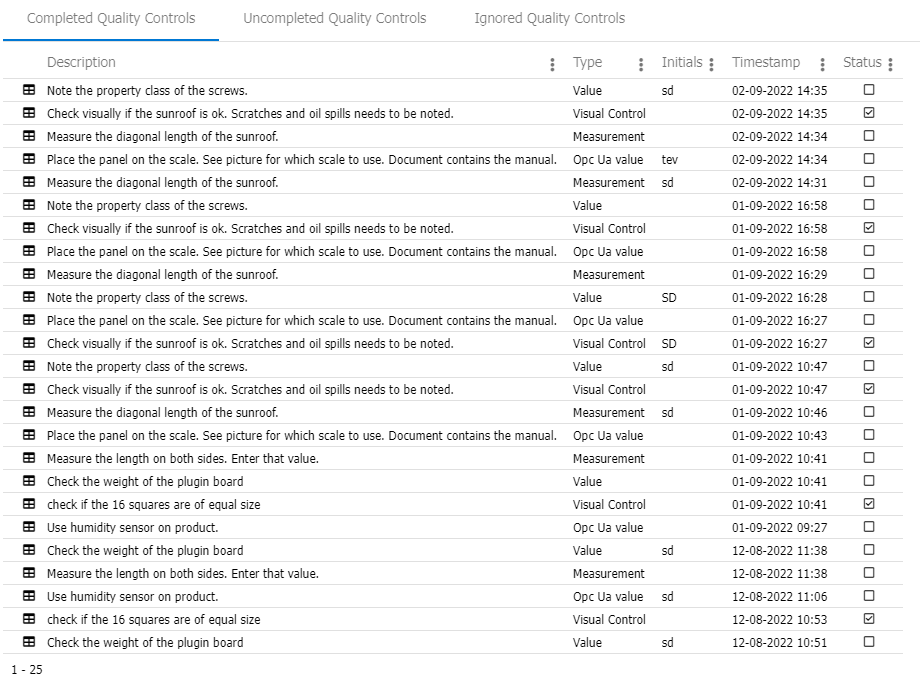
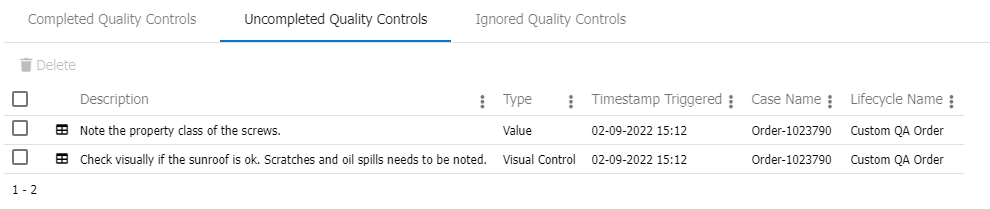
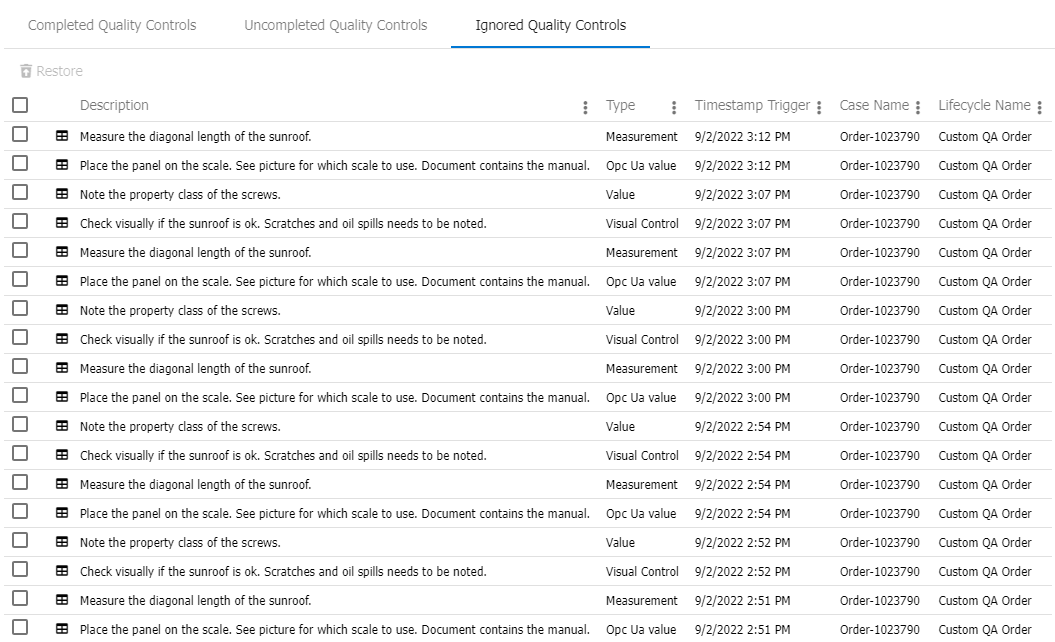
The details icon can be clicked to see more (technical) information about the quality control.