Case Flows
The second step in configuring a new portal is creating Case Types, Case States and linking them together to create a flow.
Cases you create in a portal will use these flows.
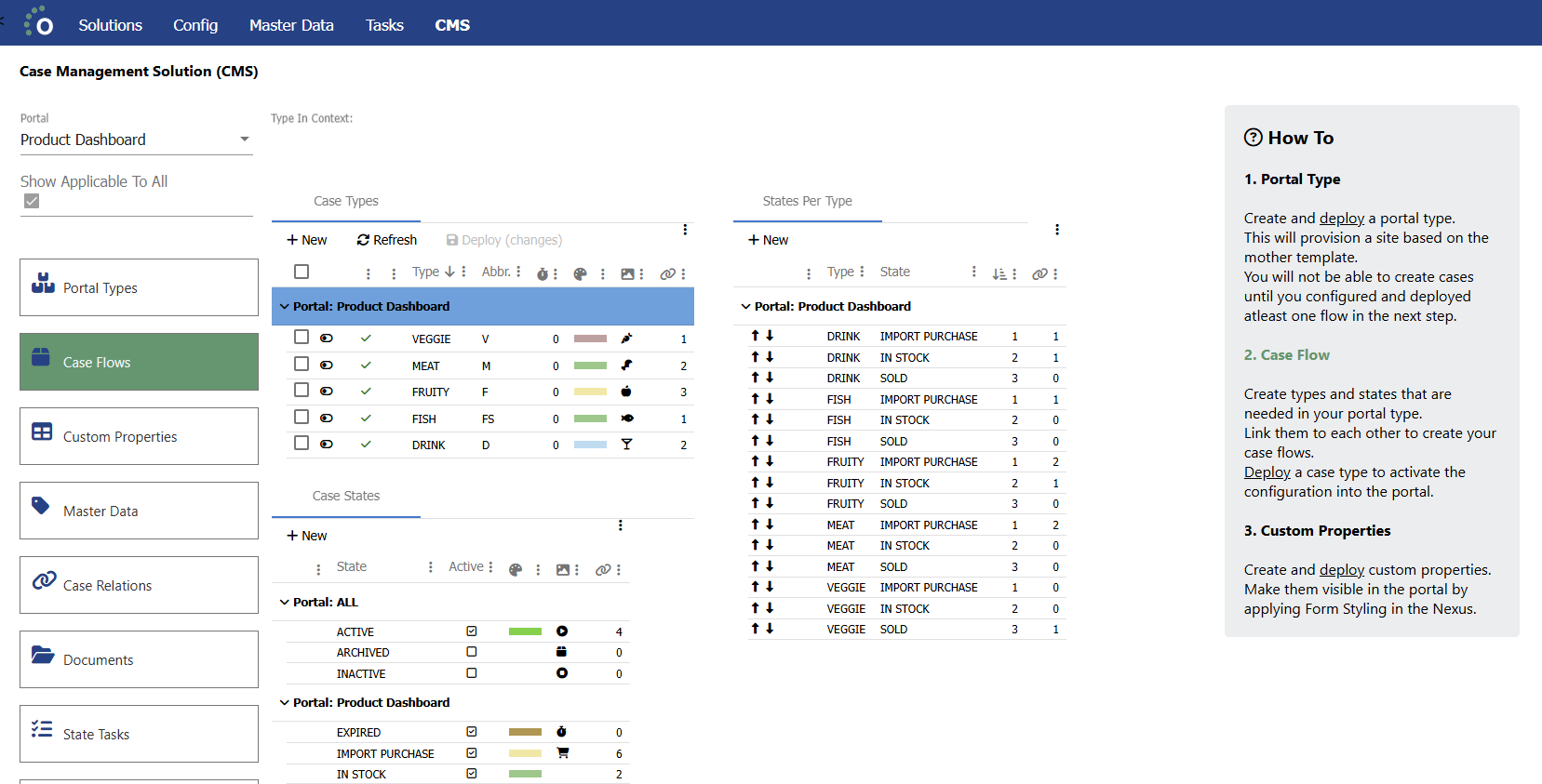
You can filter the page by setting a Portal Type in the filter (top left). You can also enable Show Applicable To All which will show you configuration that is applicable to all portal types apart from your filtered Portal Type.
As shown in the right info panel, you must deploy a case type before it will become available in a portal.
When no deployed case types or found, the choice lists for Type and State will remain empty when trying to create a new case in the portal.
Case Types
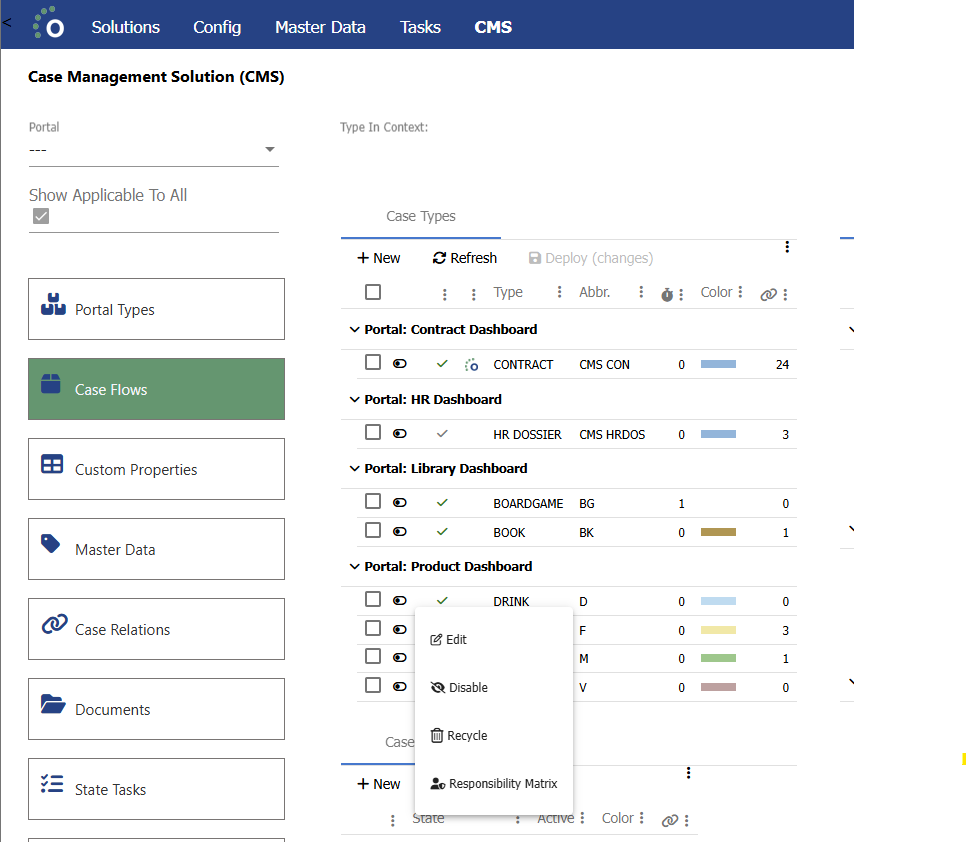
An overview is shown of all active case types with their metadata and active linked cases. You have the option to create a new type, update, disable, recycle, deploy an existing one or manage the Responsibility Matrix via the dotted row menu (visible on hover) and manage the archive via the dotted header menu. Disabling a case type will make the type non-selectable in the portal.
When you want to see data exclusively linked to a specific case type, you can use the slider in front of the row in the Case Type overview and the page will be filtered.
Create a Case Type
When creating a case type the following properties need to be filled.
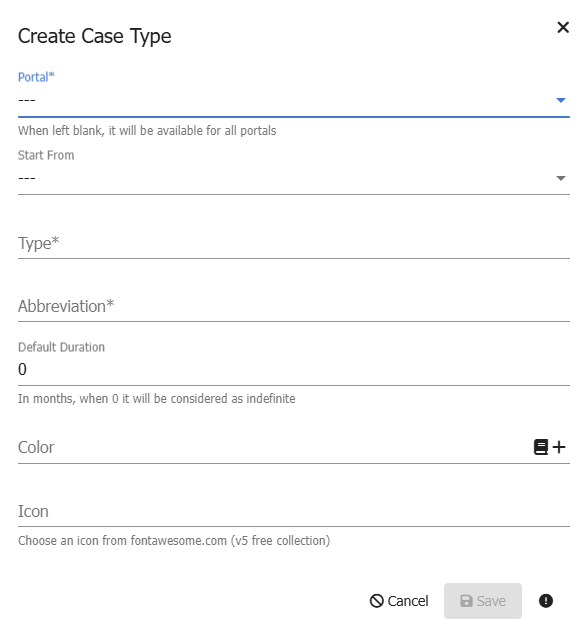
When you do not fill the Portal with a specific value, it will become applicable to all portal types.
You can choose to start from an already deployed case type. The new type will inherit from this flow and its possible customizations.
If configuration is added or updated on the original flow, you will have to redeploy to import them on the ones that started from that flow.
A color can be picked from the color list or a new one can be created using the plus icon.
Starting from a template
If you are rolling out an Ometa template, but its default flow does not suit your wishes, you can Start From the template flow and adjust the configuration to your needs. This way you will make sure the new flow inherits future configuration that might be added to the template.
If you need more then one customized template flow, you can start from your newly created and customized Case Type that was based on the default template flow.
If extra configuration is released on the original template flow and you have more customized flows, you will have to redeploy in the correct order to import those changes.
Redeploy the flow that was based on the template first and the ones that were based on the customized flow afterwards. This way you make sure configuration from the template gets pushed to all of your flows.
Update a Case Type
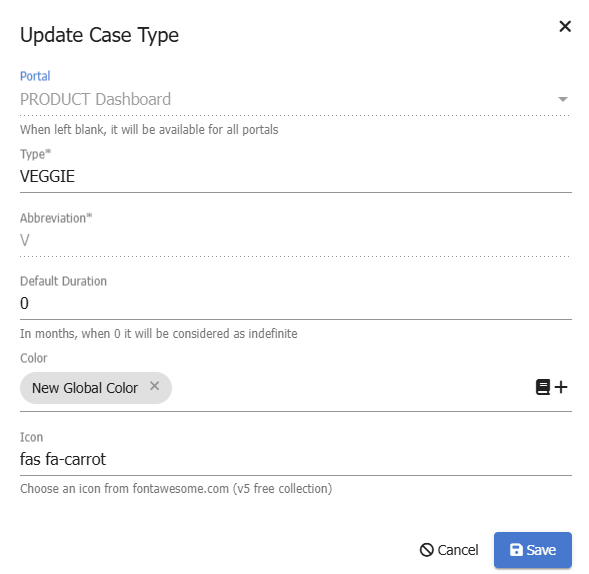
You can update a case type any time by clicking Edit using the dotted row menu, but once deployed it will not be possible to change the Portal and Abbreviation because this info is already used in the Ometa framework configuration.
A Deploy (changes) will be necessary to activate your changes.
Deploy a Case Type
When you deploy a case type it will ensure all base configuration in the Ometa framework with the Case States you linked to it and also deploy the available Custom Properties if there are any.
When a Case Type is set without a portal type it will be ensured for all deployed portal types.
During deployment you can follow-up the status by the icons in front of the row. Hovering over it will show you more info.
| Icon | Description |
|---|---|
 | New (not deployed) |
 | Updated (changes not deployed) |
 | In Progress |
 | Ready |
 | Error |
Responsibilty Matrix
When the linked portal type has RASCI enabled, the Responsibilty Matrix function will be visible and lead you to the Nexus where you can enable the Case Type lifecycle with RASCI and manage responsibilities. More info can be found in the Ometa Documentation.
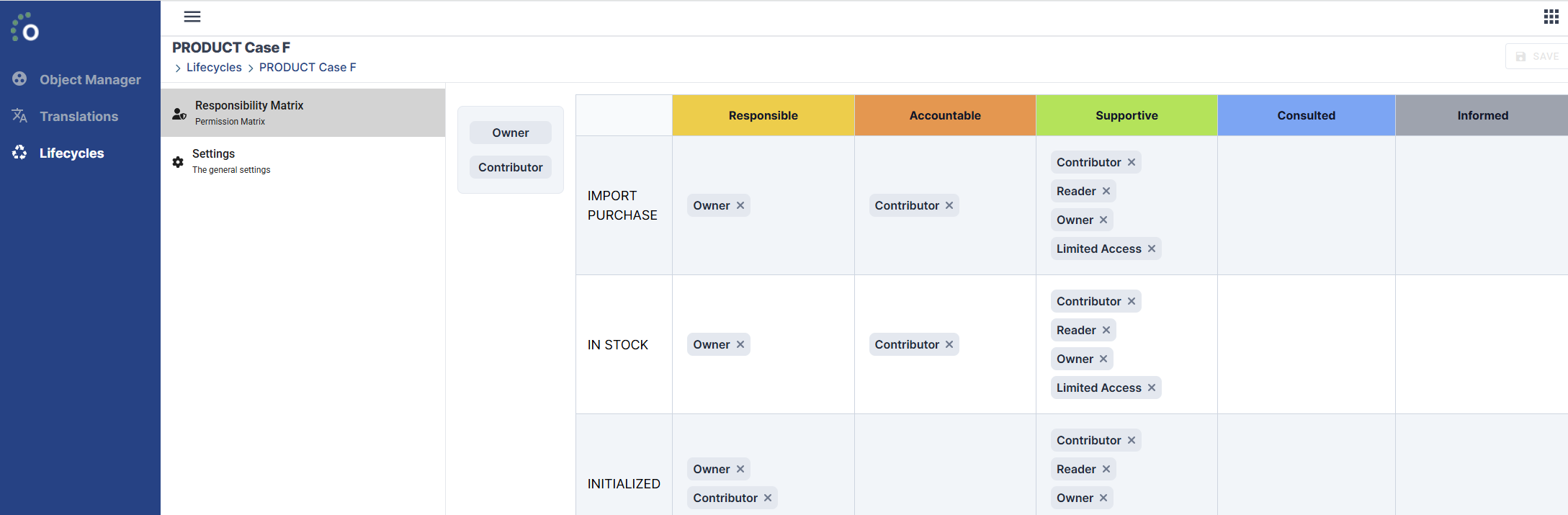
Only Ometa Framework Administrators are allowed to perform this action.
Recycle a Case Type
When you recycle a case type it will be moved to the Archive along with its flow, linked documents and custom properties. The configuration will still exist for historical purposes, but the type will not be visible anymore in the portal.
Only case types with no active linked cases can be recycled.
View Log
When an error occurs during the deployment process, you can view more info by clicking View Log in the dotted row menu.
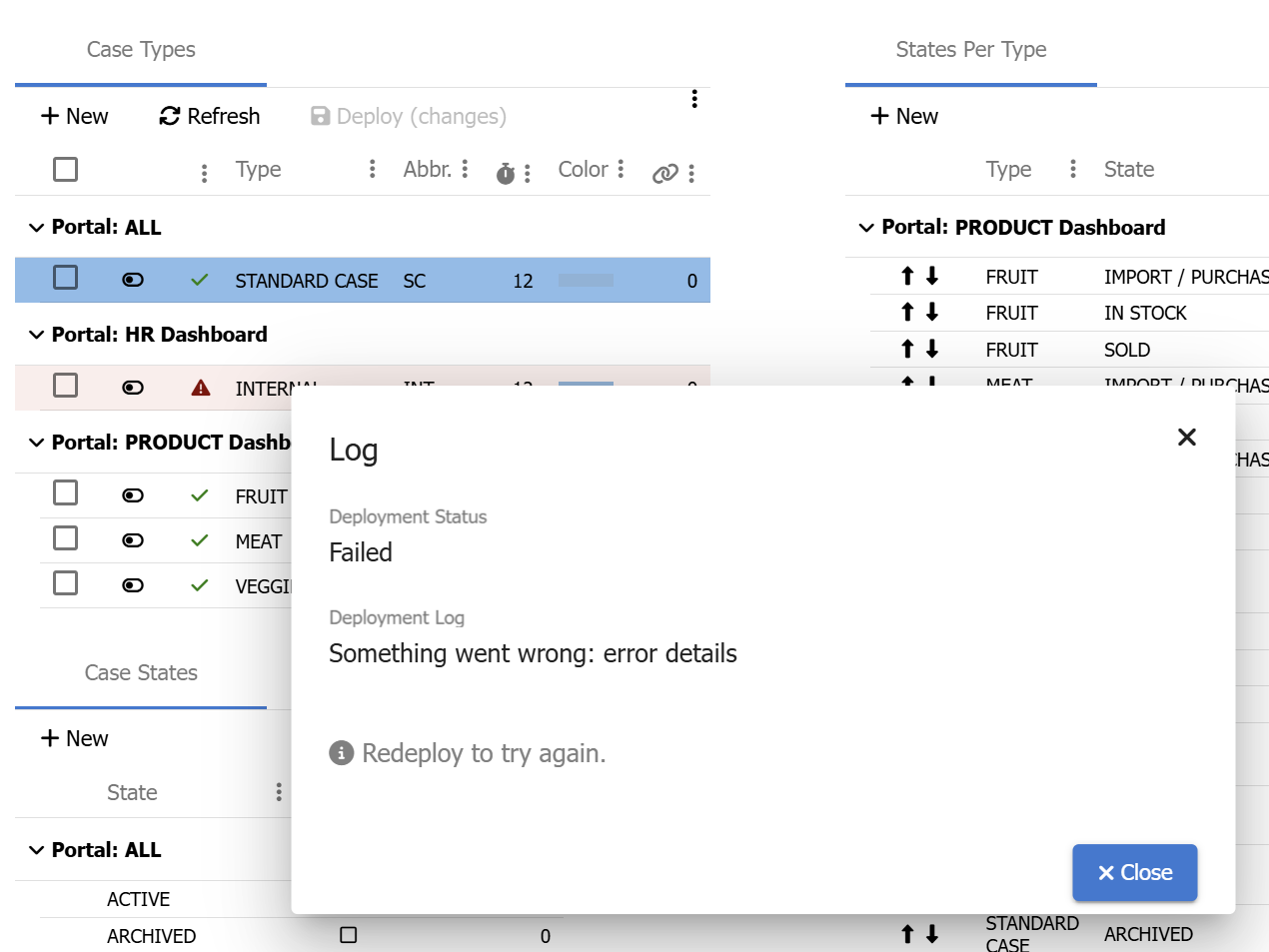
When all was successful the View Log function will not be visible (anymore).
Archive
The archive can be viewed by using the vertically dotted menu on the right of the function bar.
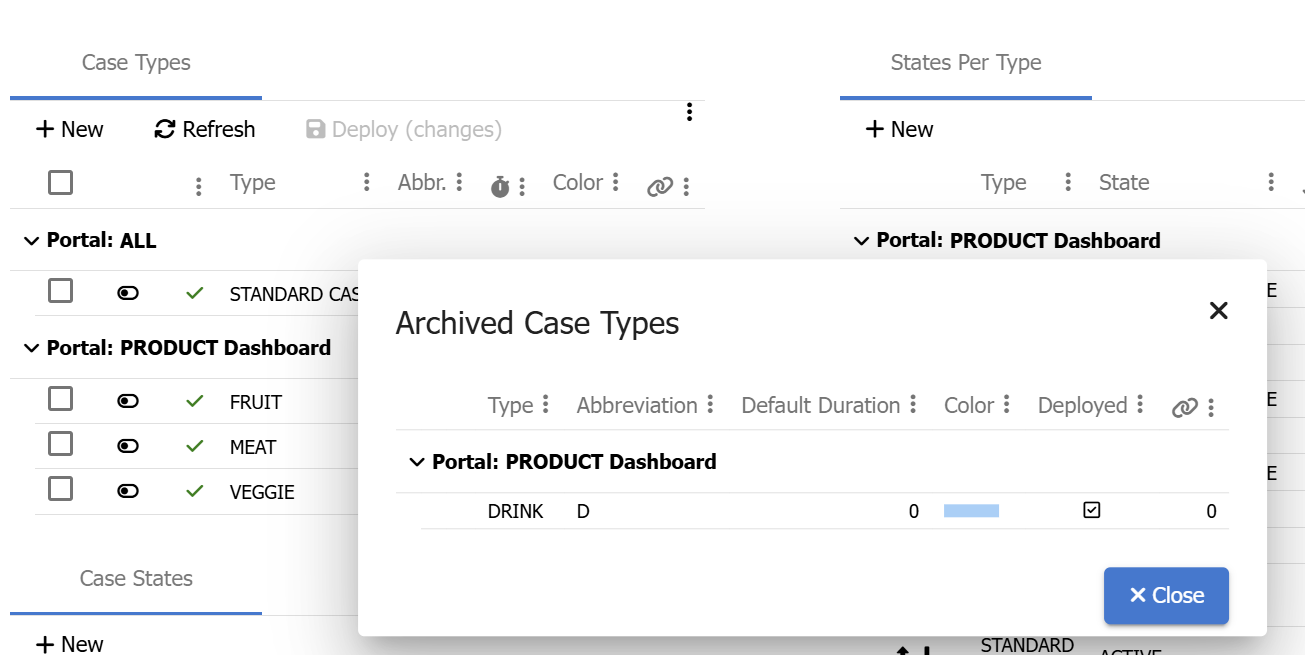
The archive holds all recycled case types. Here you have the option to Edit , Restore or Delete it via the dotted row menu (visible on hover).
A restore will move the case type to the active overview again along with its archived flow, linked documents and custom properties and re-enable it for use in the portal.
A delete will permanently delete the case type and its linked documents, custom properties, cases and framework configuration.
Case States
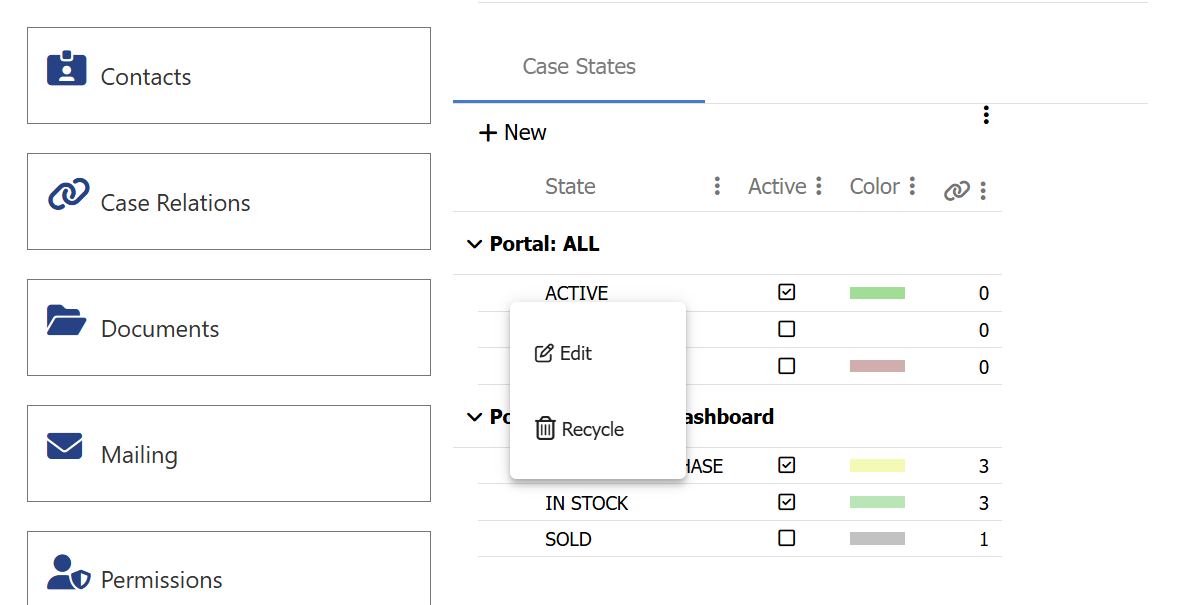
An overview is shown of all active case states with their metadata and active linked cases. You have the option to create a new state, update or recycle an existing one via the dotted row menu (visible on hover) and manage the archive via the dotted header menu.
Create or Update Case State
When you create or update a case state the following properties need to be filled.
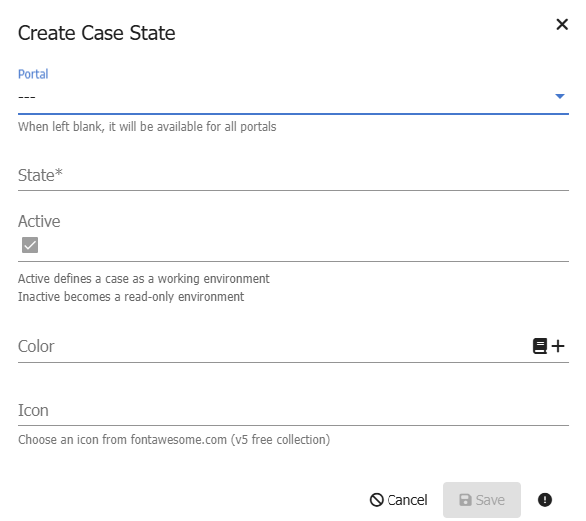
When you do not fill the Portal with a specific value, it will become applicable to all portal types.
A color can be picked from the color list or a new one can be created using the plus icon.
An update on a state that is already linked to one or more deployed case types will mark those case types as changed. A re-deploy of those case types will be necessary to activate the changes.
Recycle a Case State
When you recycle a case state it will be moved to the Archive along with the flow configuration if there is any. If it is linked to one or more deployed case types it will mark those case types as changed. A re-deploy of those case types will be necessary to activate the changes.
Archive
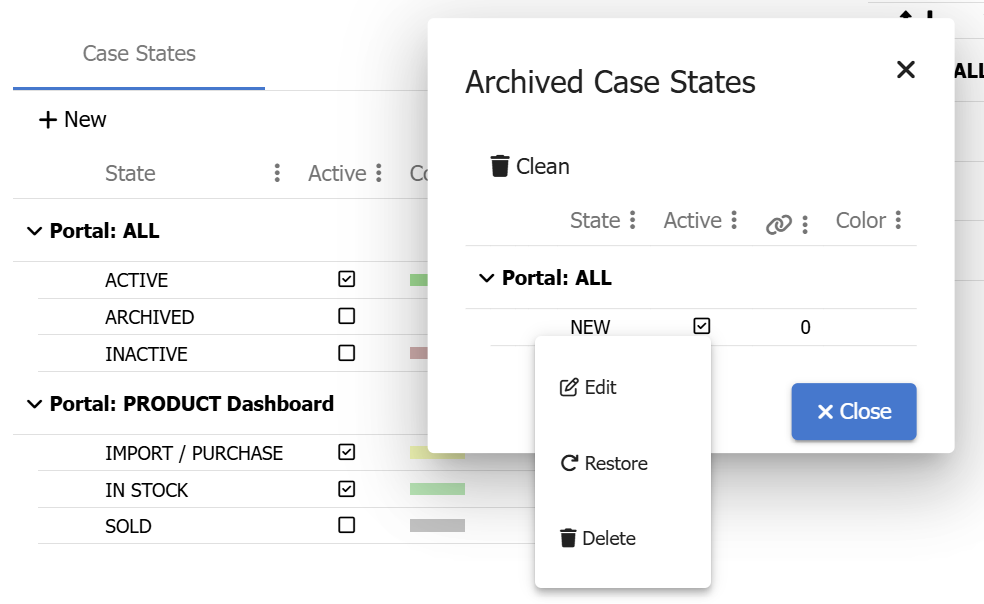
The archive holds all recycled case states. Here you have the option to Edit , Restore or Delete it via the dotted row menu (visible on hover).
A restore will move the case state to the active overview again along with its archived flow. A re-deploy of the linked case types will still be necessary to re-activate the changes.
A delete will permanently delete the case state and its archived flow.
You also have the option to Clean the archive which will delete all archived configuration.
States Per Type
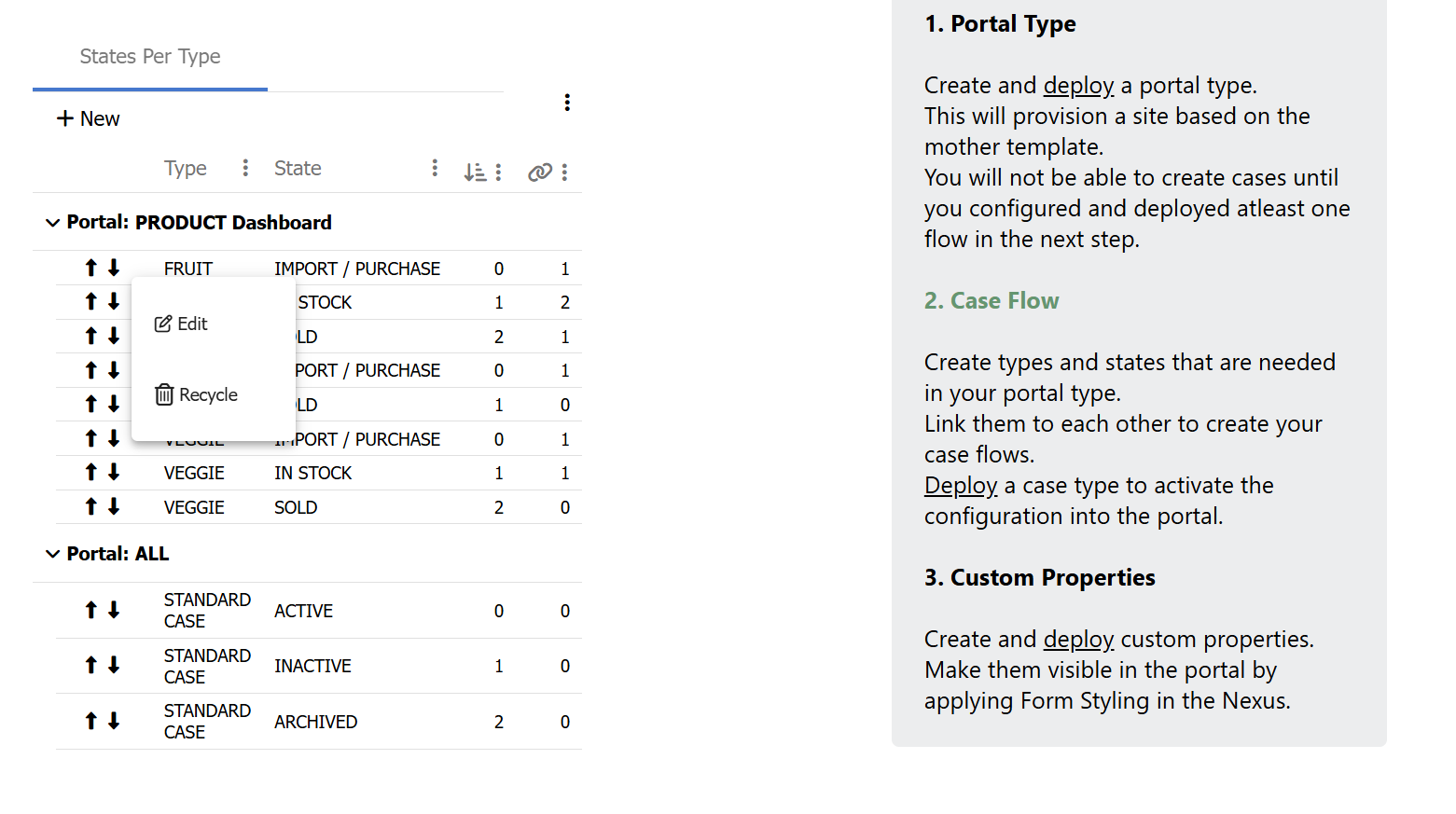
An overview is shown of all active states per type and their active linked cases, grouped by portal and ordered by their sequence. You have the option to create a new flow, update or recycle an existing one via the dotted row menu (visible on hover), increase or decrease sequences and manage the archive via the dotted header menu.
Create or Update States Per Type
When you create or update a state per type the following properties need to be filled.
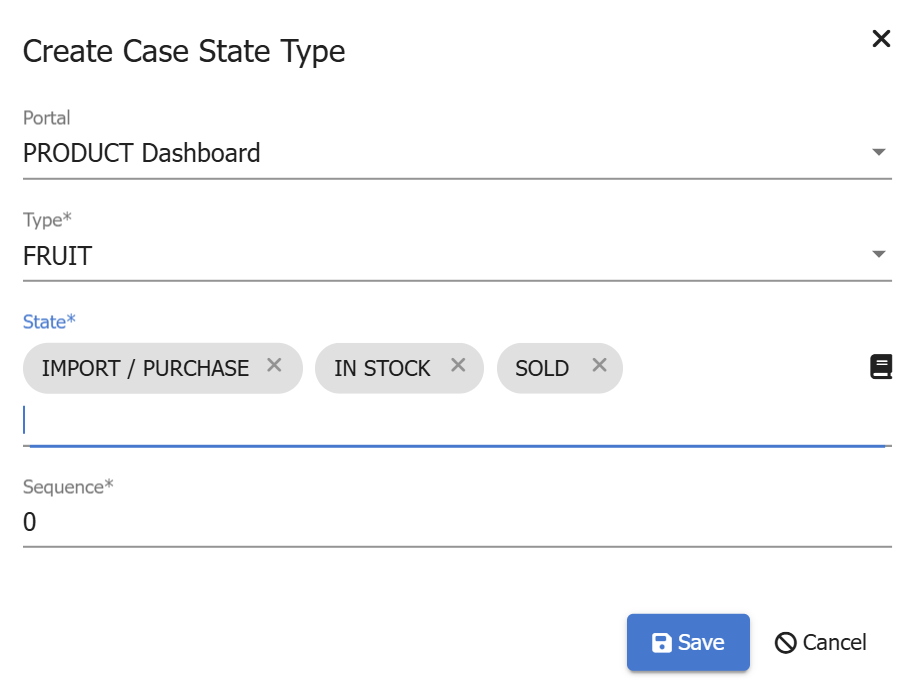
When you do not fill the Portal with a specific value, it will become applicable to all portal types.
During creation you can only select one type, but multiple states.
When you add or update a flow that is already linked to a deployed case type, that case type will be marked as changed. A re-deploy of that case type will be necessary to activate the changes.
Recycle a State Per Type
When you recycle a flow it will be moved to the Archive. If it is linked to one or more deployed case types it will mark those case types as changed. A re-deploy of those case types will be necessary to activate the changes.
Archive
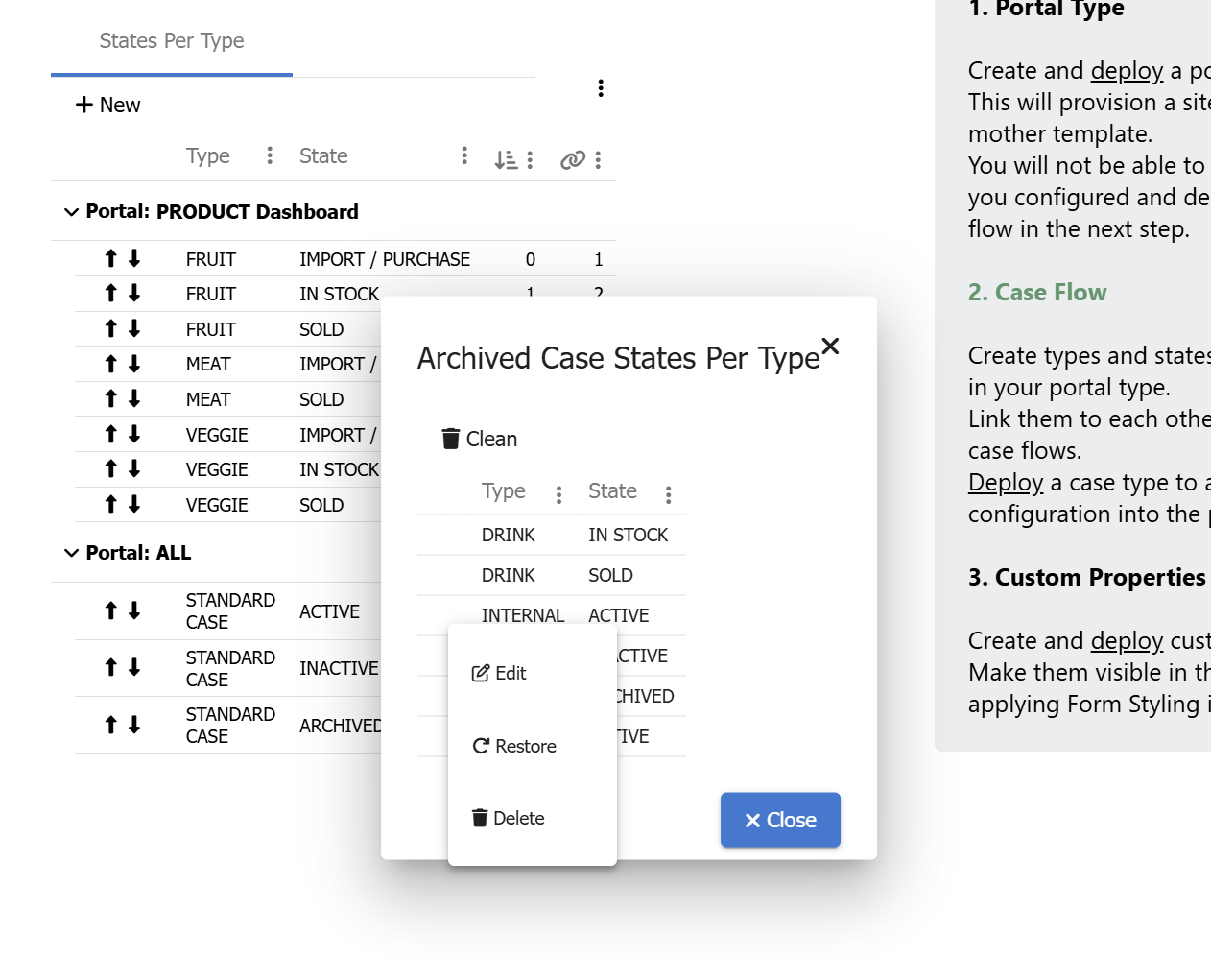
The archive holds all recycled case states per type. Here you have the option to Edit , Restore or Delete it via the dotted row menu (visible on hover).
A restore will move the state per type back to the active overview again. A re-deploy of the linked case types will still be necessary to re-activate the changes.
A delete will permanently delete that state per type.
You also have the option to Clean the archive which will delete all archived configuration.