Custom Properties
The third (optional) step in configuring a new portal is creating and deploying custom properties that are needed in your portals.
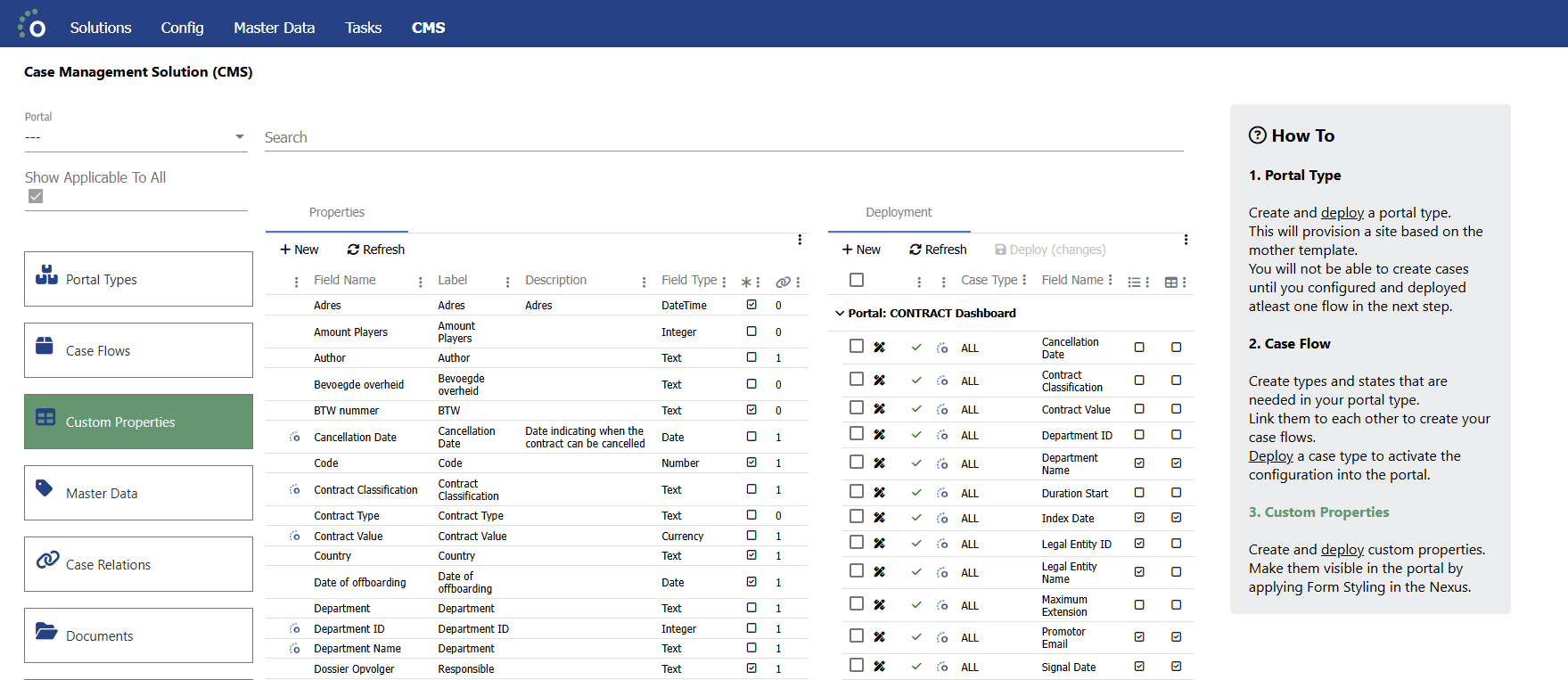
You can filter the page by setting a Portal Type in the filter (top left). You can also enable Show Applicable To All which will show you configuration that is applicable to all portal types apart from your filtered Portal Type.
Properties
An overview is shown of all your active custom properties. You have the option to create new properties, update or recycle existing ones via the dotted row menu (visible on hover) and manage the archive via the dotted header menu.
Create Or Update A Property
When creating or updating a property the following fields are expected:
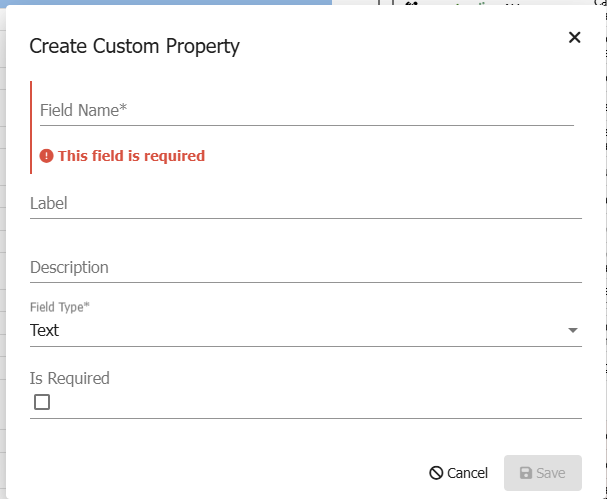
The Field Name will be used in the Ometa framework configuration and therefore will become uneditable once deployed.
The Label and Description will be shown in the Create, Edit and Details view on portals it is deployed to.
Only the field types Text, Integer, Date, DateTime, Currency, Number en YesNo are available. Other field types (like media, data sources,...) will need to be added/updated manually in the Ometa framework.
Every update on a property that is already deployed on a case type will mark those active deployments as changed. A re-deploy is necessary to push the changes to the Ometa framework.
Recycle A Property
When you recycle a property it will be moved to the archive. Only properties that do not have a linked deployments can be recycled.
Archive
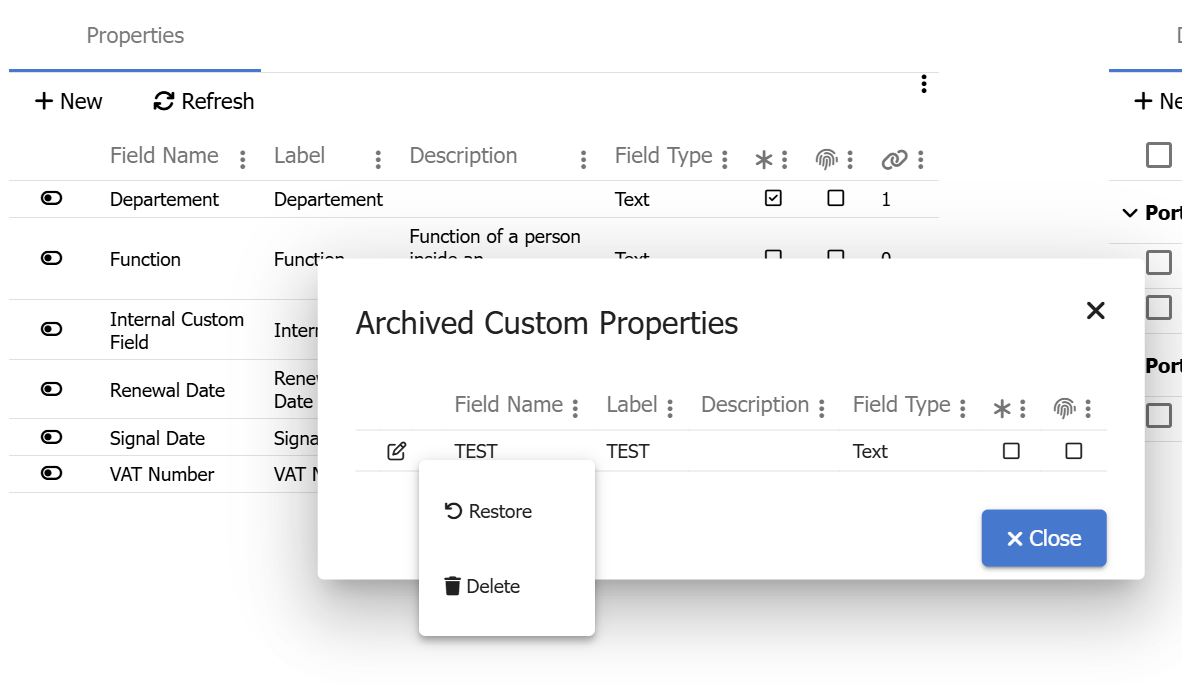
The archive holds all recycled custom properties. Here you have the option to Edit , Restore or Delete it via the dotted row menu (visible on hover).
A restore will move the property to the active overview again along with its archived deployments.
A delete will permanently delete the property and its linked deployments.
Deployment
In the Deployment overview you can see where a custom property is linked and if it is deployed. You have the option to create a new deployment, update or recycle existing ones via the dotted row menu (visible on hover), perform Form Styling, deploy (changes) and manage the archive via the dotted header menu.
Create A Deployment
When creating a new deployment, the following fields are expected:
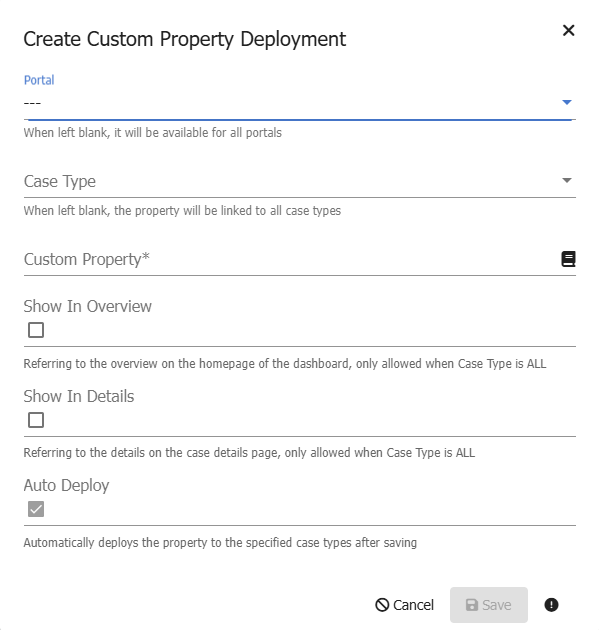
When you do not fill the Portal with a specific value, it will become applicable to all portal types.
During creation you can only select one case type, but multiple properties.
You can also enable the field visibility in the Dashboard Overview or on the Case Details Card.
You have the option to Auto Deploy when saving. This will ensure the field configuration in the Ometa framework on the selected case type. You can also choose to disable it and trigger it manually when you are ready.
During deployment you can follow-up the status by the icons in front of the row. Hovering over it will show you more info.
| Icon | Description |
|---|---|
 | New (not deployed) |
 | Updated (changes not deployed) |
 | In Progress |
 | Ready |
 | Error |
Apply Form Styling
Once deployed it is important to perform Form Styling in the Nexus so that your custom fields become visible. You can open it by clicking the  icon in front of the row.
When the deployment is linked to a specific case type, the Nexus will be opened at the corresponding objects location. If it is a global record you will first need to search and select the needed case type objects.
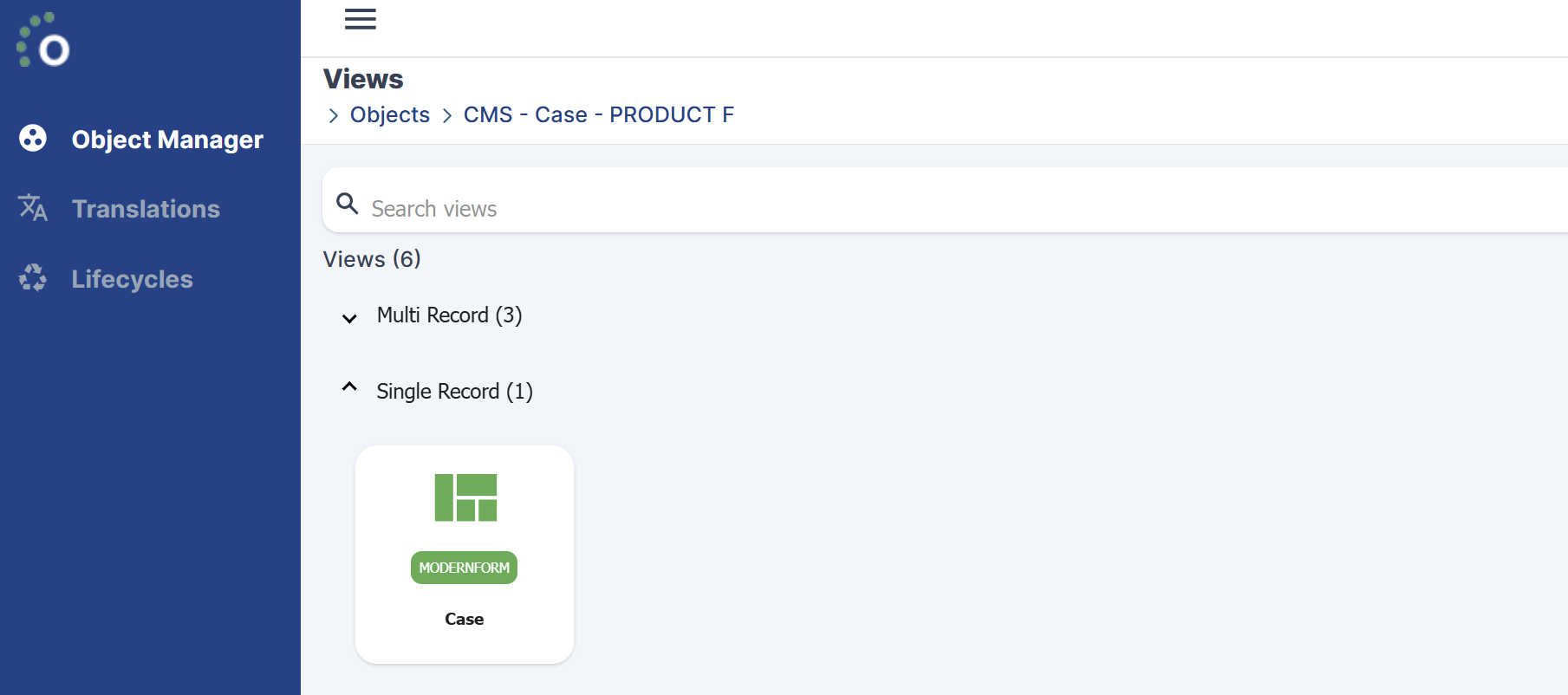
Add your fields on the Update and Single Record forms and save your configuration.
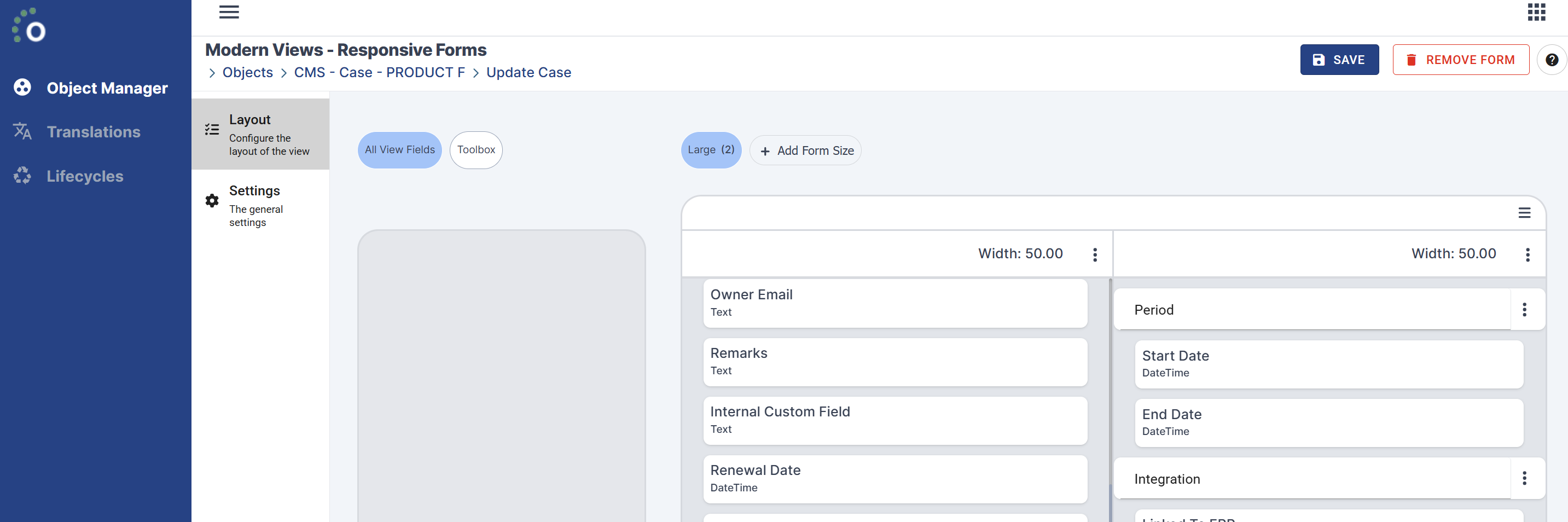
Only Ometa Framework Administrators are allowed to perform this action.
Recycle A Deployment
When you recycle a deployment, the record will be moved to the archive but the field will still exist in the Ometa framework for historical purposes. It will be set Hidden so that it is no longer visible in the portal.
View Log
When an error occurs during the deployment process, you can view more info by clicking View Log in the dotted row menu.
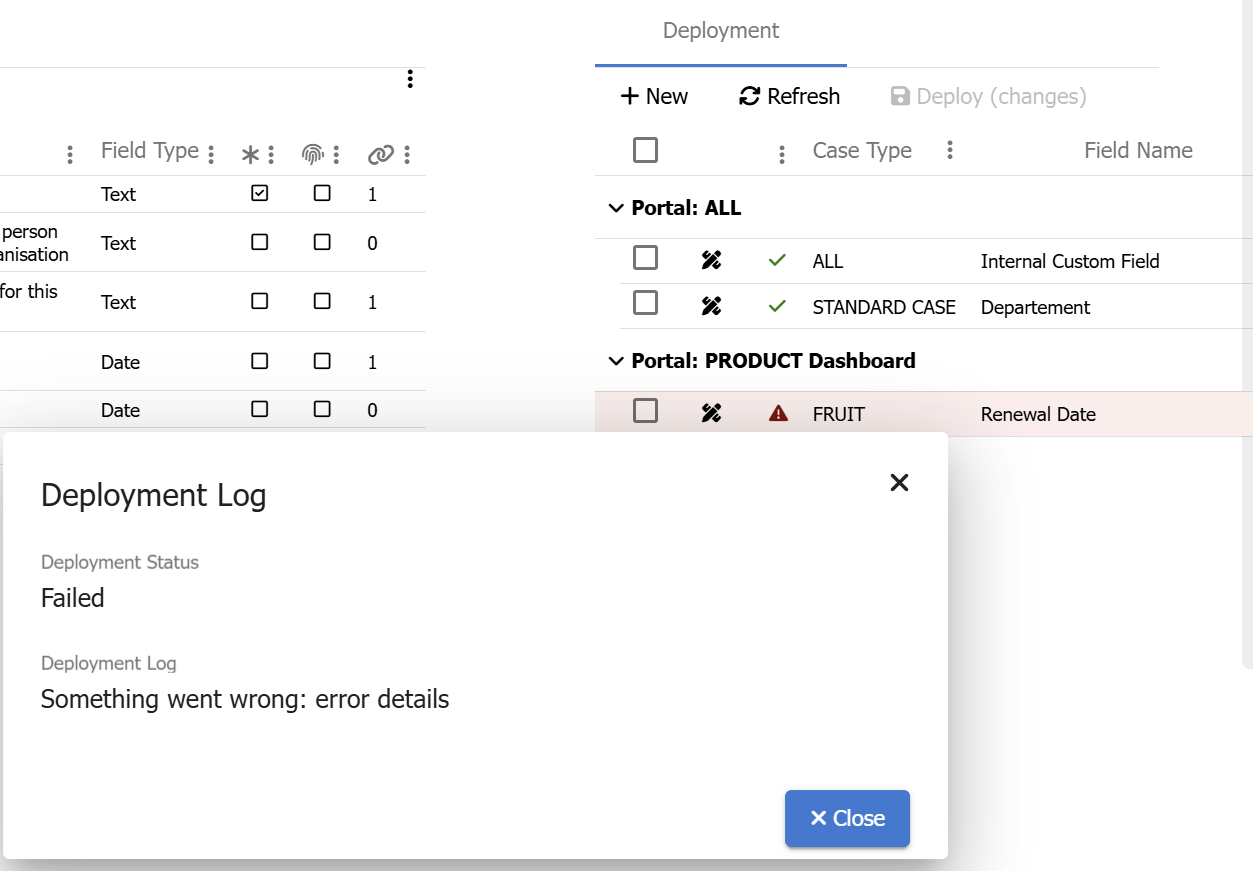
When all was successful the View Log function will not be visible (anymore).
Archive
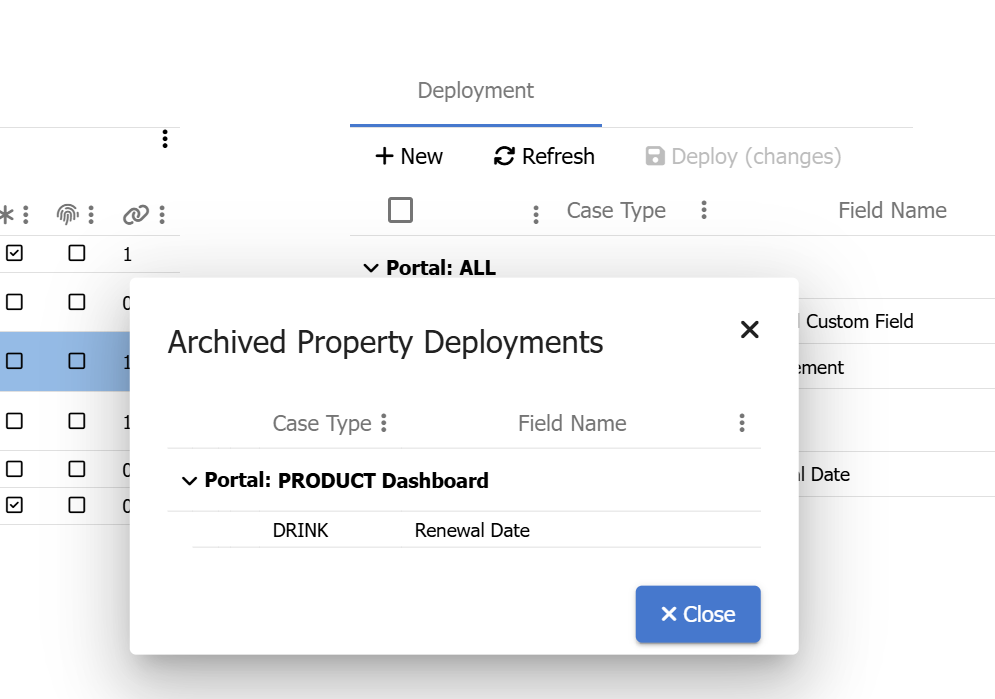
The archive holds all recycled deployments. Here you have the option to Edit , Restore or Delete it via the dotted row menu (visible on hover).
A restore will move the deployment to the active overview again, but a re-deploy is necessary to (re)activate the configuration.
A delete will permanently delete the property from the linked case type configuration in the Ometa framework.