Mailing
When you want to follow-up cases by email, you can configure Mail Alerts in the master data.
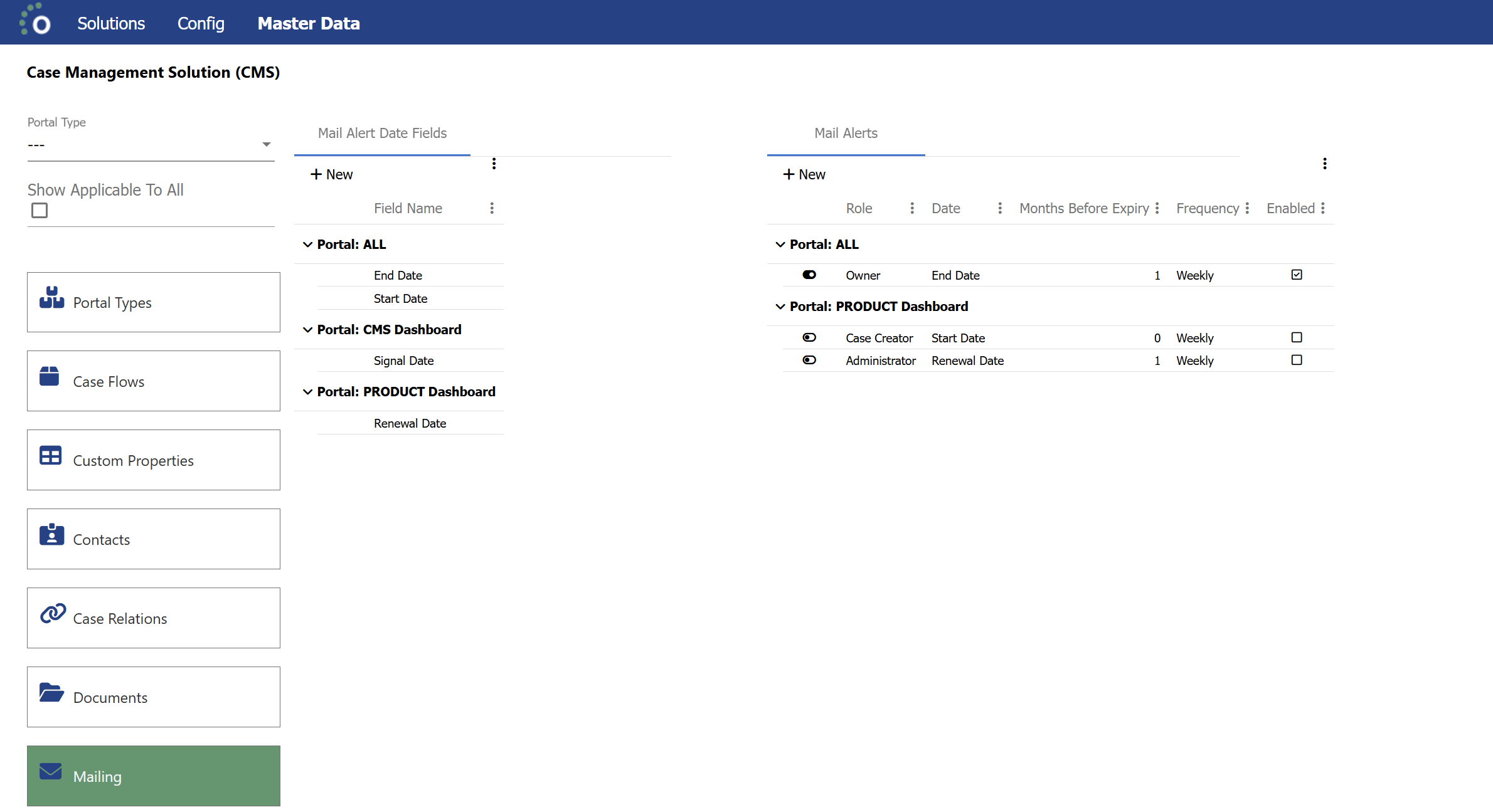
On the left you have an overview of all date fields that can be used in mail alerts. By default Start Date and End Date are available for all portals because these are standard meta data an a case. You have the option to add other date fields from your Custom Properties.
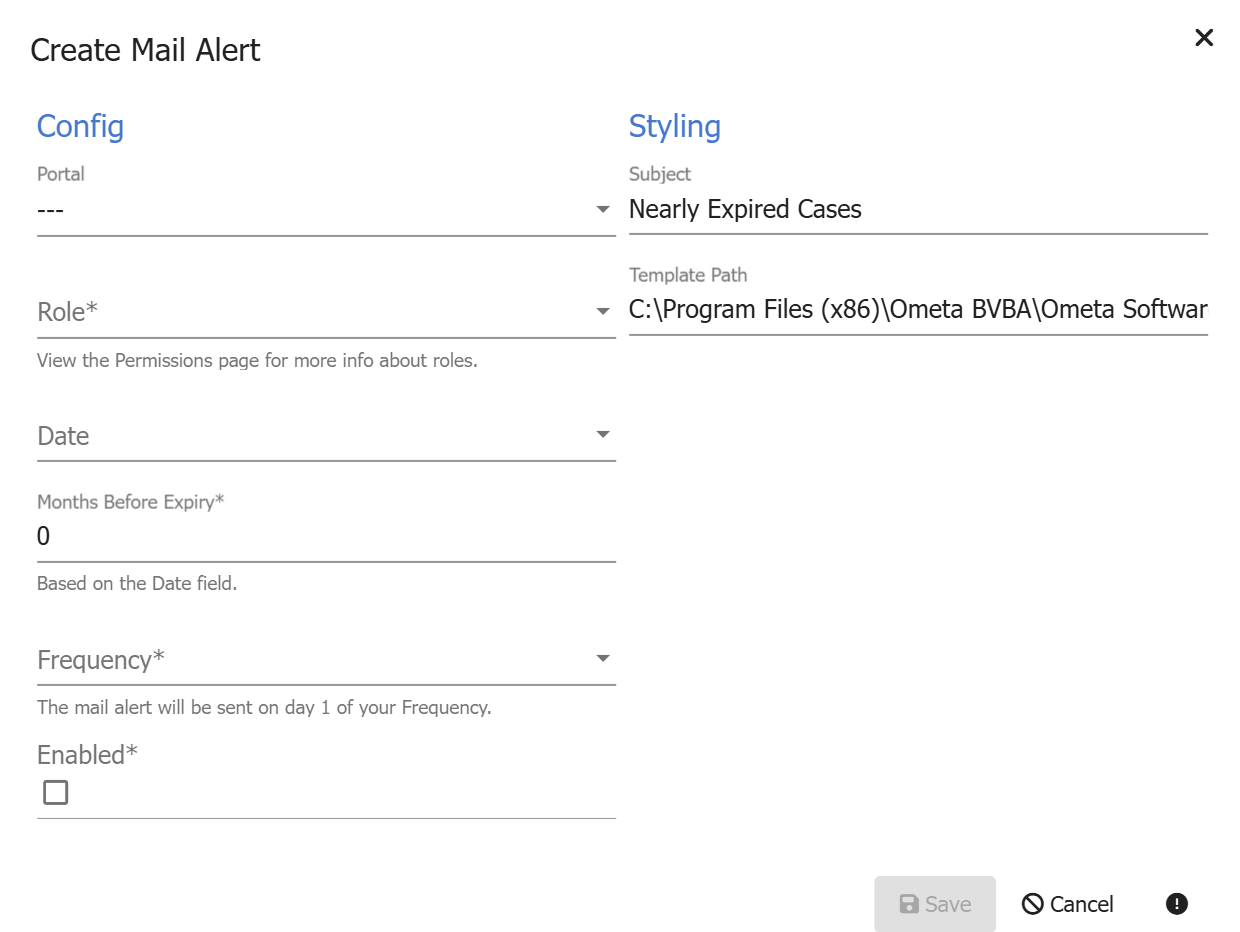
On the right you can see your currently configured mail alerts. A mail alerts is always linked to a certain role and date field. It is send out x-months before reaching the configured date field on a weekly or monthly base on the 1ste day of the frequency. You can enable or disable it by using the slider in front of the row. You also have the option to set a Subject and Template Path when you create or update a mail alert.
When you do not select a specific Portal all (nearly) expired cases for all portals will be gathered in one email.
If you do select a specific Portal, these cases will be grouped in a seperate email and also contain the custom metadata that was selected to be shown in the dashboard overview.
Both overviews show active records where you have the option to create new records, update or recycle existing ones via the dotted row menu (visible on hover) and manage the archive via the dotted header menu.
The archive hold all recycled records where you have the option to Edit , Restore or Delete via the dotted row menu (visible on hover). You can also Clean the entire archive.
When the Portal is not filled the record is marked as Global and can be used in any portal.
You can filter the page by setting a Portal Type in the filter (top left). You can also enable Show Applicable To All which will show you configuration that is applicable to all portal types apart from your filtered Portal Type.