Portal Types
When you navigate to the Solution Management Dashboard and go to CMS you will land on the first configuration page of the Case Management solution.
Step one is creating and deploying Portal Types.
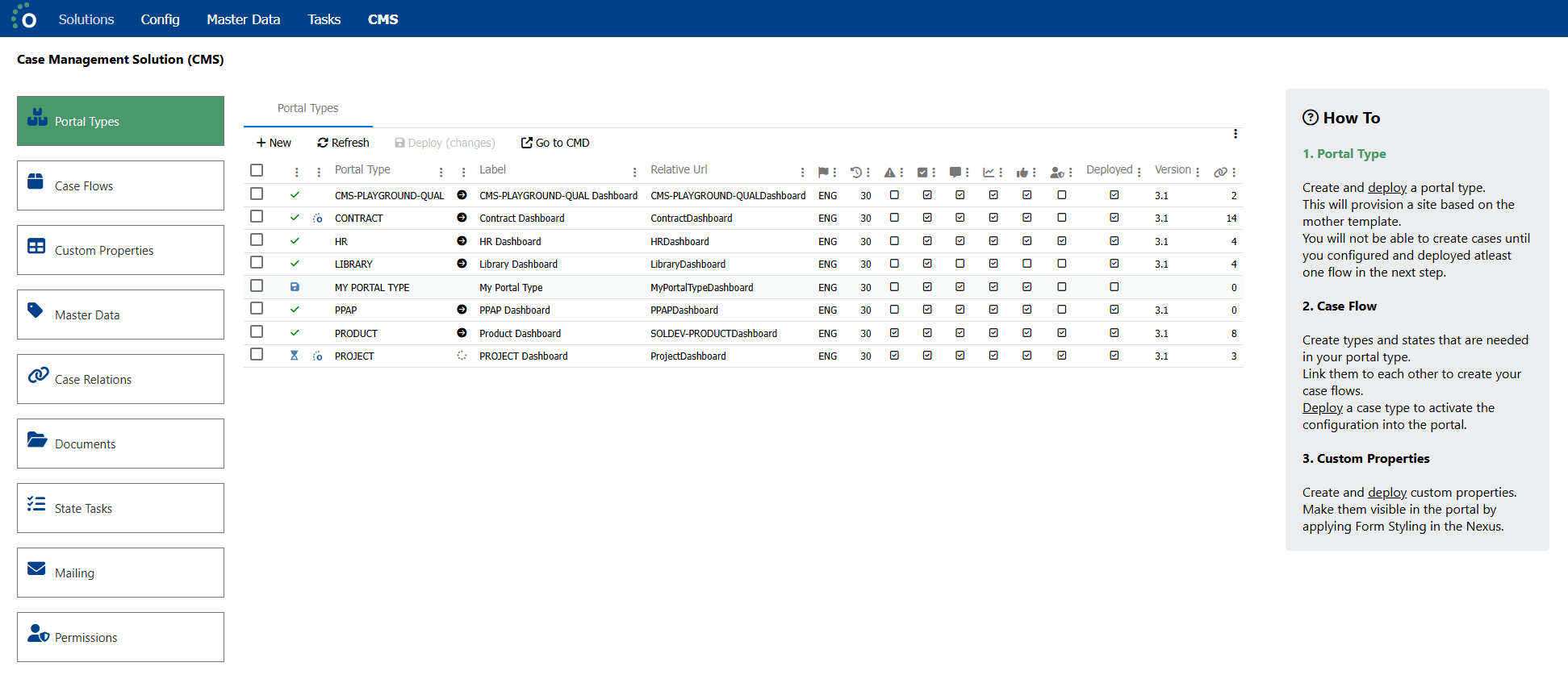
An overview is given of all active portal types, their enabled modules, against which version of the base template they are deployed and how many active cases are linked.
You have the option to create a new portal type, update, recycle or export an existing portal type via the dotted row menu (visible on hover), deploy a template, manage the archive or import a Portal Type via the dotted header menu and go to the Case Management Dashboard (CMD) to manage the linked Ometa cases.
Create a new Portal Type
When creating a new portal a few properties need to be filled.
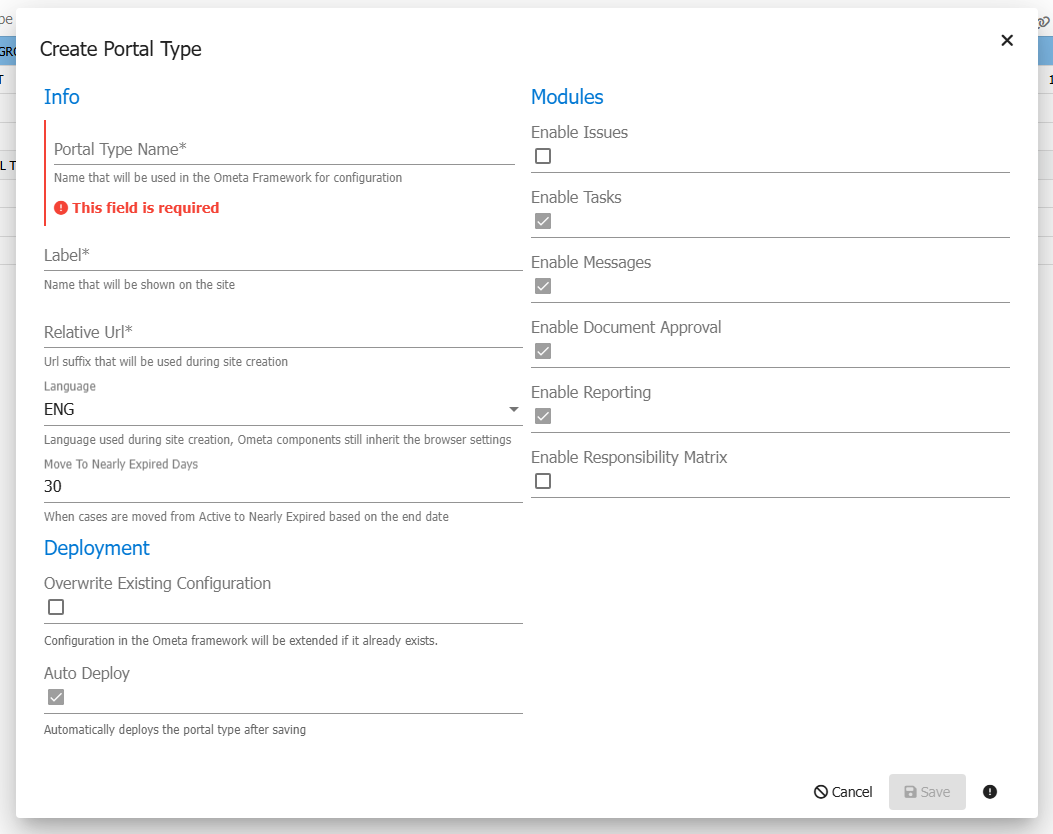
You have the option to Auto Deploy when saving. This will ensure the base configuration in the Ometa framework, provision the new portal and also deploy already available global Case Flows and Custom Properties if there are any. You can also choose to disable it and trigger it manually when you are ready.
During deployment you can follow-up the status by the icons in front of the row. Hovering over it will show you more info.
| Icon | Description |
|---|---|
 | New (not deployed) |
 | Updated (changes not deployed) |
 | In Progress |
 | Ready |
 | Error |
Once deployed the navigation icon  will become available. The
 indicates the site is being updated by the Ometa framework. You will need to manually refresh to follow it's progress also by hovering over it.
Update a Portal Type
You can update a portal type any time by clicking Edit using the dotted row menu, but once deployed it will not be possible to change the Portal Type Name , Relative Url and Language because this info is already used in the Ometa framework configuration.
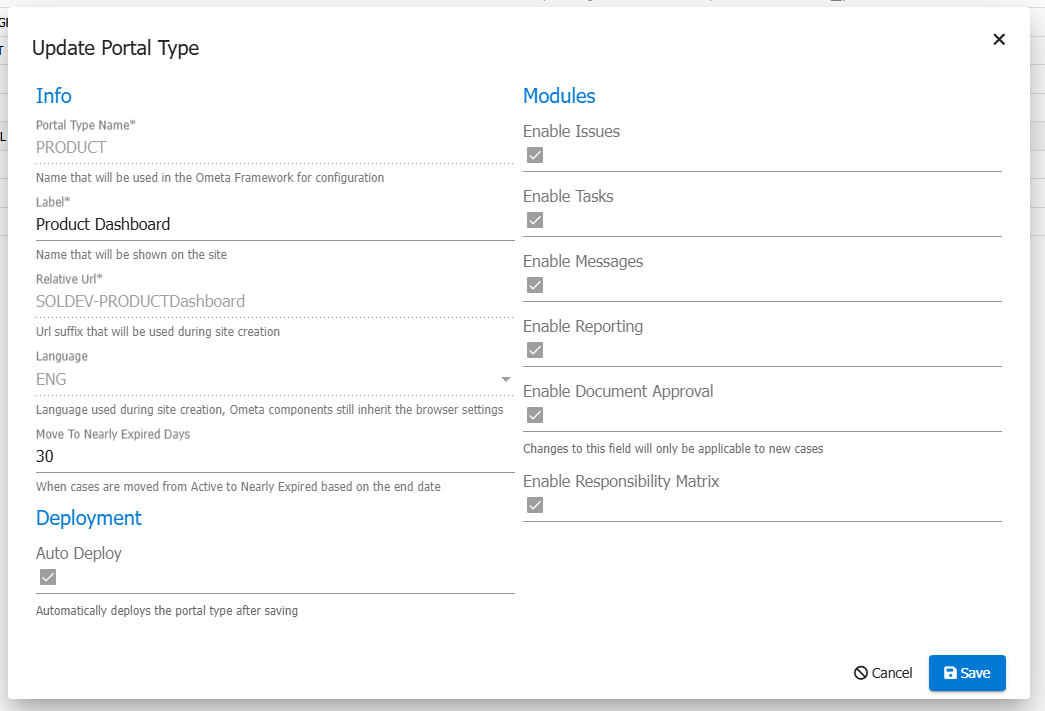
Every update will need to be re-deployed again which can be done by Auto Deploy or Deploy (changes) manually.
Recycle a Portal Type
When you recycle a portal type it will be moved to the Archive. The portal will still exist for historical purposes, but the creation of new cases will be disabled. You can trigger a Recycle by using the dotted row menu.
View Log
When an error occurs during the deployment process, you can view more info by clicking View Log in the dotted row menu.
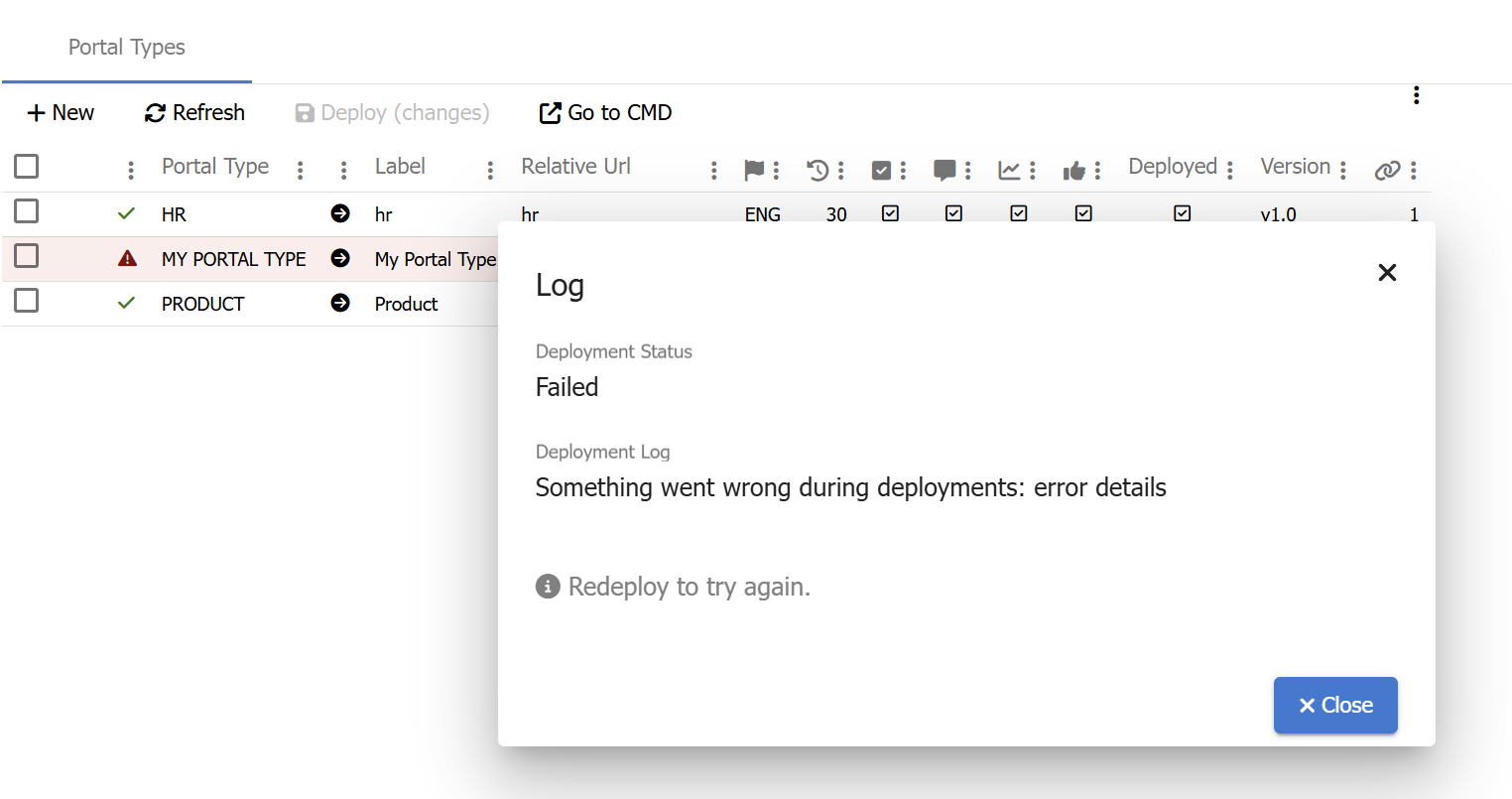
When all was successful the View Log function will not be visible (anymore).
Archive
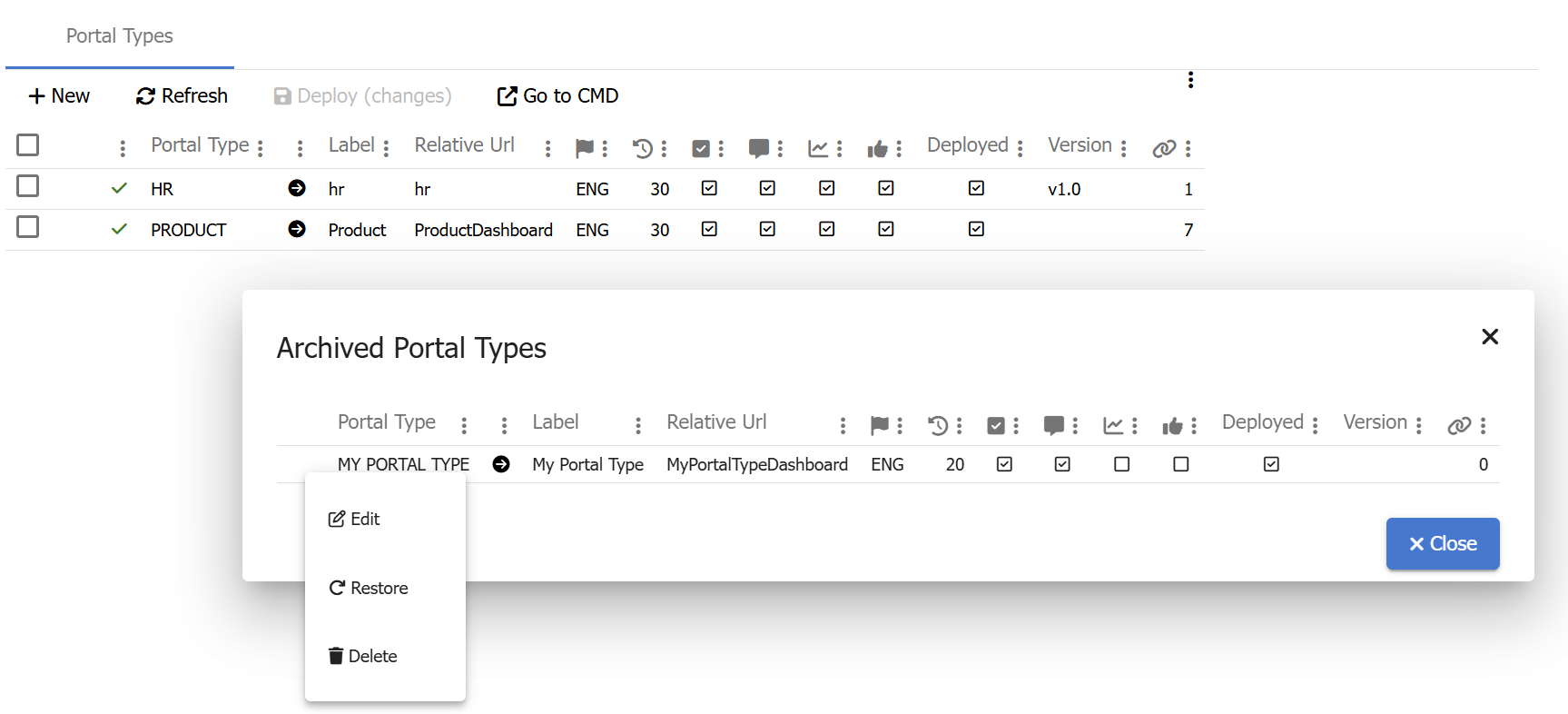
The archive holds all recycled portal types. Here you have the option to Edit , Restore or Delete it via the dotted row menu (visible on hover).
A restore will move the portal type to the active overview again and re-enable the case creation functionality on the portal.
A delete will permanently delete the portal type and all it's specifically linked meta data, cases and framework configuration.
Deploy a Template
All templates released by Ometa which were imported in the Solution Initialization will be shown in the Portal Type overview with the Ometa icon in front of the row.
If you deploy it, the portal will be provisioned with its standard template flow and all of its linked meta data (like states, custom properties, etc). Make sure to check if the default configuration fits your needs.
It is allowed to make small configuration changes like labels, descriptions or field visibility to the default configuration to suit your needs. However changes to the flow will always be overwritten by an upgrade. In this case it is advisable to create your own flows starting from the default flow and make your customizations there.
When the default flow is not needed, you can disable it so it will not be visible in the portal.
Once a template is imported and deployed, you will not be allowed to delete it or any of its default linked configuration.
Export / Import a Portal Type
You can copy the entire configuration of a Portal Type between environments by exporting the configuration on one environment and importing it on the other environment.
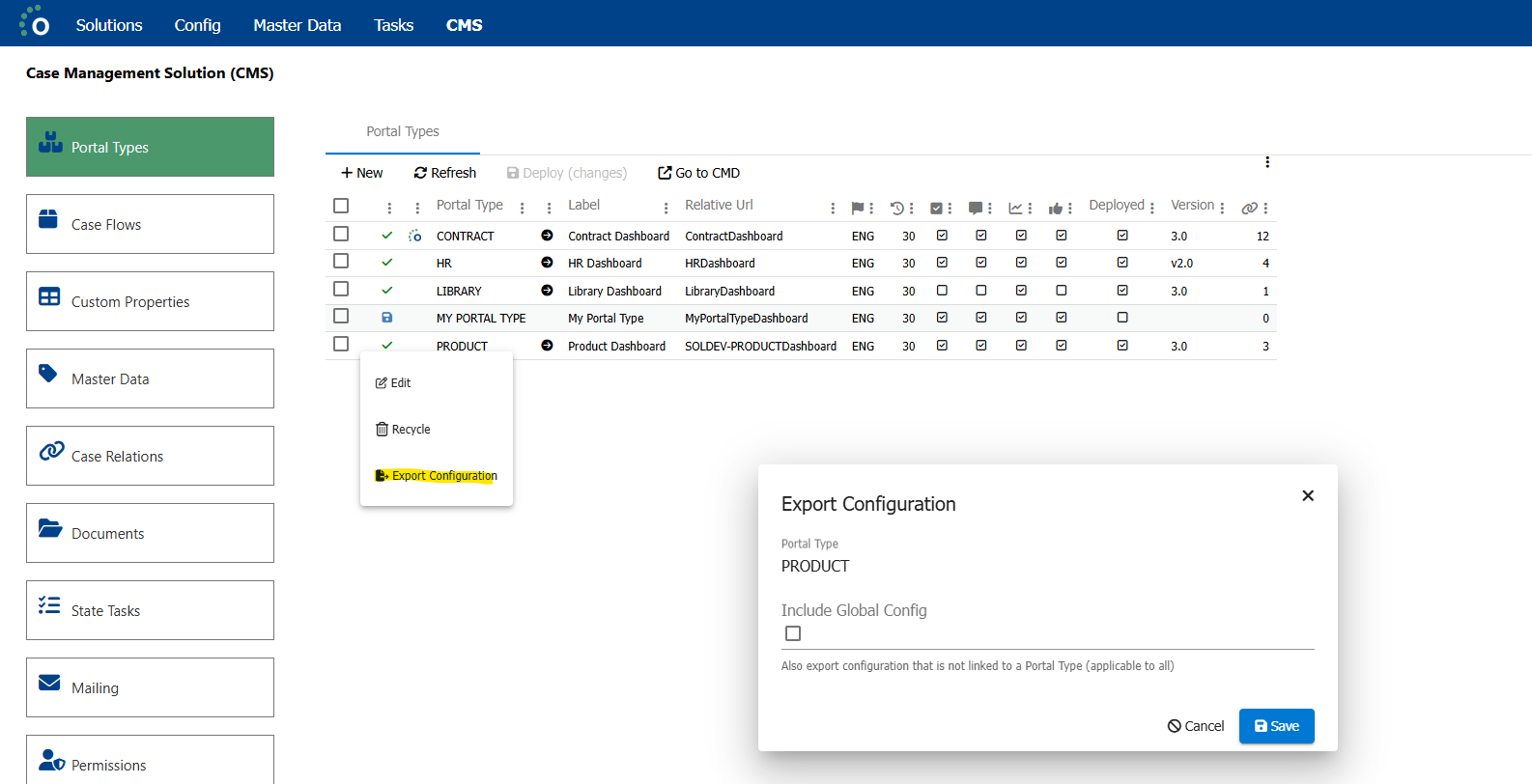
When exporting you will be asked if you want to include global configuration or not. This means underlying configuration like Case Types, Custom Properties etc that are marked as Global (no portal type linked to it) will be exported as well.
When saving a script will be generated for the following tables:
- Portal Type
- Case Flows (Types, States and Flow)
- Relation Types
- Custom Properties (and linked deployments)
- Mail Alert Date Fields
- Mail Alerts
- Document Types
- Libraries (and linked deployments)
- Colors
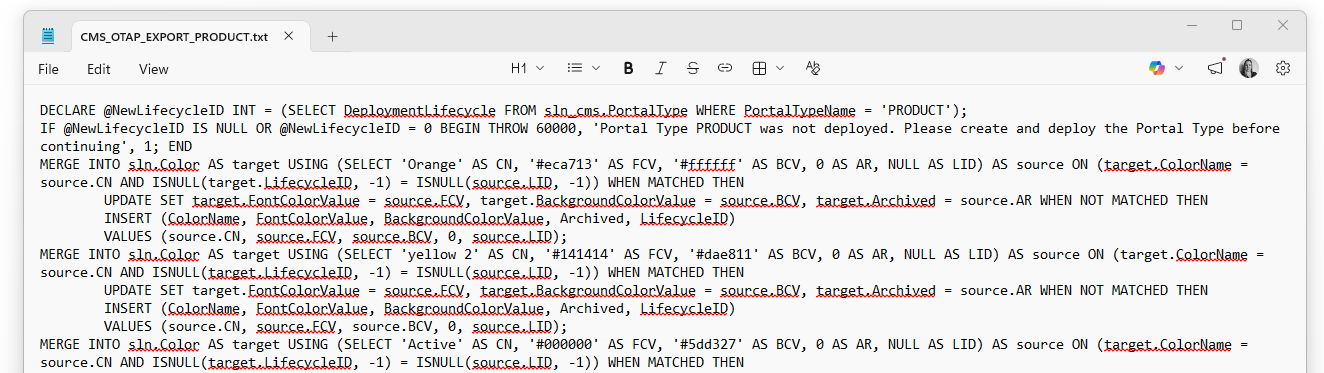
You can then proceed to import the generated script on another environment after you create and deploy a Portal Type on your new environment that matches the same configuration as your origin environment.
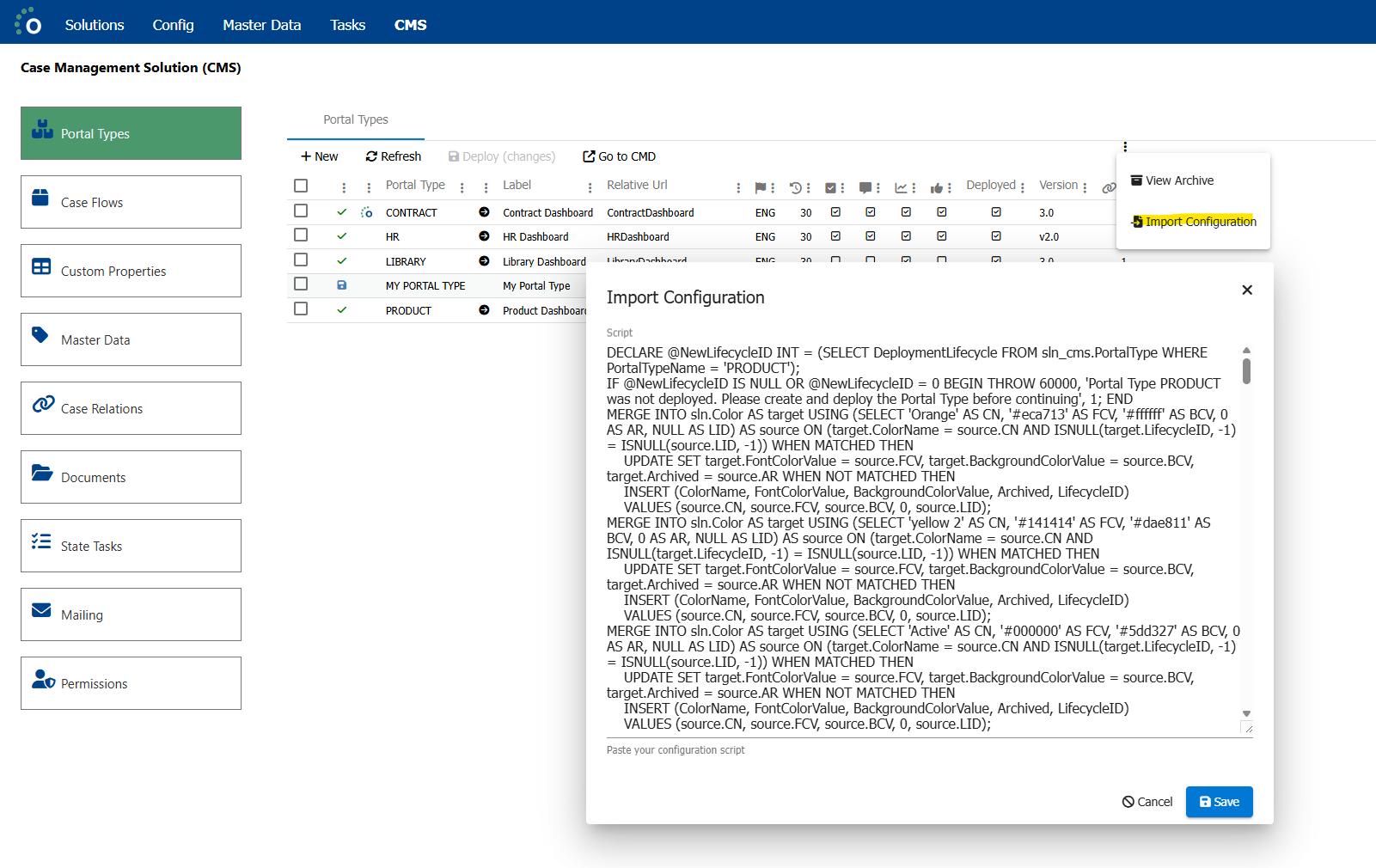
The import will perform a merge action and leave alone deployment information on the new environment. If the configuration already exists in the new environment but was archived, it will be restored again.
The import and export actions are only available to Ometa Framework Administrators (for security reasons).
If your configuration uses the base template functionality only, no further actions are needed. However, if you implemented customisations it is necessary to perform an Export and Import of the framework configuration as well (!)
Permissions are to be configured on each environment seperately.
Master data needs to be added either manually or through a sync on each environment.